Analyze installation on a running ConnectPlaza® Agent
|
As of version 5.3.0 there is a new ANALYZE version available. For now both versions are available, but in a next update the current (old) analyze will be removed. |
|
This product is sold as a separate license. This is a named user license. |
1. Software
| Software | Version | ||
|---|---|---|---|
ConnectPlaza® Agent |
5.3.0 or higher (PREINSTALLED!!) |
||
A database (SQL or MONGO) |
|
||
ConnectPlaza® Analyze Adapter |
5.3.0 or higher |
1.1. Get your database driver
Another thing you need to have before installation is the specific JDBC driver for your database. For instance if you use MS SQL, you need a MS SQL driver, if you use Oracle DB or a Progress DB you need the JDBC driver for that type of database.
Before you can use the database, you must add your driver file, a .jar file, into the following directory: <ConnectPlaza Agent install directory>/endorsed. You have to restart your ConnectPlaza® Agent before this change will be active.
Check also your database specific connection string. You will need this in the Connectplaza® Agent settings to connect to your database together with a login and password. If you do not have these, contact your local system administrator.
2. Database installation
Before you start working with analyze, you have to create a 'VOID' database. A 'VOID' database is a database that exists just with a name, but not with any tables inside the database. This database can be a MongoDB or a SQL database. You can name the database anything you like, as long it is compliant with your database vendor.
When you download your ConnectPlaza® Agent you can choose a database in the selection box:
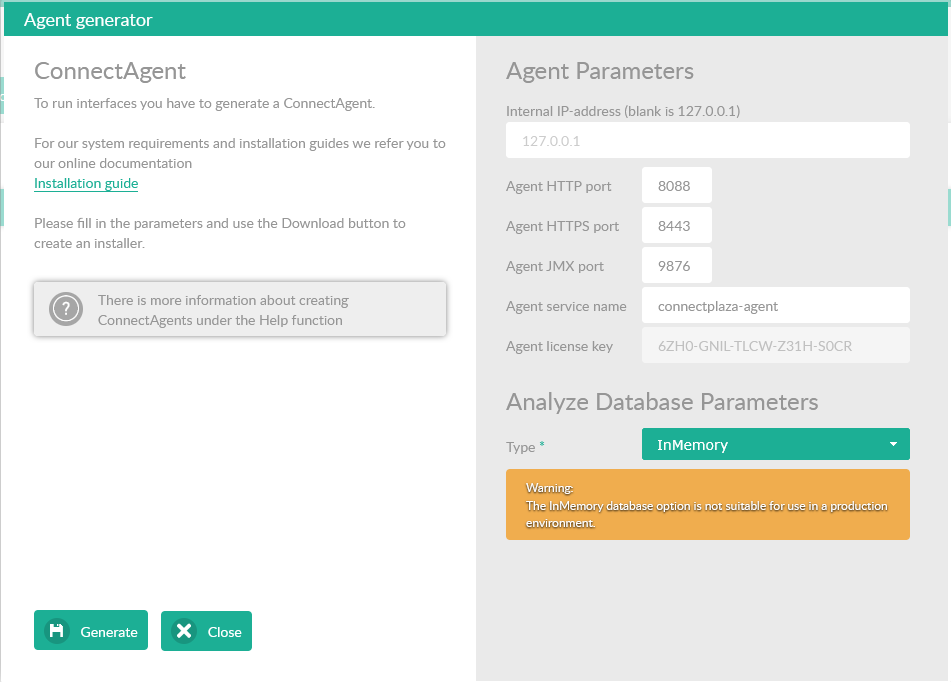
These are not the only databases Analyze can work with. Analyze uses Hibernate to connect to the database, so if there is a Hibernate Dialect for your database available, Analyze probably will work with it. The selection box gives you the most used databases.
If your database is not there, just select InMemory . You can add your configuration later via the Agent Configuration tab.
|
NEVER use an InMemory database in your production environment! |
3. Adding/modifying your Analyze configuration
Open for your ConnectPlaza® Agent the Agent Configuration tab. Select Analyze in the drop down at the right for the properties. Here you can add the settings to the Analyze configuration file.

If you have trouble setting the correct values you can always use Google for the following values:
-
Database Dialect - This is a default Hibernate 5 setting for your database type. In above example it is the MariaDB database Dialect. Every vendor has its own way of talking SQL. Setting the Hibernate Dialect takes care of the translation to the correct SQL variant.
-
Database URL - The connection string to your database. How this must be configured, ask your administrator
-
Database Password / Username - This is a tricky one. Normally this is the user and password to login to your system. If you are using MSSQL and Active Directory, this can be the user and password used to run the ConnectPlaza® Agent. Check with your administrator what to use in your environment.
-
Driver Classname - You can find your Driver Classname for your database via Google. In the example above you see the Driver class for MariaDB 10.
4. Updating the ConnectPlaza® Agent
Update your ConnectPlaza® Agent with the ConnectPlaza® Analyze Adapter. This interface will support MongoDB as well as MySQL as of version 3.4.0.
Install the following interface into your ConnectPlaza® Agent: ConnectPlaza® Analyze Adapter
-
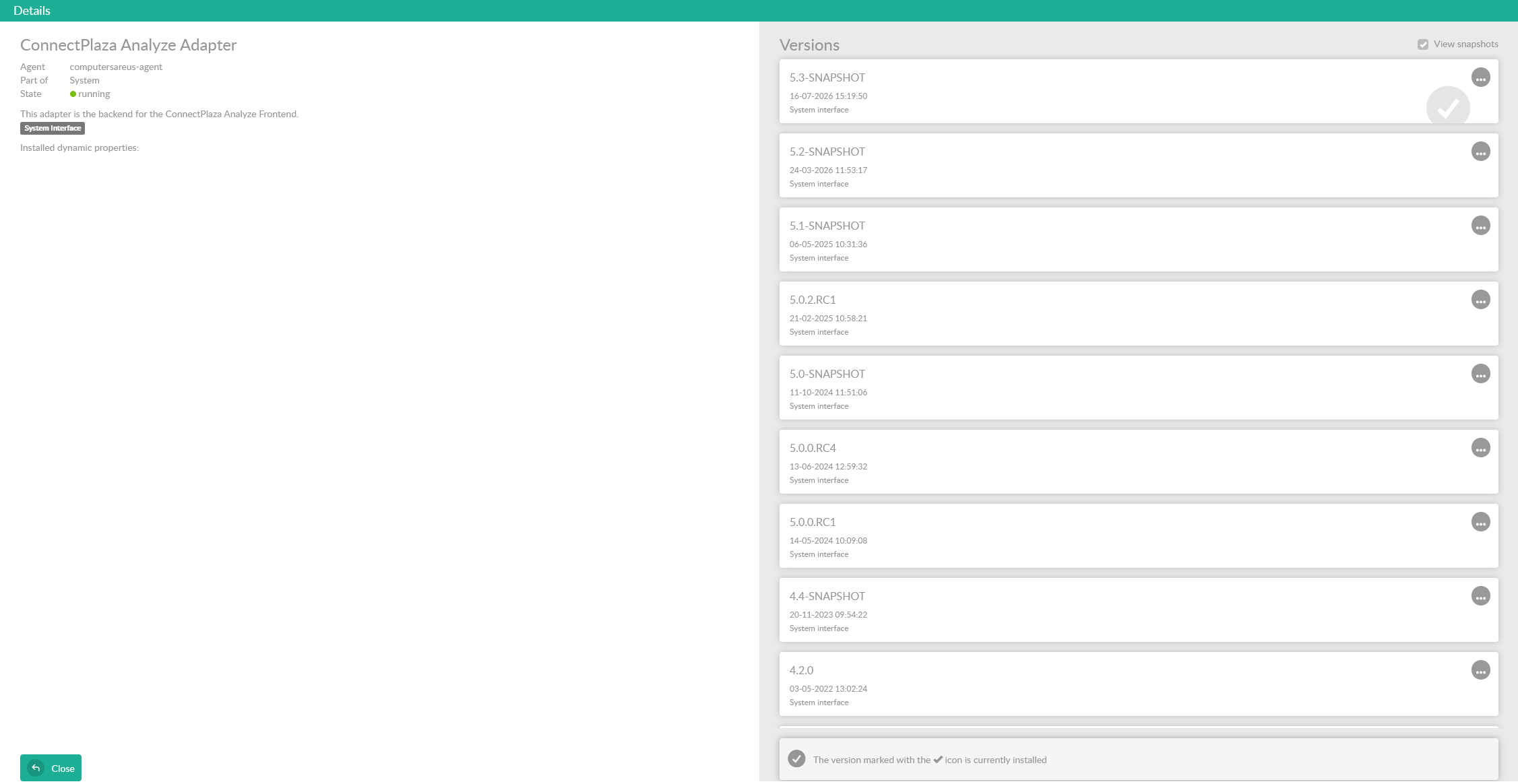
Install this interface using your Deploy environment. Open the System interfaces, you will see the next screen:

-
Double click on the interface of your choice and and the Details screen will open.
-
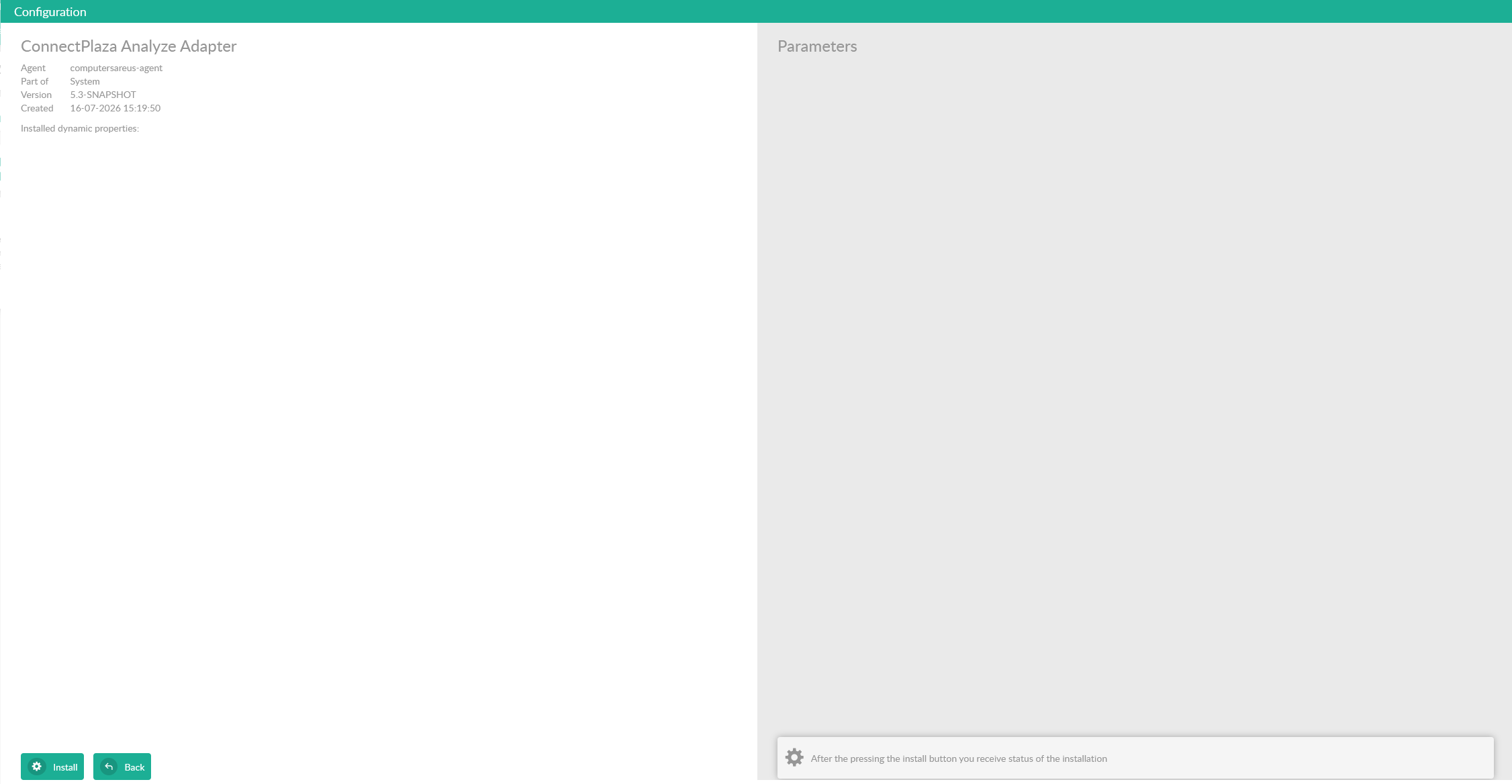
Double click on the latest version of the system interface, this in most cases the same version as your ConnectPlaza® Agent.
-
Normally we accept the default settings. So press the Install button and install the interface. The interface will be started automatically.
4.1. Configuration settings
On the local machine we have to configure some properties for Analyze. To do this follow the next instructions.
Open the Agent Configuration tab and select Analyze.

Check the configuration for:



4.2. Cleaning up your database
Remember that Analyze can create a lot of entries in your database. Databases can grow very fast. To counter that issue you can run the automatic cleanup procedures. To do this check the following parameters:
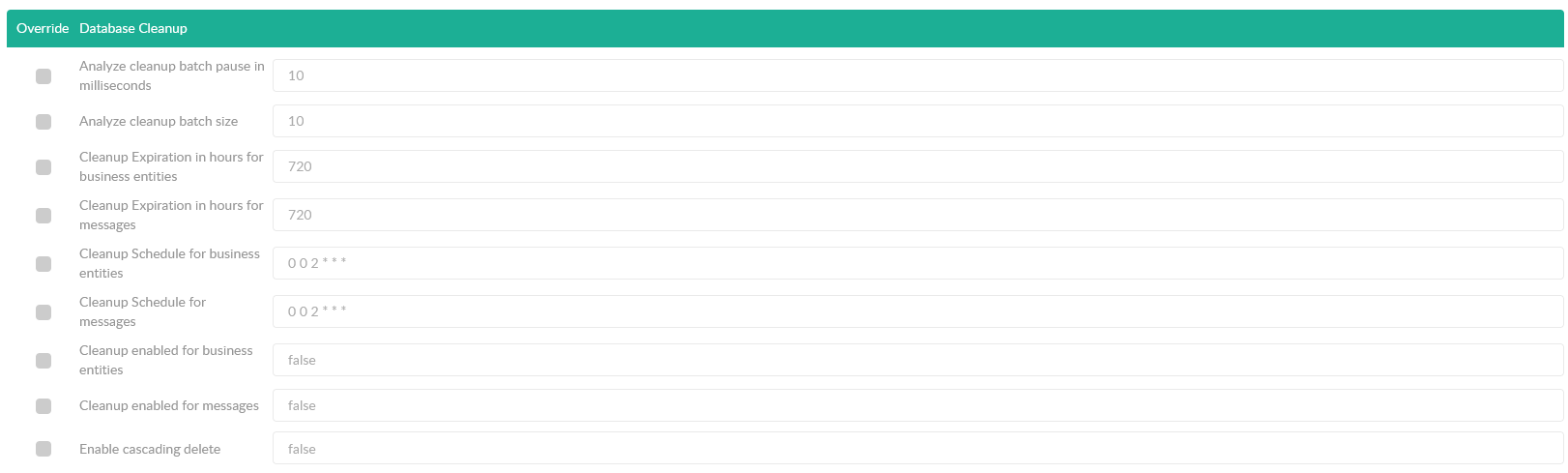
The cleanup process consists of two procudures to cleanup the Analayze messages and the Business entities.
The expiration time is set in hours, per default 30 days.
The second parameter is to setup the Quartz Cron. There are 6 entries:
-
Seconds
-
Minutes
-
Hours
-
Day
-
Month
-
Year
The last option you have to set is to enable or disable the cleanup procedure for the Business entities and/or Analyze messages.
5. First look at Analyze
Login in your ConnectPlaza® Dashboard. If you have sufficient rights to use analyze, the analyze tab will appear on your screen after you logged in into the dashboard.
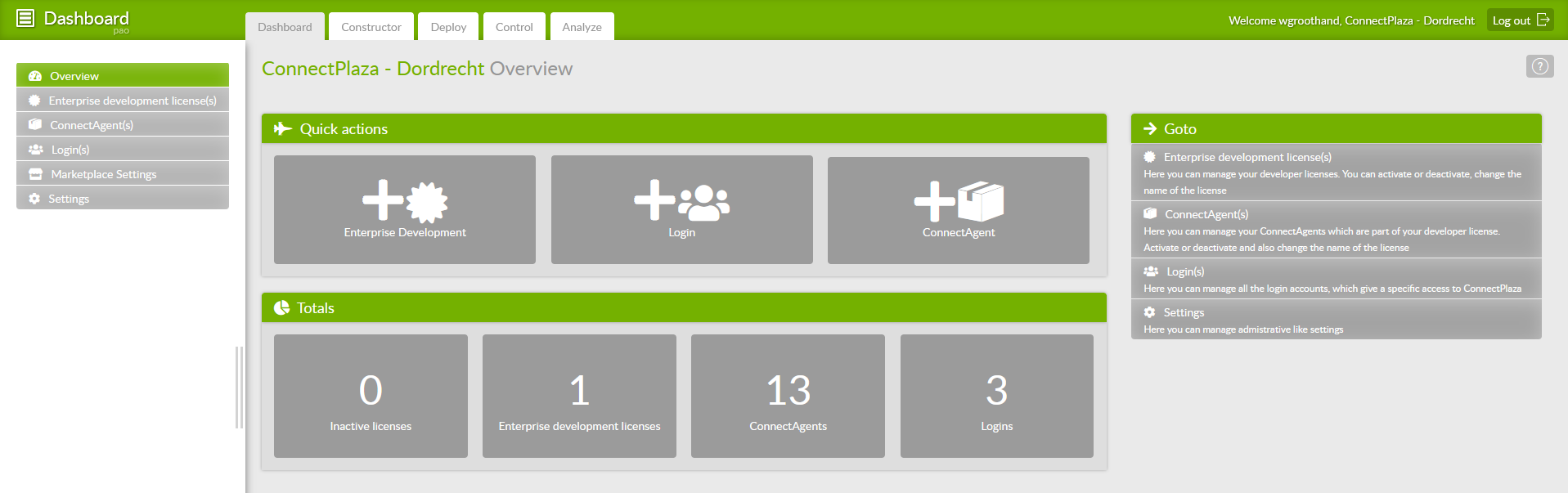
Select the analyze tab and you can use the cloud version of Analyze. If you do not have an ConnectAgent Selected, you can select one in the drop down box.
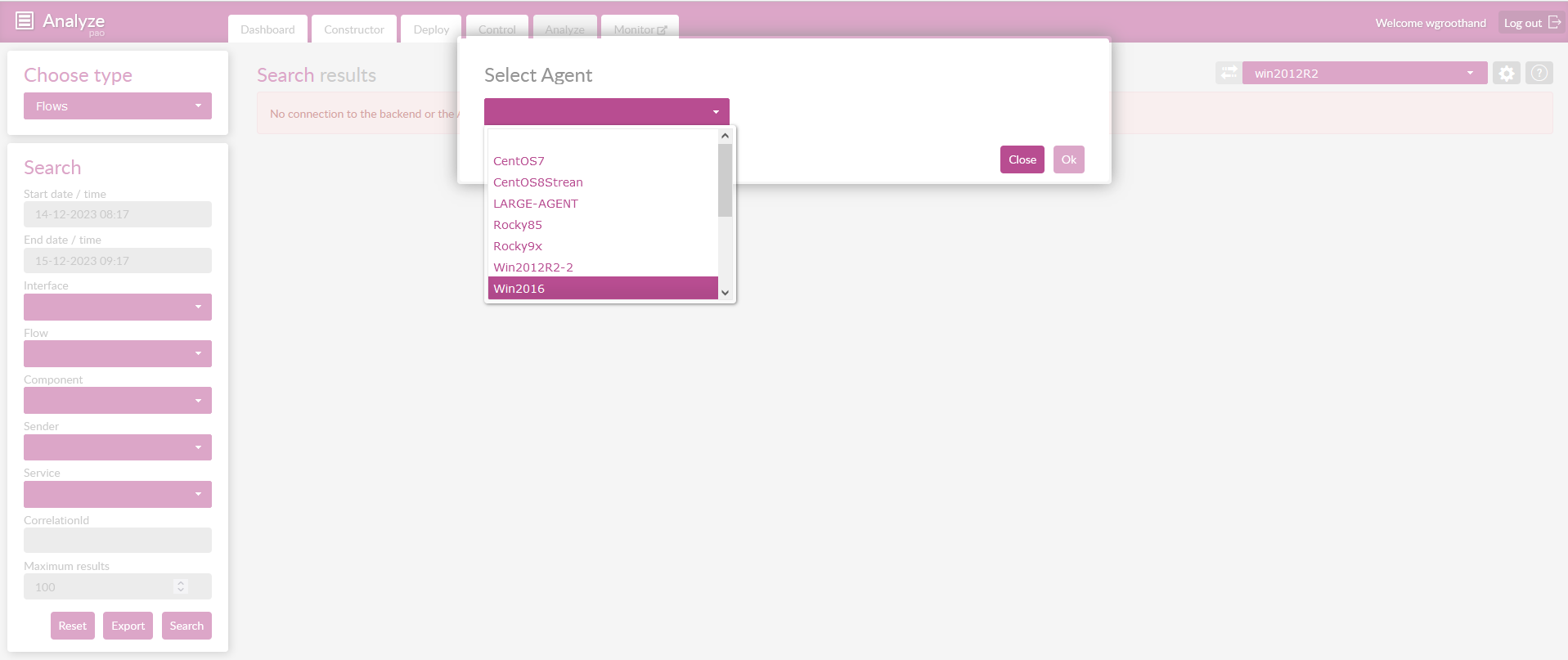
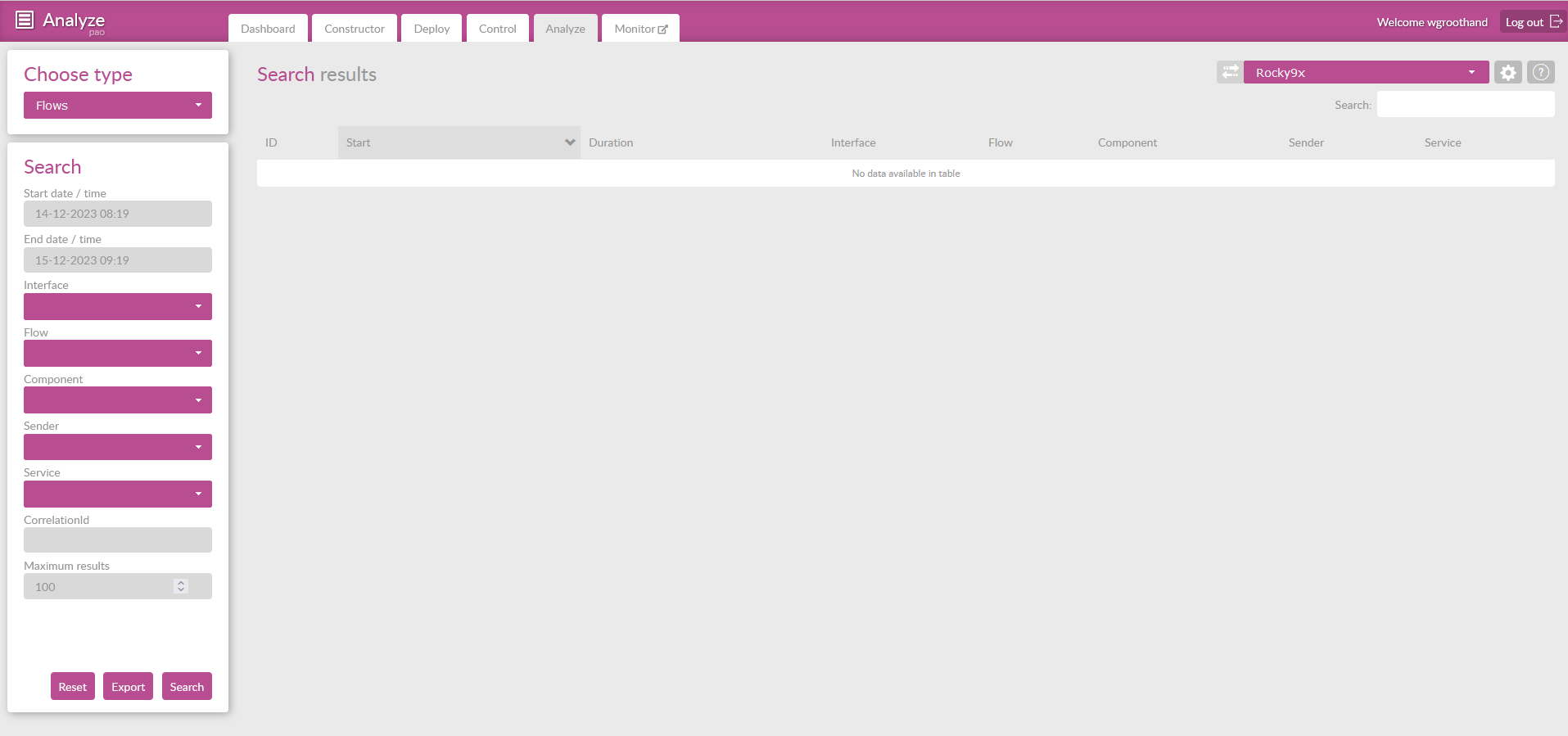
After selection of your ConnectPlaza Agent, you will be presented with the next screen.
6. Uninstalling Analyze
To uninstall Analyze perform the next actions.
-
Uninstall the following interfaces via Deploy:
-
ConnectPlaza® Analyze Adapter
-
-
Remove the connection settings with the Agent Configuration section in Deploy.
Keep in mind that Analyze is part of your license agreement. Uninstalling does not end the agreement.