Control user guide
1. What is ConnectPlaza® Control
With ConnectPlaza® Control you have real-time technical monitoring capabilities for your complete ConnectPlaza® run-time environment. Pro-active support is possible by checking metrics and notifications of the Agent. You can set thresholds on queue sizes, number of messages per component, etc. When installed a default configuration based on your environment is created. You can modify these settings, by changing Alerting, Message Notification, Error Handling, Events, Latency, etc. in the ConnectPlaza® Control environment on your ConnectPlaza® platform.
To use ConnectPlaza® Control a separate license per login is necessary.
2. First look at ConnectPlaza® Control
When you logged into your ConnectPlaza® environment and you have a valid ConnectPlaza® Control license, you will get an extra tab on your dashboard to access ConnectPlaza® Control. If you select this tab, you will get the following screen:
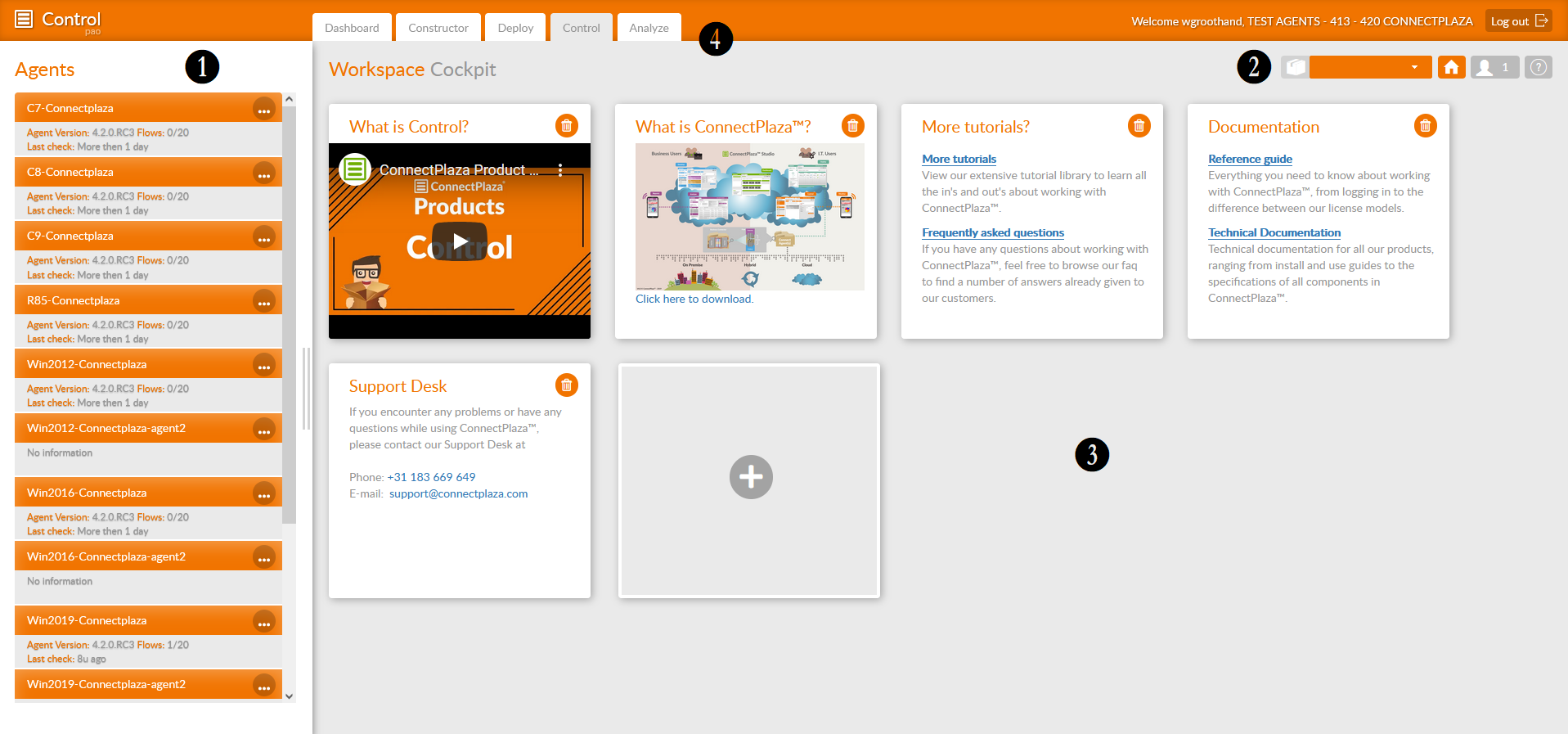
This screen is divided in different sections.
| Section | Description |
|---|---|
1 |
Selection of the agents available |
2 |
This is the default button bar, which you can find in almost all of our applications.
You can select an agent, go to the home page, select all logged in users, add the tooltips and ask for some help. |
3 |
In this section of the screen you see the application widgets. You can add more using the
widget. You can only select prefabricated widgets. Use the |
4 |
Tab area. Here you can select your application. |


3. Connection to your ConnectPlaza® Agent
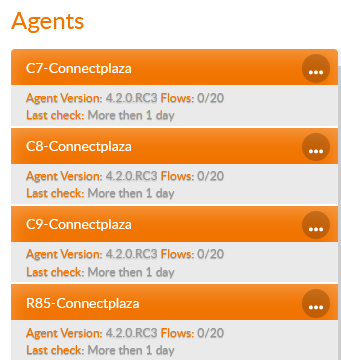
Select your ConnectPlaza® Agent by using the left list on your screen
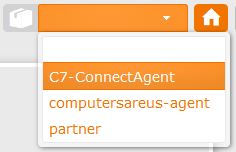
Or select the ConnectPlaza® Agent with the ConnectPlaza® Agent Drop Down list at to top right of the screen:
4. Agent details
After selecting the ConnectPlaza® Agent you get an overview of the options you can select for your selected ConnectPlaza® Agent in your menu-options:
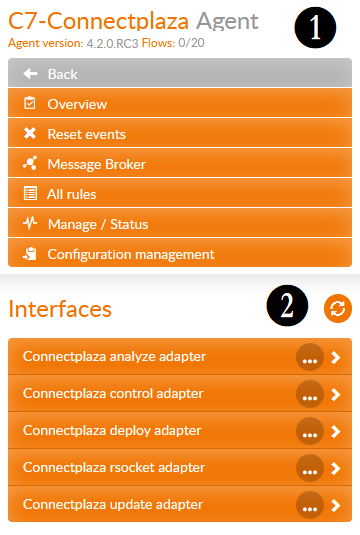
This menu overview is divided into 3 different sections:
| Section | Description |
|---|---|
1 |
ConnectPlaza® Agent actions. These actions are focused on the ConnectPlaza® Agent itself |
2 |
Interface options. These options are focused on the separate interfaces running on the agent. |
4.1. Overview
Using the overview for the ConnectPlaza® Agent will give you a detailed explanation of the metrics, events, operations and other settings of the ConnectPlaza® Agent and all of its Interfaces. The whole implementation running in your ConnectPlaza® Agent will be shown in this overview.
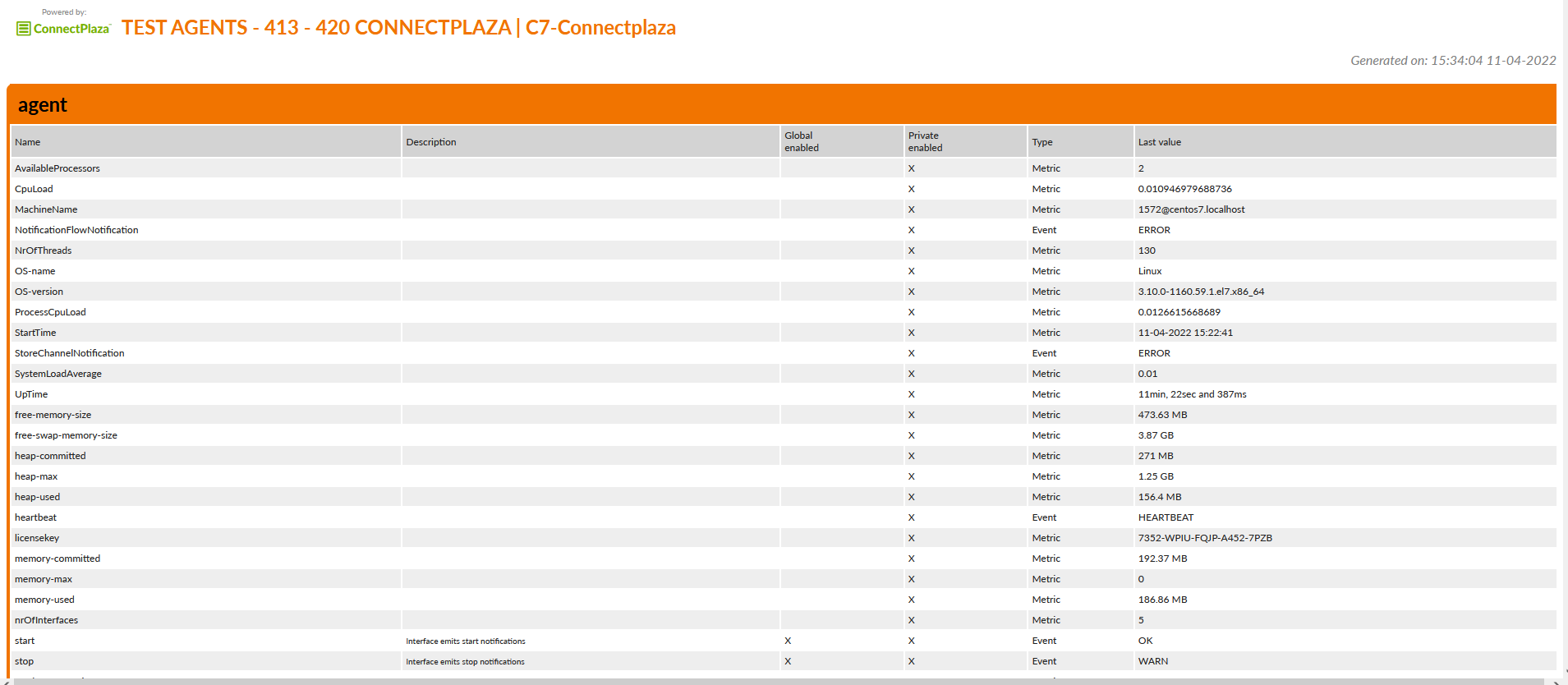
Here the overview of the Agent Metrics and Settings. You can also see Consumer information in this list, like this:
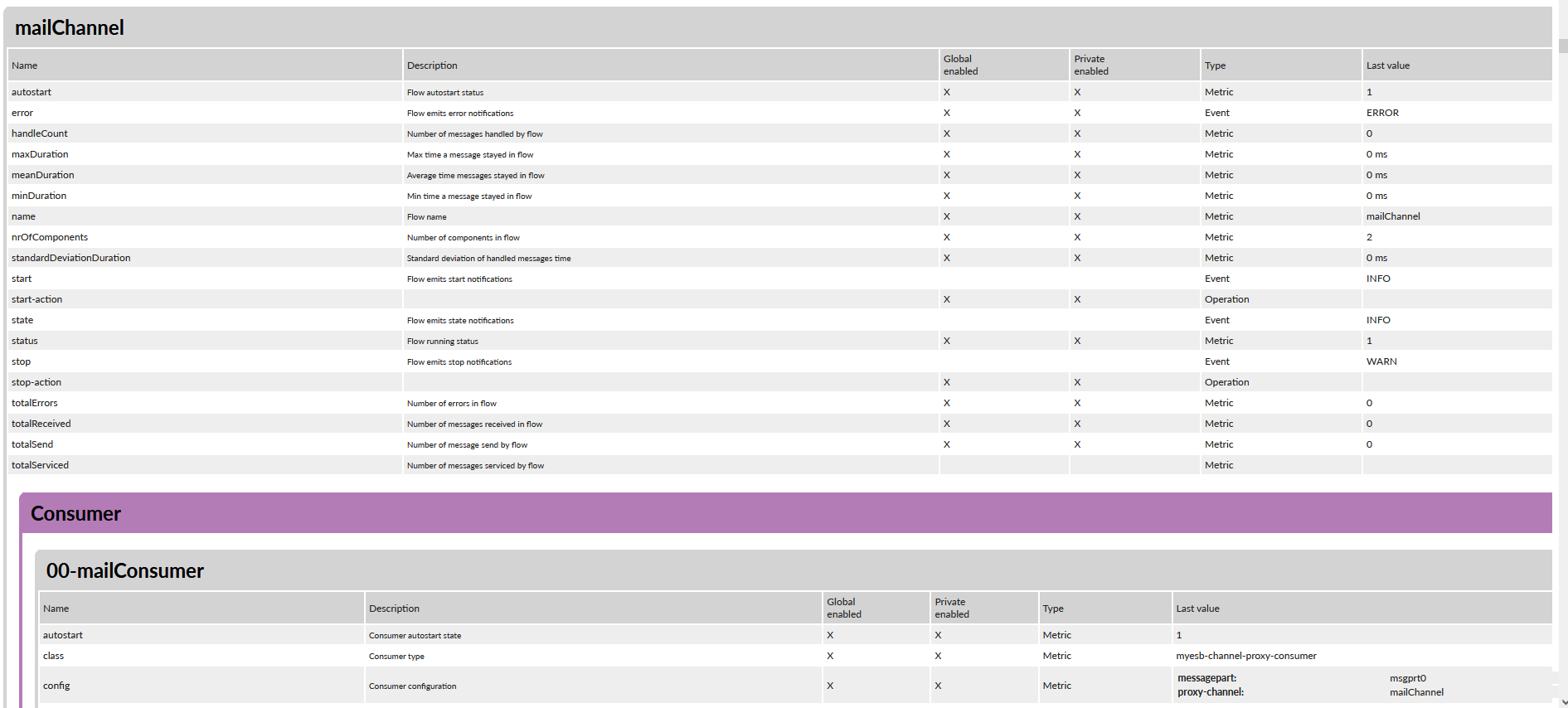
The following information is displayed for every level:
| Name | Description | ||||||||
|---|---|---|---|---|---|---|---|---|---|
Name |
Name of the property |
||||||||
Description |
Description of the property |
||||||||
Global Enabled |
Is the property Global enabled. This means that this property send out notifications for all events with this specific property. For instance if you want an error if one your interfaces stops. If you want this for ALL your interfaces you use a global enabled property. |
||||||||
Private enabled |
Is the property only available in the selected phase |
||||||||
Type |
Type of the property. You can find the following types:
|
||||||||
Last value |
The value of the selected property at the time of creating the document. |
4.2. Reset events
This option removes all notifications received during your work with ConnectPlaza® Control. This is part because of the fact that the properties and the notifications also are not measured in real time.
So if there has been a restart of the ConnectPlaza® Agent, and some of the problems are fixed, you can reset all statuses.
4.3. Manage / Status
When selecting this option, you get an overview of your ConnectPlaza® Agents properties current settings.
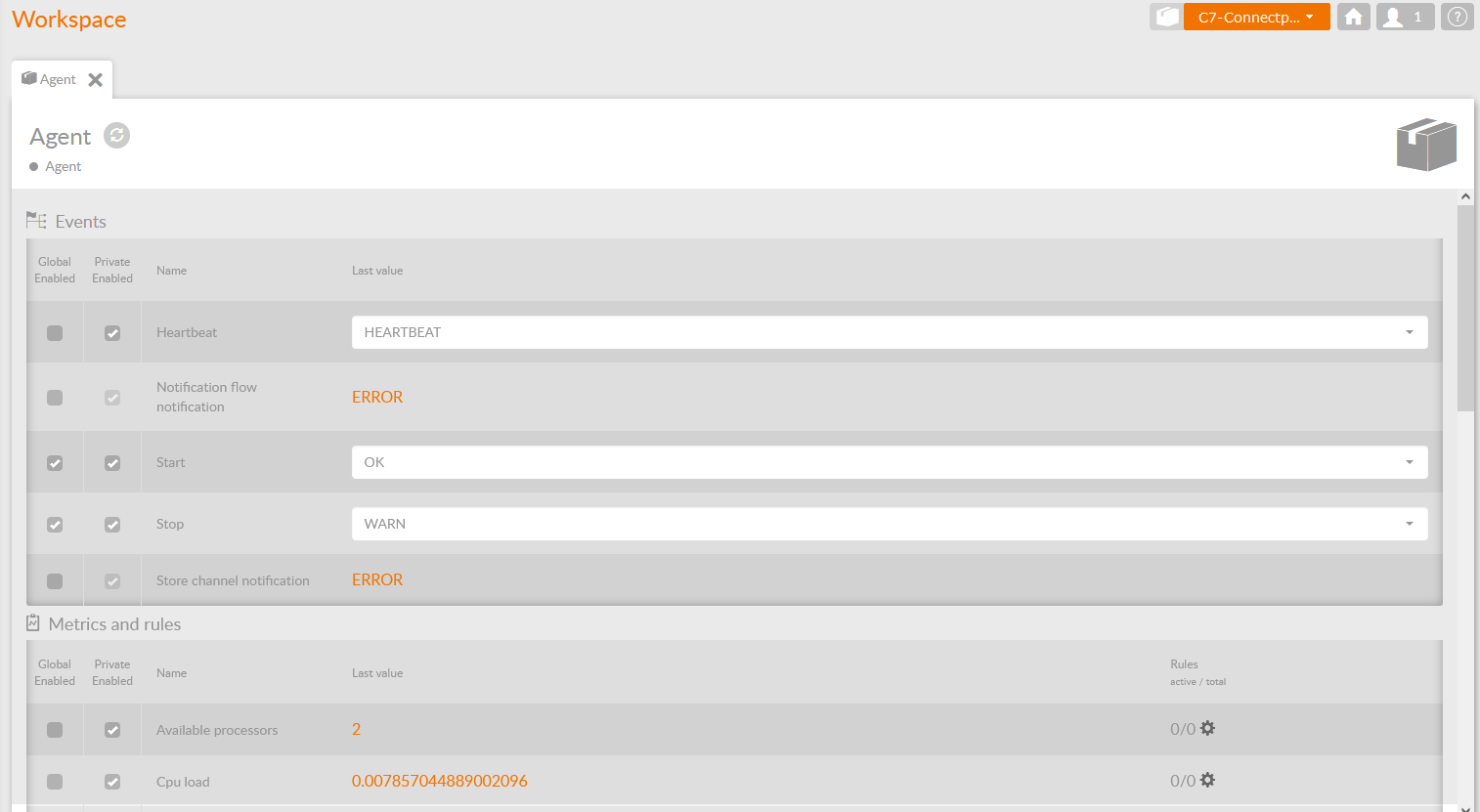
At this screen you will find all the properties of your ConnectPlaza® Agent and the value at the time you opened this page. These values are not in real time, so if you want to update these values, you have to select the  button at the top of the screen.
The screen in divided by property type. For the ConnectPlaza® Agent, this will be Events and Metrics
You see the following information at this screen:
| Property | Description |
|---|---|
Global Enabled |
Is the property Global enabled [.Y2IQFc]# . This means that this property send out notifications for all events with this specific property. For instance if you want an error if one your interfaces stops. If you want this for ALL your interfaces you use a global enabled property. |
Private enabled |
Is the property only available in the selected phase. |
Name |
Name of the property |
Last value |
The value of the selected property at the time of creating the document. |
Rules Active / Total |
This counter will give you the active rules and the total rules used by ConnectPlaza® Monitor. The rules are defined withing ConnectPlaza® Control. If you press the |

5. Interface details
At the Interfaces section of ConnectPlaza® Control, you will find your own created interfaces, but also the ConnectPlaza® Backend Interfaces delivered by ConnectPlaza®.
If you open the details of an interface, you will be presented with the following menu options:
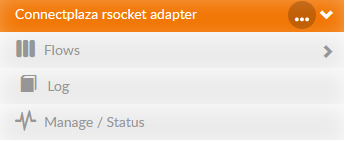
Next to the name of the Interface you see a menu option  . If you press this icon, you will be presented with some options, concerning the interface: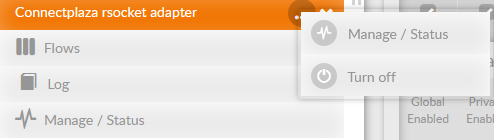
Manage / Status
Gives you an overview of the status your interface is in. This will be show in a separate tab with the name of the interface: 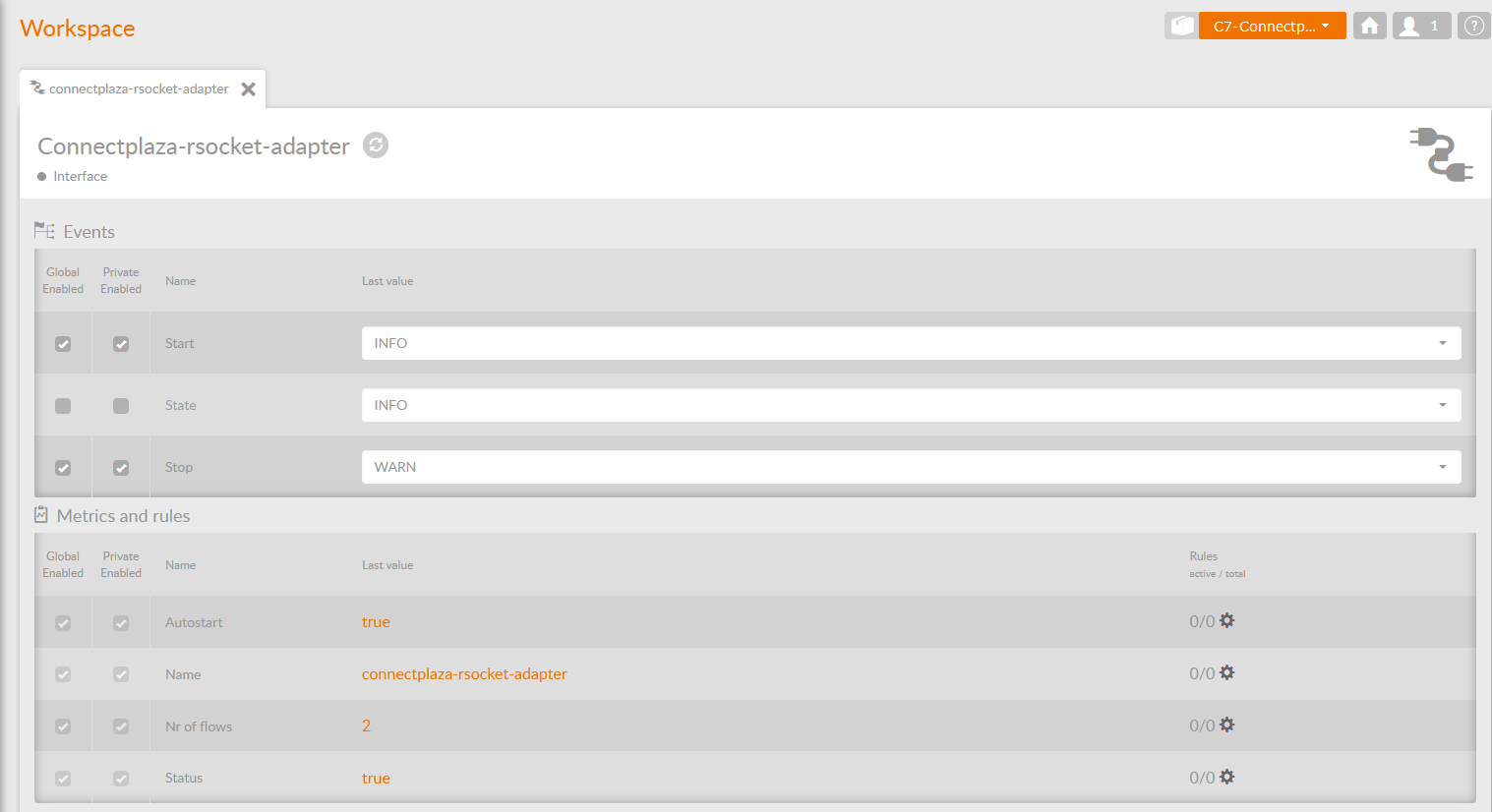 . The screen is also divided by the Property Types. The description of the
properties here is the same as the Manage / Status screen of the ConnectPlaza® Agent.
. The screen is also divided by the Property Types. The description of the
properties here is the same as the Manage / Status screen of the ConnectPlaza® Agent.
Attention: Changes to the settings are only available until you restart the ConnectPlaza® Agent!
Turn off
If you select this option you turn of the selected Interface. The indications on the screen will be modified accordingly.
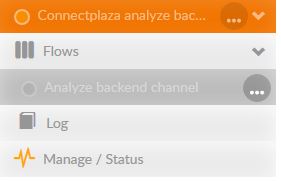
You see that the selected flow is Off Line, and the Interface has a warning indication. Also the Manage / Status indicator is now in a warning state. In the Mange / Status overview you see now the warning caused by the issue.

|
Changes to the settings are only available until the next restart of the ConnectPlaza® Agent! |
To acknowlede a status, click the rigth mousebutton and select Acknowledge .

After the acknowledgment, the message will disappear.
5.1. Flows
Open this section of the menu and you will see all the flows in this Interface, in our example this would be:
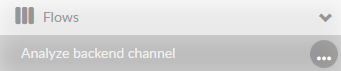
Pressing the … button will open an options menu:
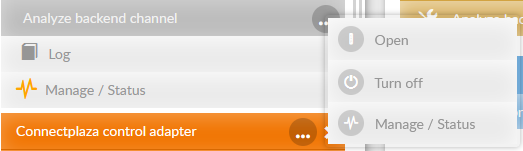
Here you can open, turn off the flow or manage the flow.
5.2. Log
Selecting this option will get you a log file overview of the selected Interface.
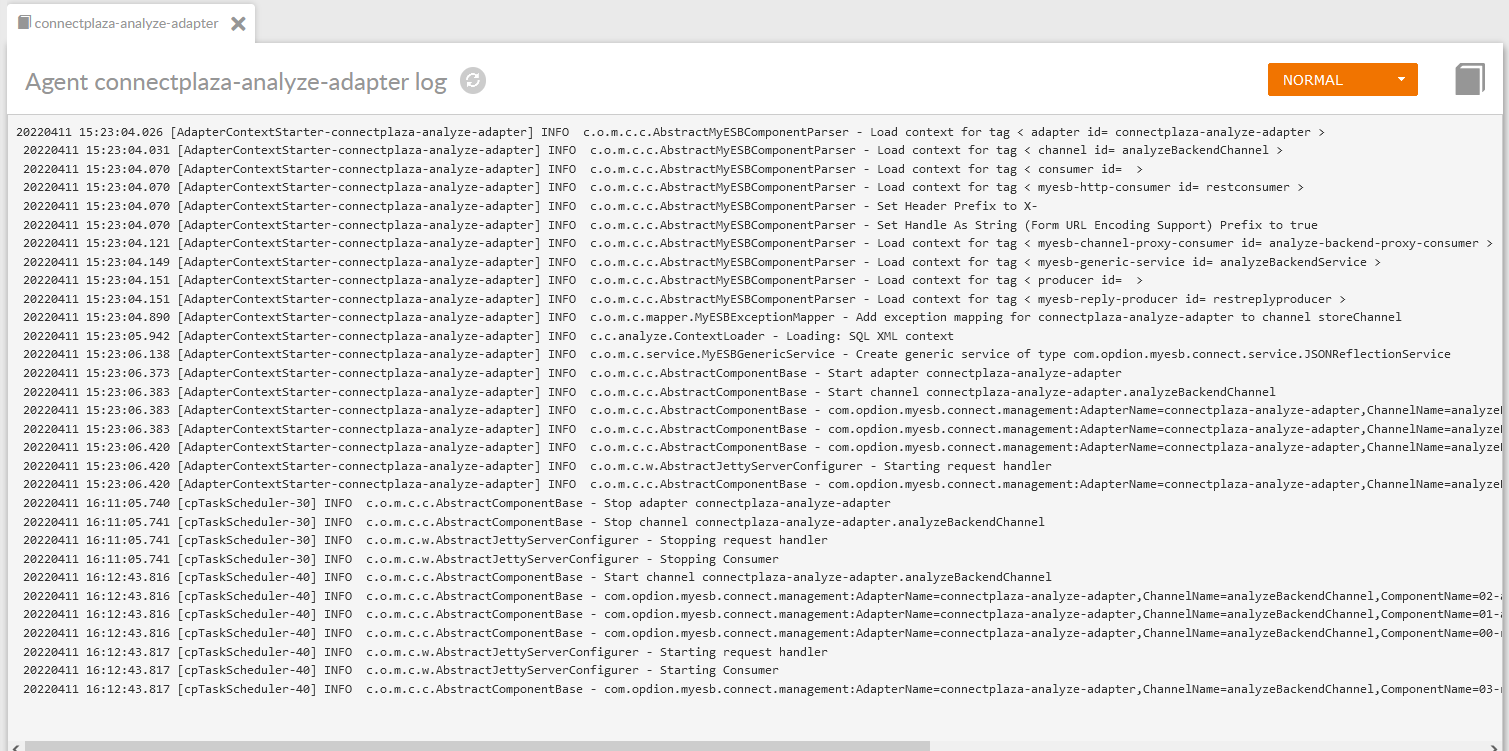
This is a static view of the last part of the log from the Interface. You can refresh this view using the  button.
If you need to adjust the depth of your logging, you can select the depth via the selection box. 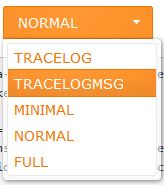
This option is automatically set in your environment and. After refreshing your logging the new setting will be active. This action also applies to the logging via ConnectPlaza® Deploy.
|
Changes to the settings are only available until the next restart of the ConnectPlaza® Agent! |
5.3. Manage / Status
Here you get an overview of the Interfaces status. You can also manage several properties within this screen:
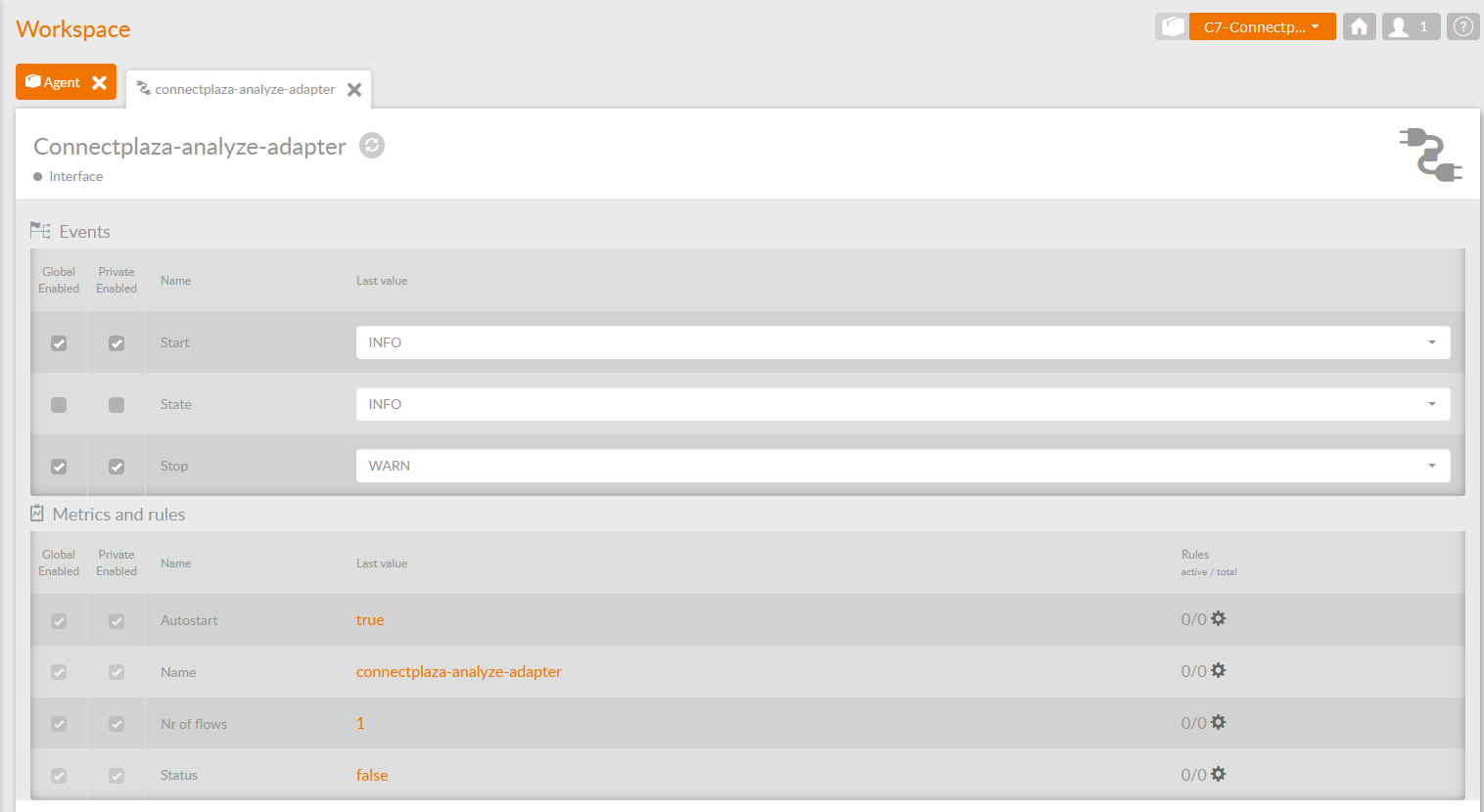
De screen for the interface is devided into the different types. The following information shown in the sections are:
| Property | Description |
|---|---|
Global Enabled |
Is the property Global enabled. This means that this property send out notifications for all events with this specific property. For instance if you want an error if one your interfaces stops. If you want this for ALL your interfaces you use a global enabled property. |
Private enabled |
Is the property only available in the selected phase |
Name |
Name of the property |
Last value |
The value of the selected property at the time of creating the document. |
Rules Active / Total |
This counter will give you the active rules and the total rules used by ConnectPlaza® Monitor. The rules are defined withing ConnectPlaza® Control. If you press the |
|
Changes to the settings are only available until the next restart of the ConnectPlaza® Agent! |
6. Working with more than one tab
Using more than one tab in ConnectPlaza® Control is no problem, You can close the tab using the  on the tab. If you right click with your mouse on one of the tabs, a menu will open:
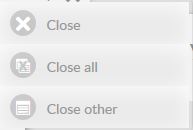
With these options you can select to close all tabs at once, close all other tabs or just close the current tab.
7. Configuration management
A configuration in ConnectPlaza® Control is a configuration per user. So if you and you co-worker both have a ConnectPlaza® Control license, you both have a personal configuration for ConnectPlaza® Control.
A configuration is created for you once you have logged in into ConnectPlaza® Control. After that you can copy a configuration from a user to your onw configuration.
Select Configuration management:
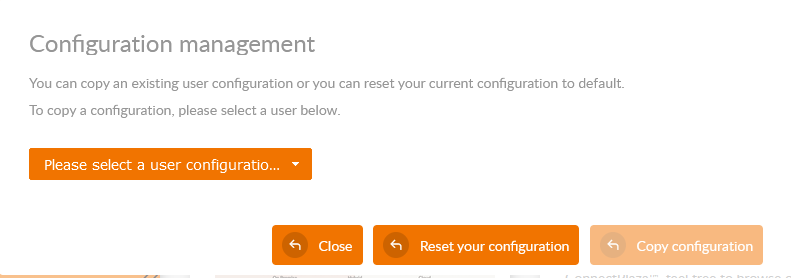
Select the user to copy your configuration from:
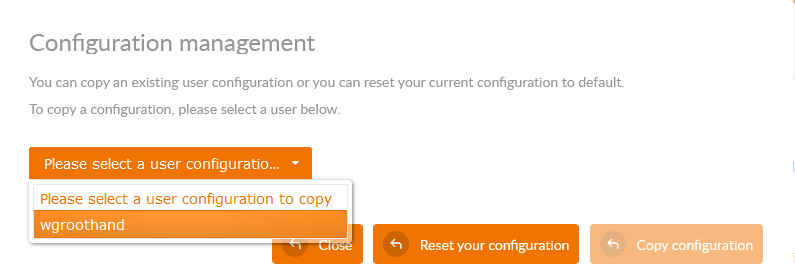
The configuration will be copied after you press the Copy configuration button. You will return to the main screen of ConnectPlaza® Control.