Your licenses
1. Introduction
Account shows the licenses you work with on two screens that look and work the same.
-
Development licenses holds the licenses you develop interfaces with.
-
Agent licenses holds the licenses of your ConnectPlaza® Agents.
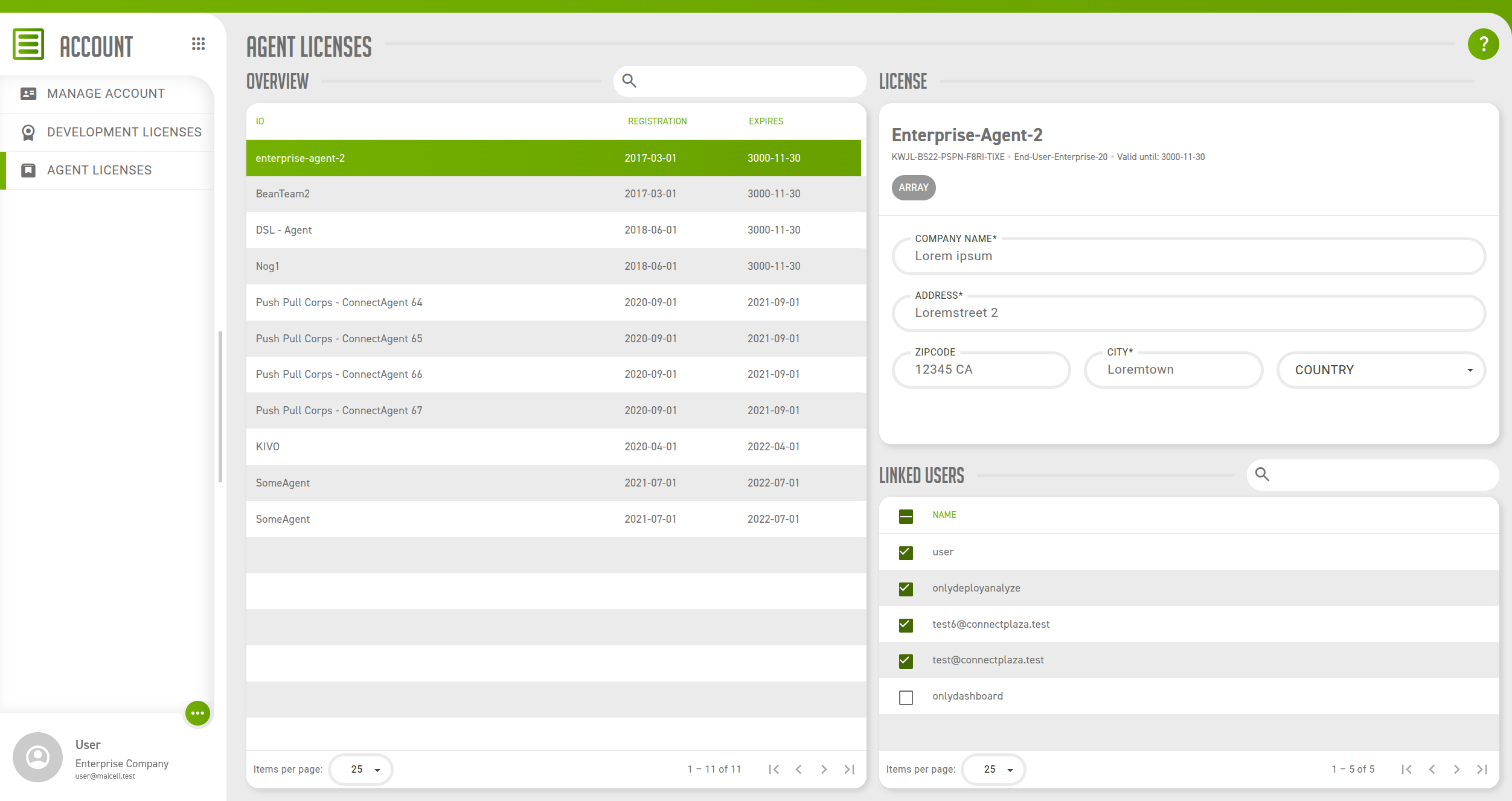
As a user you look at your licenses here. You do not change them: that is done by a Manager within your company, as described in Manage licenses.
2. Which licenses you see
You see the licenses that are linked to you, and no others. Your company can have many more.
|
An empty overview does not mean that your company has no licenses. It means that no license has been linked to you yet. Ask a Manager within your company to link you to the licenses you need. |
The link is more than a way to fill this list. For an Agent license it is also what puts the Agent in your Agent Selection in Analyze. An Agent that is missing there, while you do have access to Analyze, is an Agent whose license you are not linked to. This screen is the place to check that: if the license is not in your Agent licenses overview, ask a Manager to link you.
3. The overview
The Overview on the left lists your licenses.
| Field | Description |
|---|---|
id |
The identification of the license. |
registration |
The start date of the license. |
expires |
The date until which the license is valid. |
The dates are shown as year, month and day. Select a column heading to sort on that column, and use the search field above the overview to narrow the list down as you type.
Select a license to open it in the License panel on the right. Until you do, the panel only asks you to select one.
4. The license
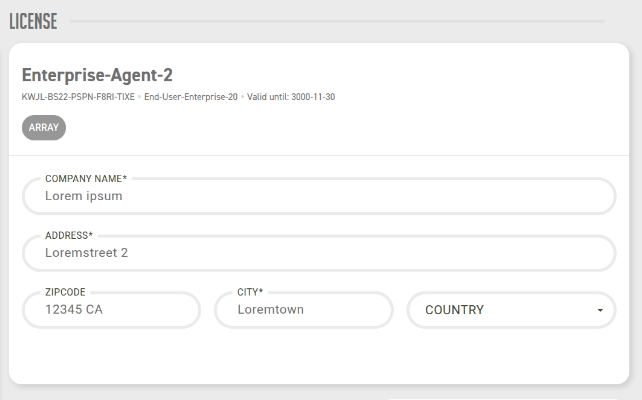
| Field | Description |
|---|---|
Identification |
The identification of the license, as in the overview. |
License key |
The key of the license, shown underneath the identification. |
License type |
The type of the license. |
Valid until |
The date until which the license is valid. |
Tags |
The labels a Manager has given the license, for example to tell apart test and production. |
Company Name, Address, Zipcode, City and Country |
The address the license is registered to. |
Linked users |
Every user of your company. The users whose checkbox is ticked are linked to this license, and you are one of them. |
As a user you can view a license, but not change it. Changes are made by a Manager within your company.
How the license types relate to each other is explained in Structure of licenses.