Two-factor authentication
1. Introduction
Two-factor authentication, also known as multi-factor authentication or MFA, adds a second step to logging in. After your password you enter a six-digit code from an authenticator app on your phone. Someone who has your password but not your phone cannot log in.
Each user switches two-factor authentication on for their own account, in Account. This page describes how.
2. What changed in 5.3.0
Until ConnectPlaza® 5.3.0, two-factor authentication was set up in the Dashboard and sent you a code by e-mail. As of 5.3.0 that way of working is no longer available. Two-factor authentication now uses an authenticator app.
| Before 5.3.0 | As of 5.3.0 | |
|---|---|---|
Where you set it up |
The Dashboard. |
Account, on the Manage account screen. |
Where your code comes from |
An e-mail we send you. |
An authenticator app on your phone. |
|
If you used two-factor authentication by e-mail, it has been switched off on your account by the update to 5.3.0. It cannot be carried over to the new way of working, because an authenticator app has to be registered by you, with your own phone. Until you switch it on again, your account is protected by your password alone. Follow Switching it on to set it up with an authenticator app. |
3. What you need
-
A phone with one of the supported authenticator apps:
-
FreeOTP
-
Google Authenticator
-
Microsoft Authenticator
-
-
A browser that allows pop-ups for the Studio. The setup takes place in a separate window, see If no window opens.
-
The password of your account.
4. Switching it on
-
Open Account. It opens on Manage account; how to get there is described in Account.
-
Under Security preferences, select the Two-factor authentication toggle.

A separate window opens. The toggle does not move yet. It switches on at the end, when the setup has succeeded.
-
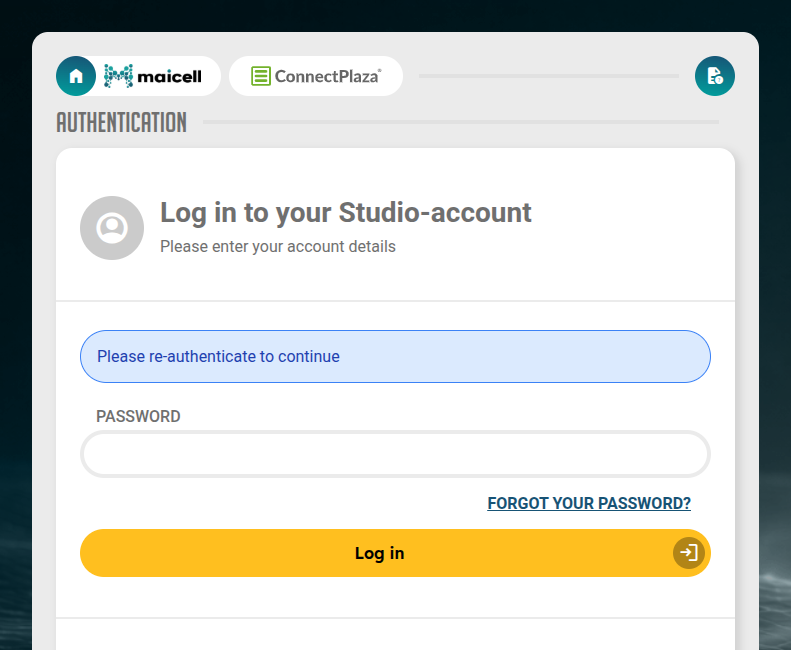
The window asks you to re-authenticate. Enter your password and select Log in.
-
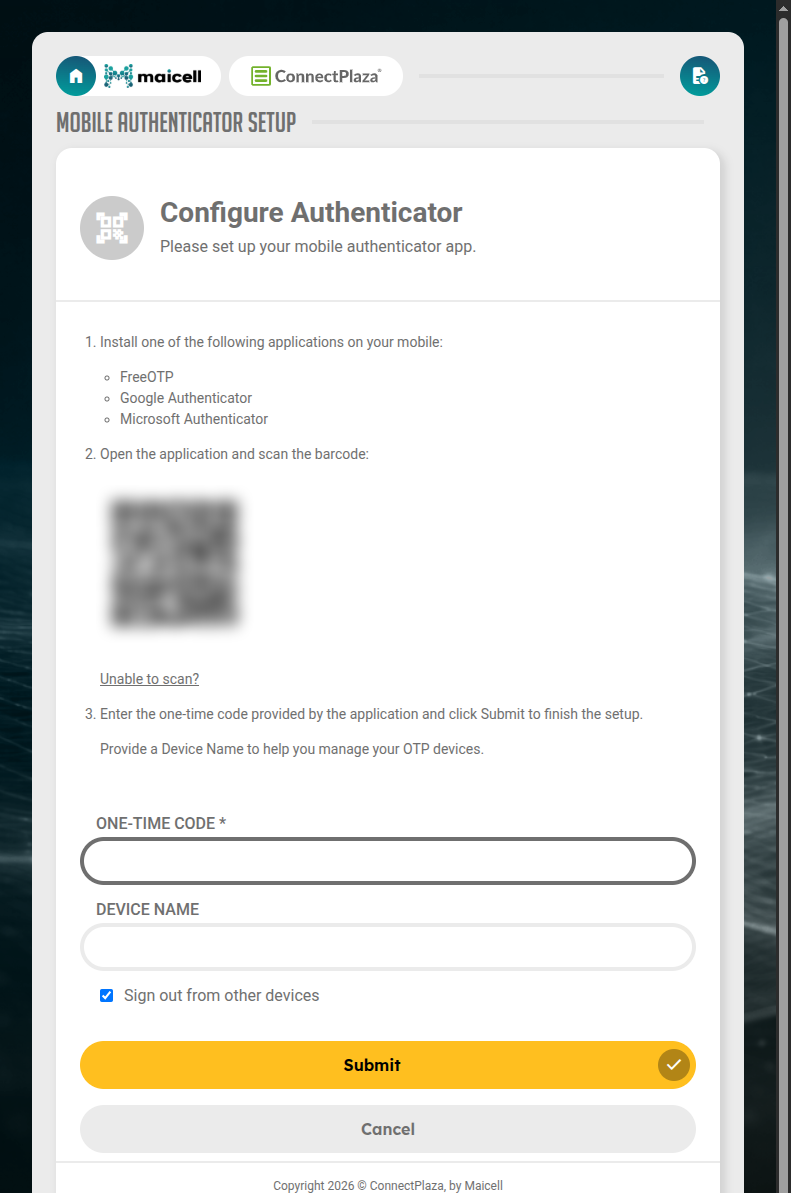
The window now shows Configure Authenticator. Install one of the three apps on your phone, if you have not done so yet.
-
Open the app on your phone and scan the barcode that the window shows. The barcode and the key are blurred in the pictures on this page; yours are sharp.
-
The app adds an entry for your account and starts showing a six-digit code. Enter that code under One-time code.
-
Optionally, fill in Device name, for example "Work phone". It helps you recognise which phone is registered.
-
Leave Sign out from other devices ticked if you want the sessions you still have open elsewhere to be ended.
-
Select Submit.
The window closes by itself and the Two-factor authentication toggle is now on. From your next login you need your phone as well as your password.
If you select Cancel, or close the window before you have finished, nothing has changed and the toggle stays off. You can start again at any time.
4.1. If you cannot scan the barcode
Select Unable to scan? underneath the barcode. The window then shows a key instead. Type that key into your authenticator app.
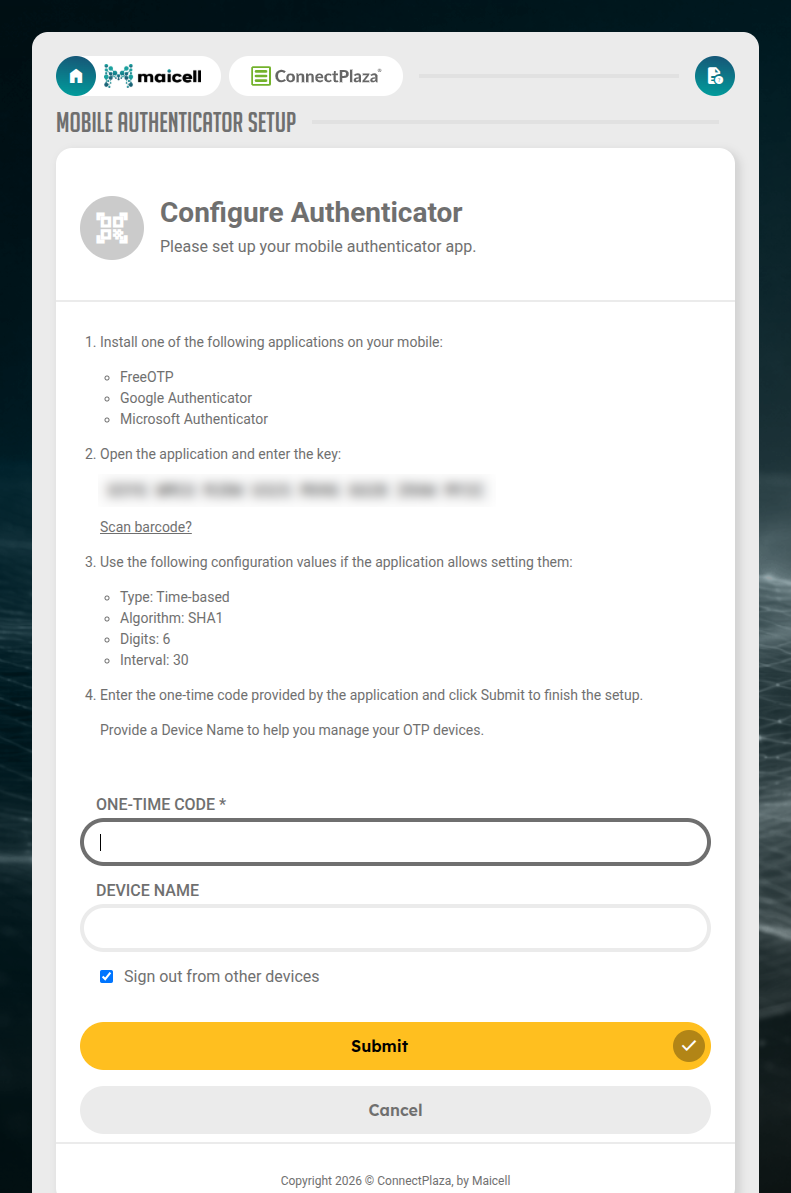
If the app asks for more than the key, use these values.
| Setting | Value |
|---|---|
Type |
Time-based |
Algorithm |
SHA1 |
Digits |
6 |
Interval |
30 |
Scan barcode? takes you back to the barcode.
4.2. If the code is not accepted
The window answers Invalid authenticator code. when the code does not match. The app shows a new code every 30 seconds, so make sure you enter the one that is on screen at that moment, and select Submit before it changes.
A code that keeps being refused is usually caused by the clock of your phone. The code is calculated from the time, so set the date and time of your phone to automatic and try again.
5. Logging in
Once two-factor authentication is on, logging in takes one more step. After your username and password you are asked for your authenticator code. Open the app on your phone, enter the six-digit code it shows for your account and select Log in.
6. Switching it off
-
On Manage account, select the Two-factor authentication toggle. A separate window opens.
-
Log in again in that window. This proves it is you who is switching it off, and not someone who found your screen unlocked.
-
The window closes by itself and the toggle switches off.
If you close the window without logging in, two-factor authentication stays on.
|
Switching two-factor authentication off removes the registration of your authenticator app. Switching it on again later means registering the app again from the start; the old entry in your app will not work any more, and you can delete it. |
7. Moving to a new phone
An entry in an authenticator app belongs to the phone it was created on. To move to a new phone while you still have the old one:
-
Log in with the code from your old phone.
-
Switch two-factor authentication off, as described above.
-
Switch it on again and scan the barcode with your new phone.
8. If you lose your phone
Without your phone you cannot log in, and so you cannot switch two-factor authentication off yourself either. Contact our support at support@connectplaza.com. We help you get back into your account.
Once you can log in again, set up two-factor authentication with your new phone as described in Switching it on.
9. If no window opens
The setup window is a pop-up, and a browser that blocks pop-ups blocks this one too. Account then tells you Please allow popups to configure 2FA., or Please allow popups to disable 2FA., and leaves the toggle where it was. Allow pop-ups for the Studio in your browser and select the toggle again.