Microsoft Mail App Registration
The Microsoft Mail Listener and Sender (used to fetch mail from and send mail via Exchange Online) require you to register them as an application in Azure Active Directory. This process is outlined in this document.
|
Please note that in order to complete all the steps you will need administrative rights within your Azure Active Directory tenant directory. |
1. Initial app registration
The first step consists of logging into Azure Active Directory.
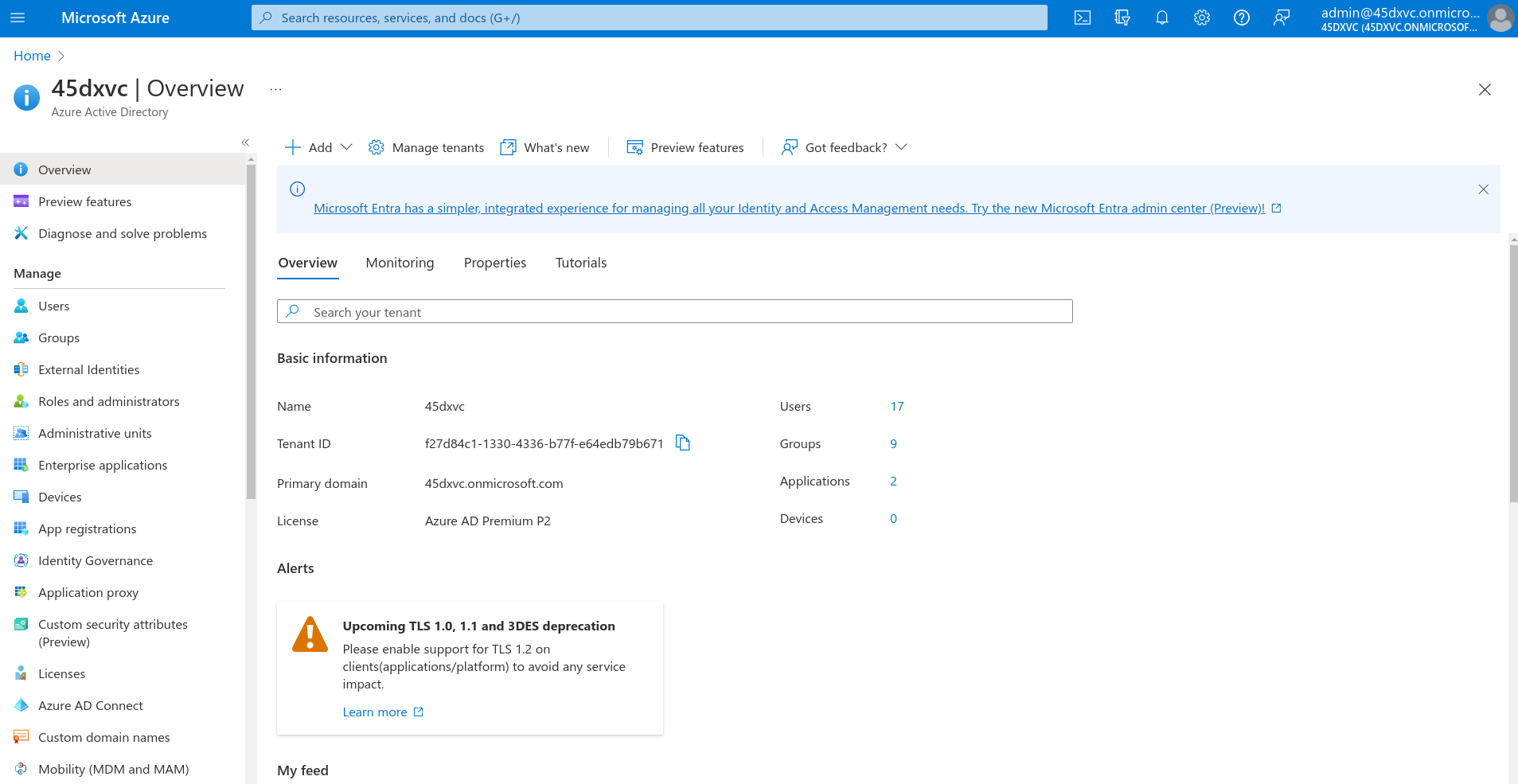
On the left-hand side there is the option App Registration.
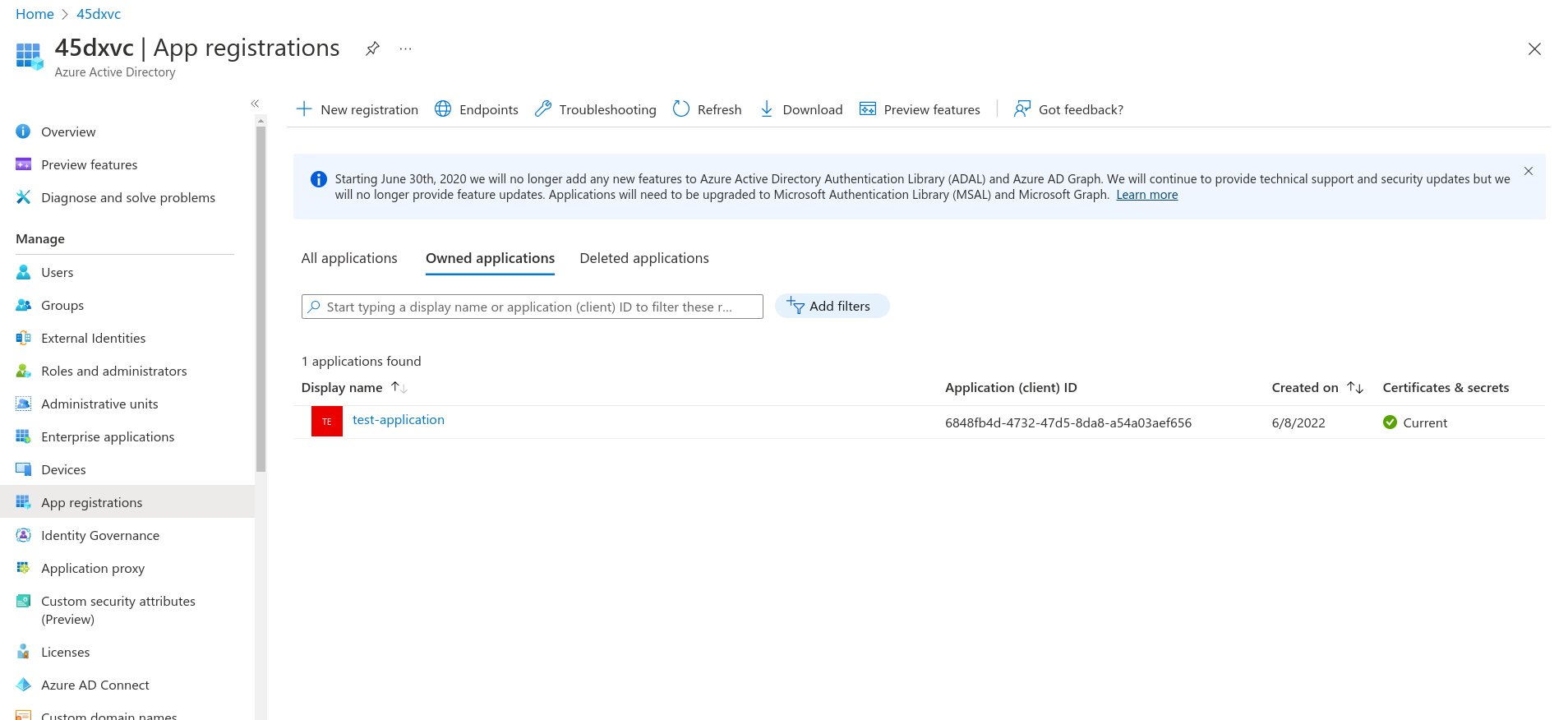
In this case, there is already an application registered. We are going to register a new application by clicking on + New Registration.
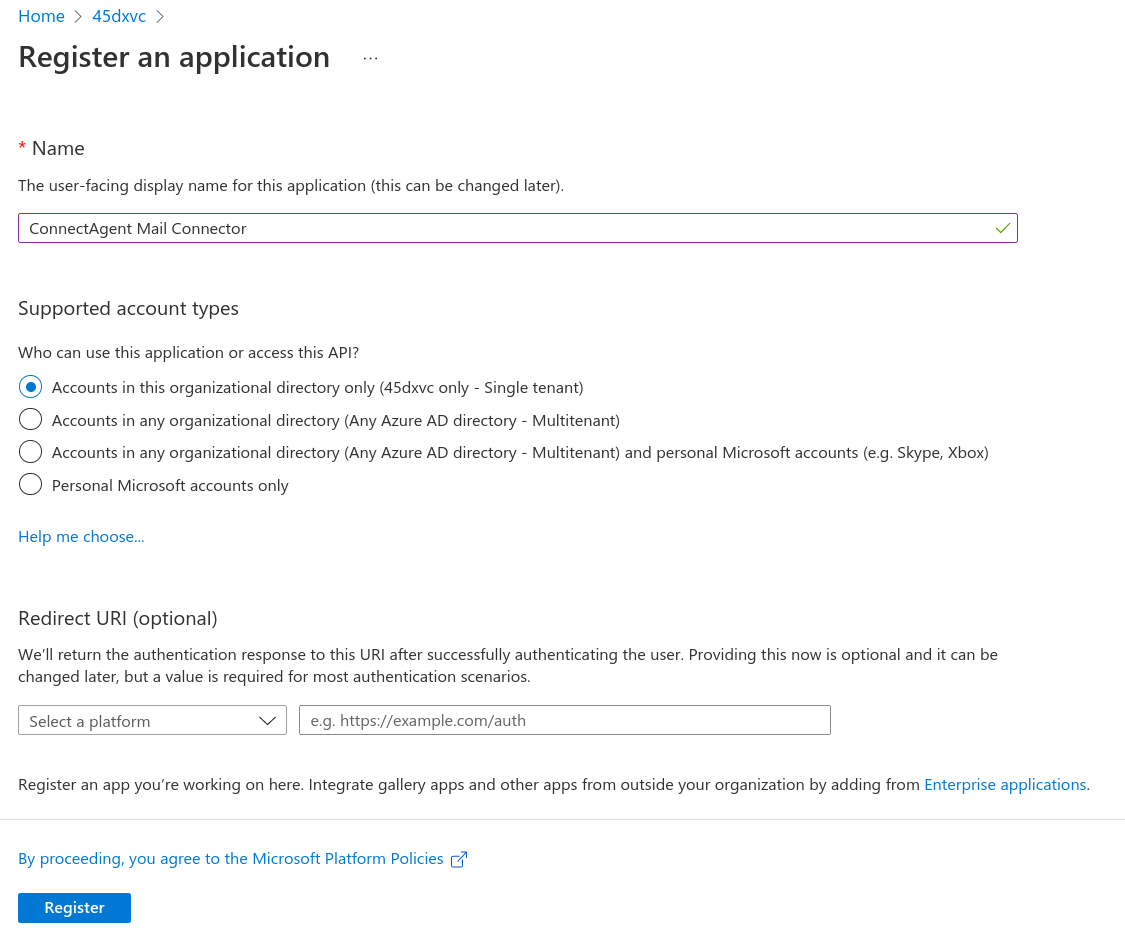
We have given the app a name, "ConnectPlaza® Agent Mail Connector". You can keep the supported account type to single tenant and the redirect URI is not necessary. Click Register to finish the initial registration.
2. Adding a client secret
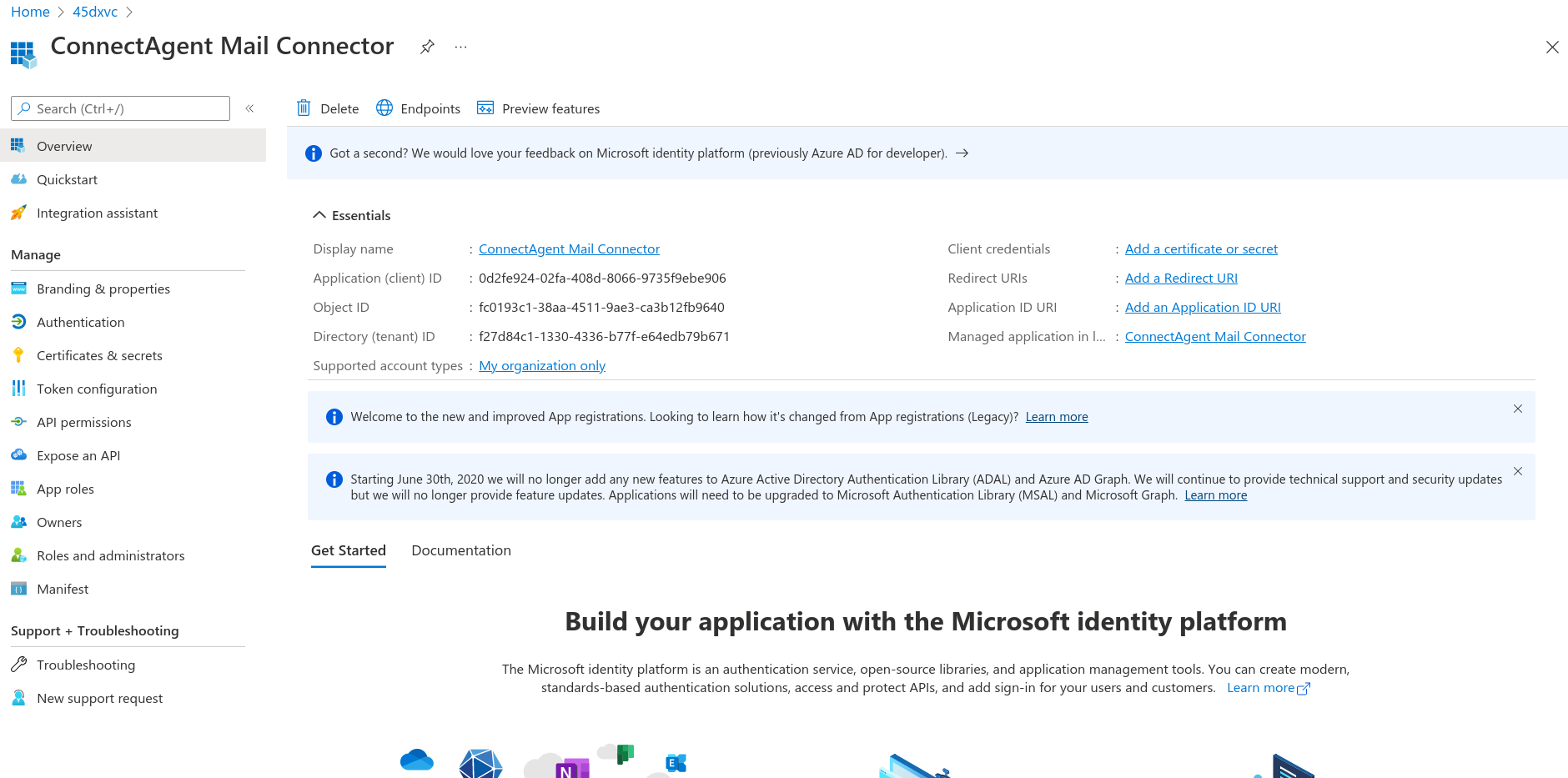
After registering you are presented with an overview of the new app. Please take note of the Application (client) ID and Directory (tenant) ID , you will need these values for Microsoft Mail Listener and Sender configuration. The mail connectors also require you to generate a client secret. Click on either Certificates & Secrets on the right-hand side or Add a certificate or secret link (next to Client credentials).
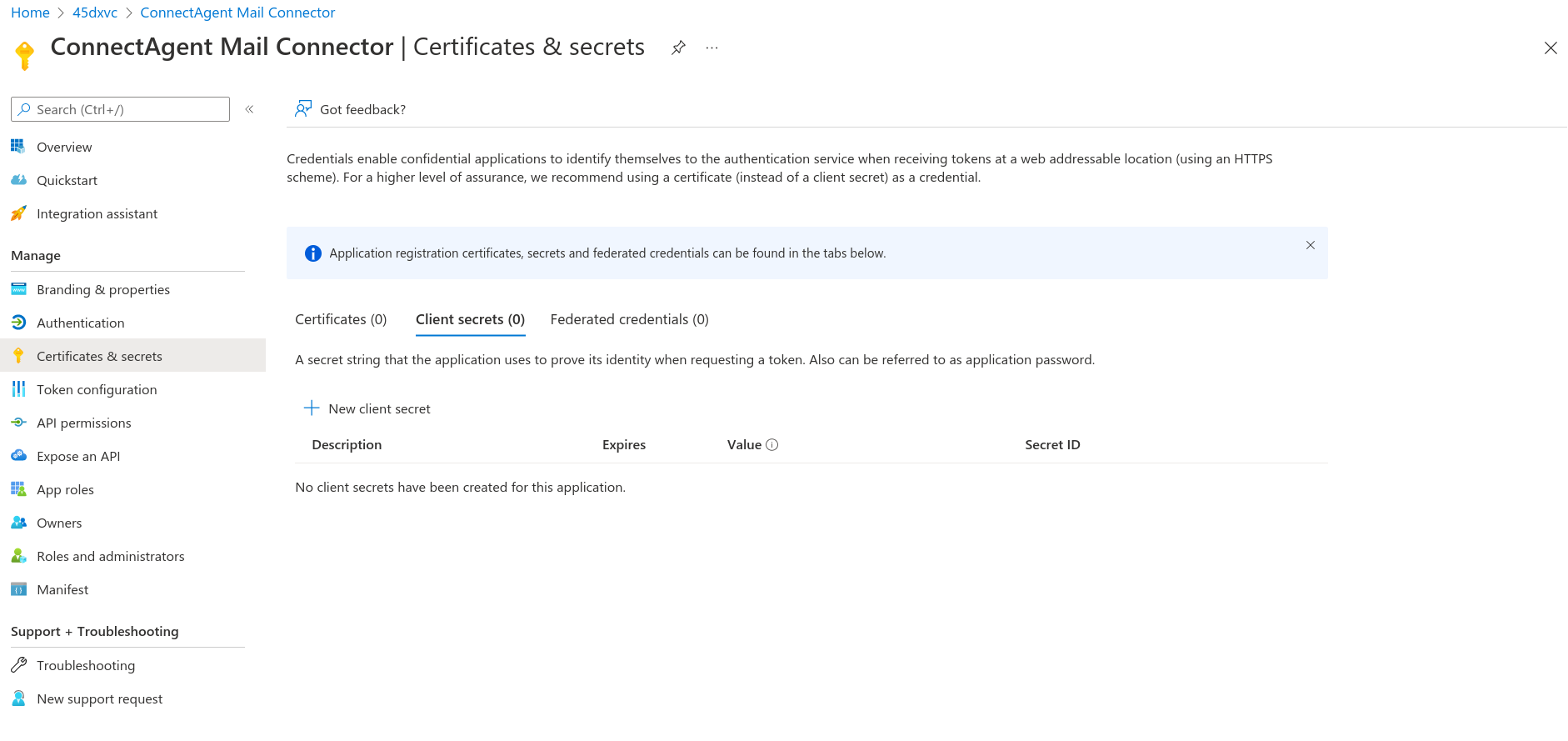
We currently have no client secrets. Click on the + New client secret.
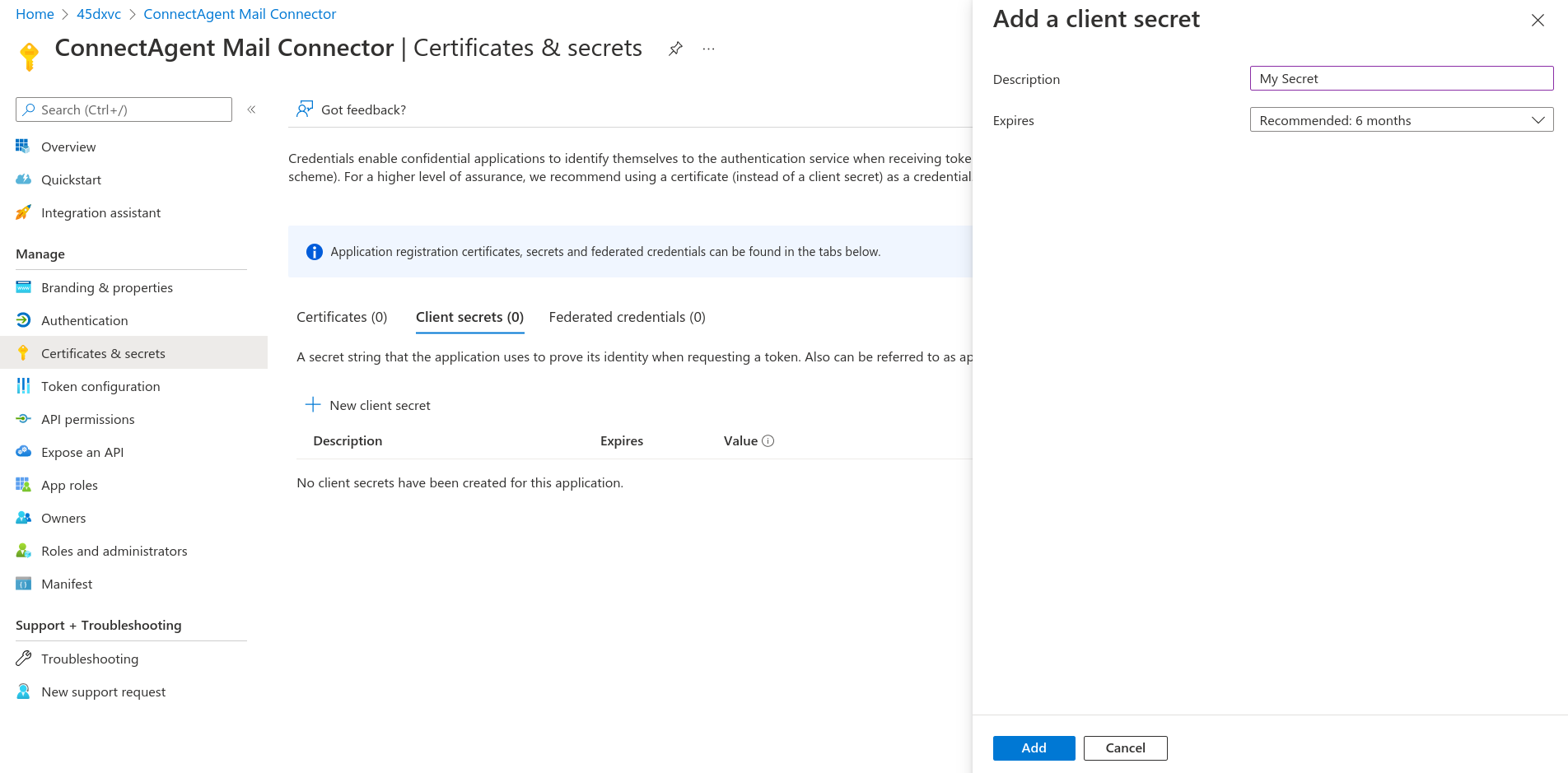
Give your secret a name and select an expiration date. Click on add .
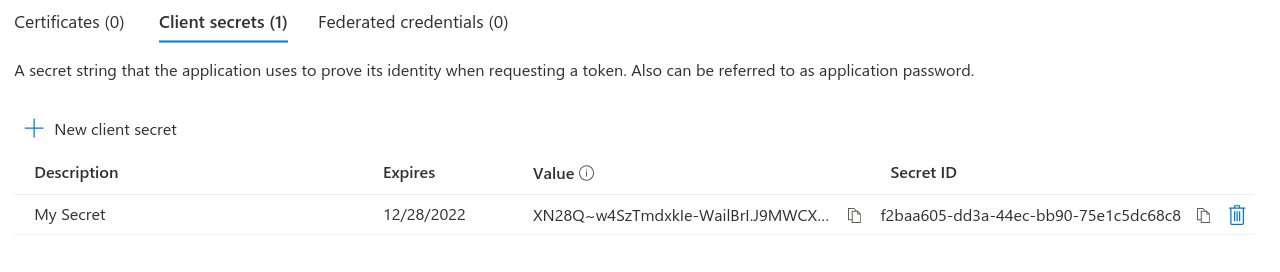
We have now generated a secret.
|
The value of the secret is only available right after generation and is no longer available for copying after moving to a different screen. Copy the value and store it somewhere safe, you will need it for the mail connectors configuration. Furthermore, after a secret expires, you will need to generate a new one and update your Mail Listener and/or Sender configuration to include this new client secret. |
3. Configuring API permissions
We now need to give the app registration the permissions in order for it to read and/or send mail. Go to API permissions on the right-hand side.
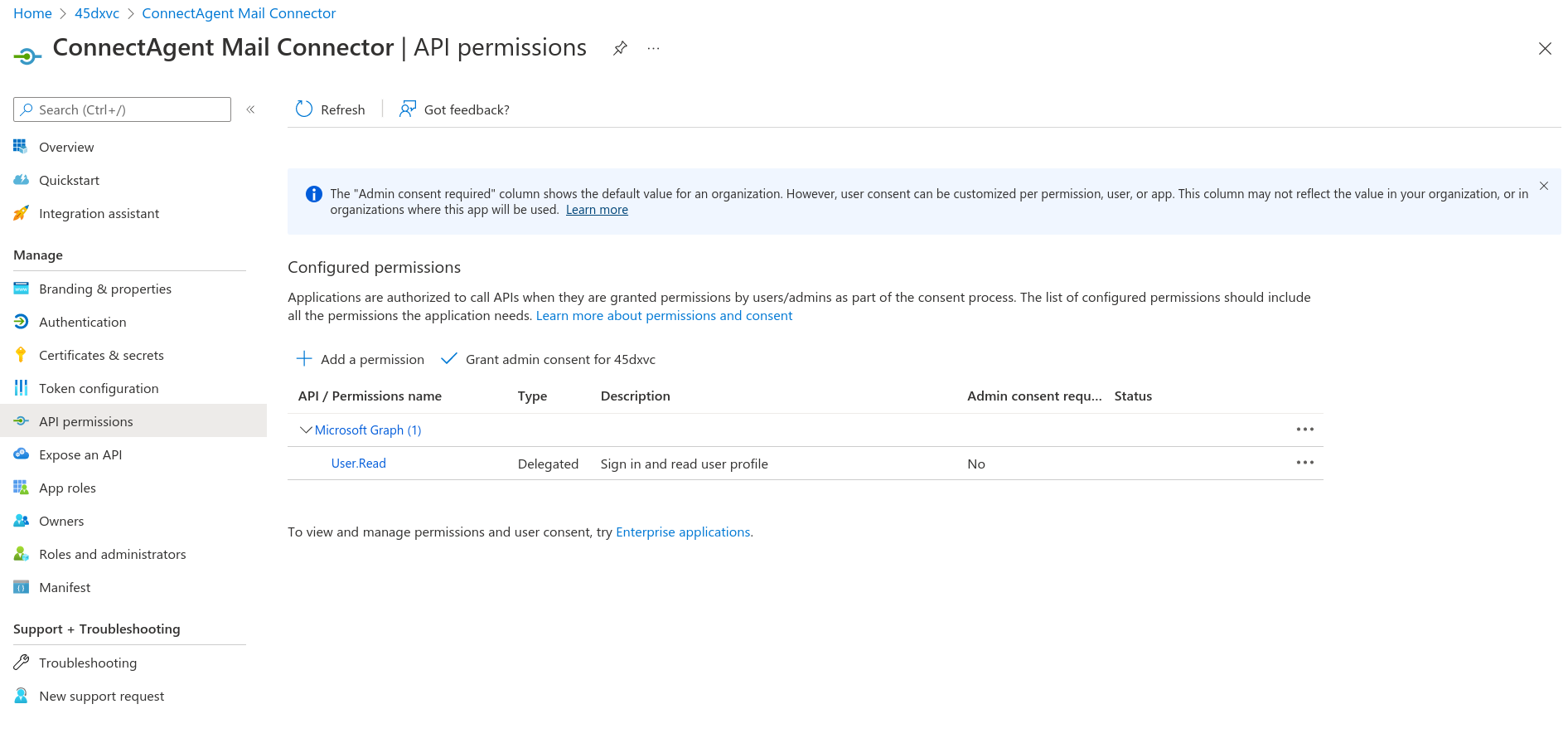
Currently, the app registration only has one delegated permission, i.e. User.Read. Click on + Add a permission .
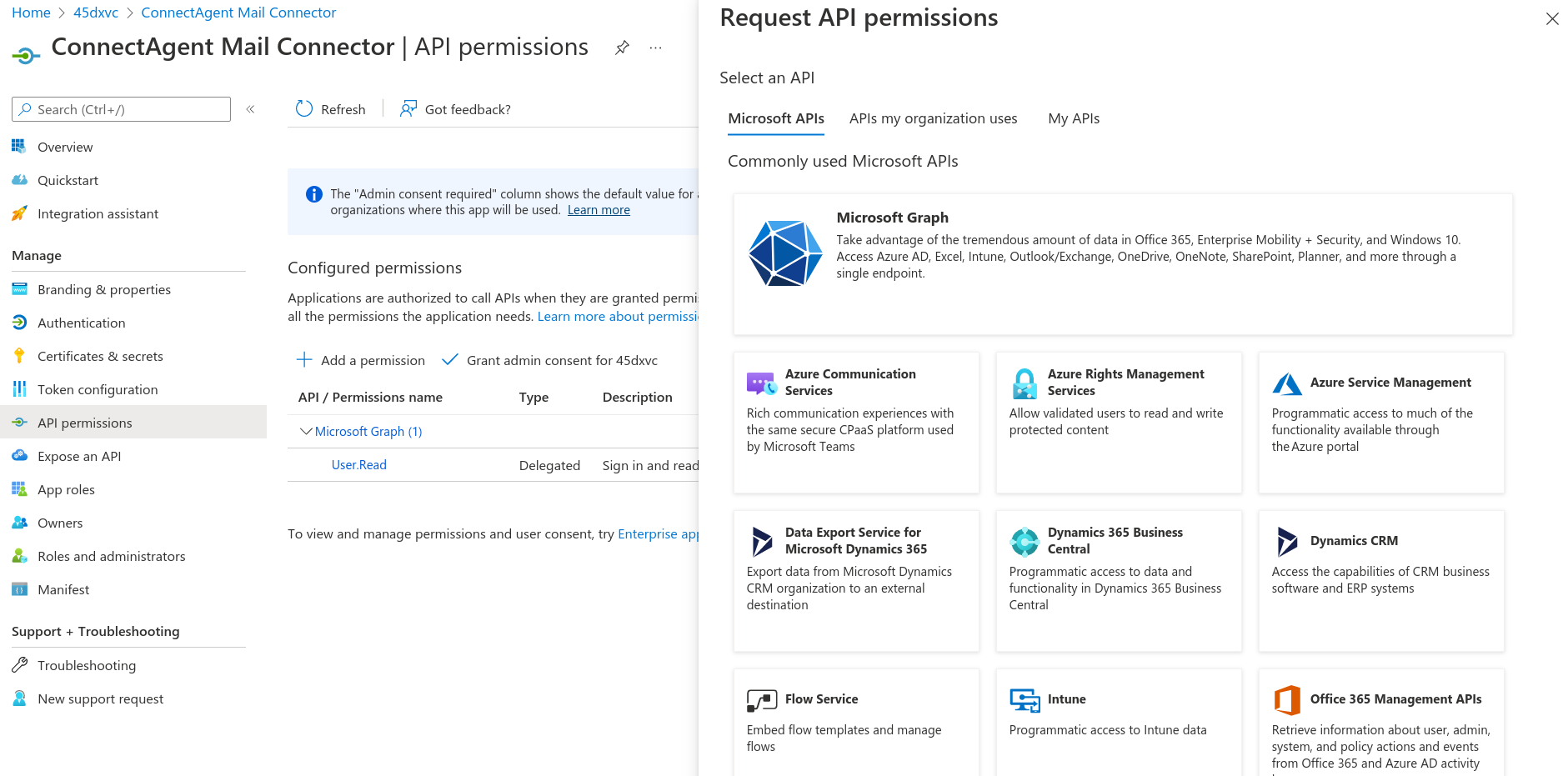
The Microsoft mail connectors use Microsoft Graph to fetch and send mail. So click on the top link, Microsoft Graph .
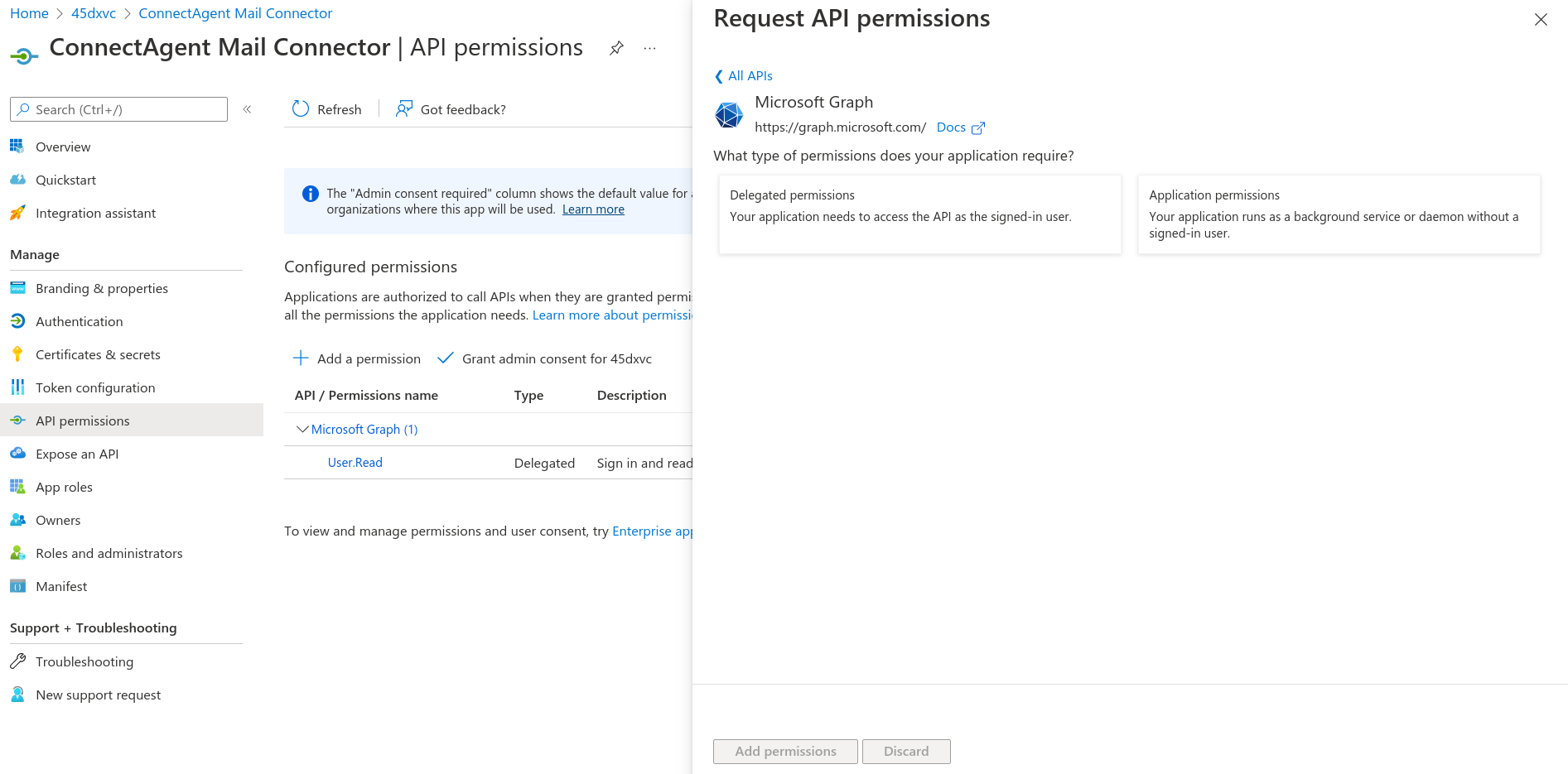
The ConnectPlaza® Agent that runs the mail connectors is a background service and as such needs Application permissions. So click on Application permissions.
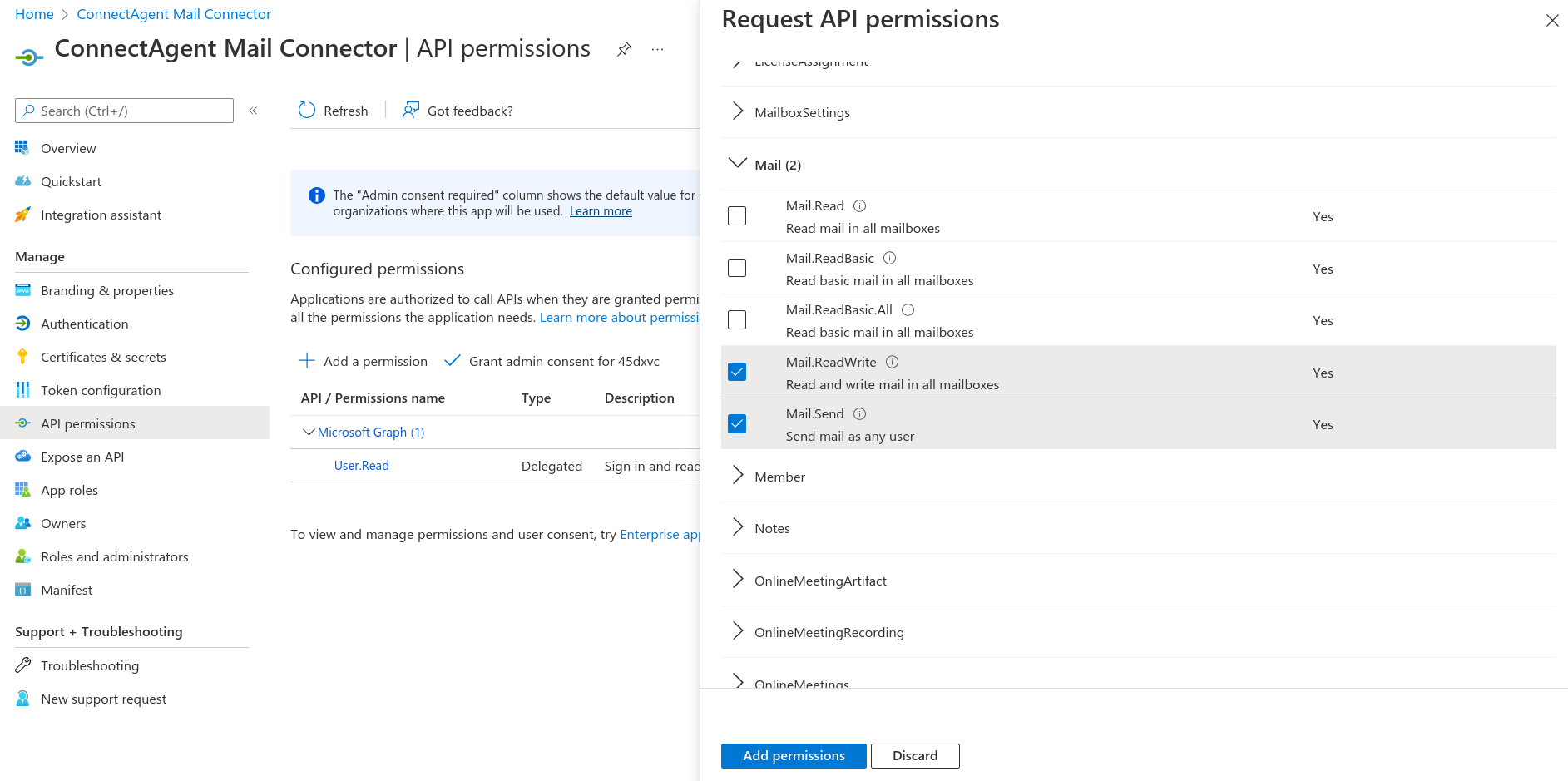
Scroll down to the Mail permissions, and select Mail.ReadWrite and Mail.Send (for the sender). Click on Add permissions to finish adding permisions.
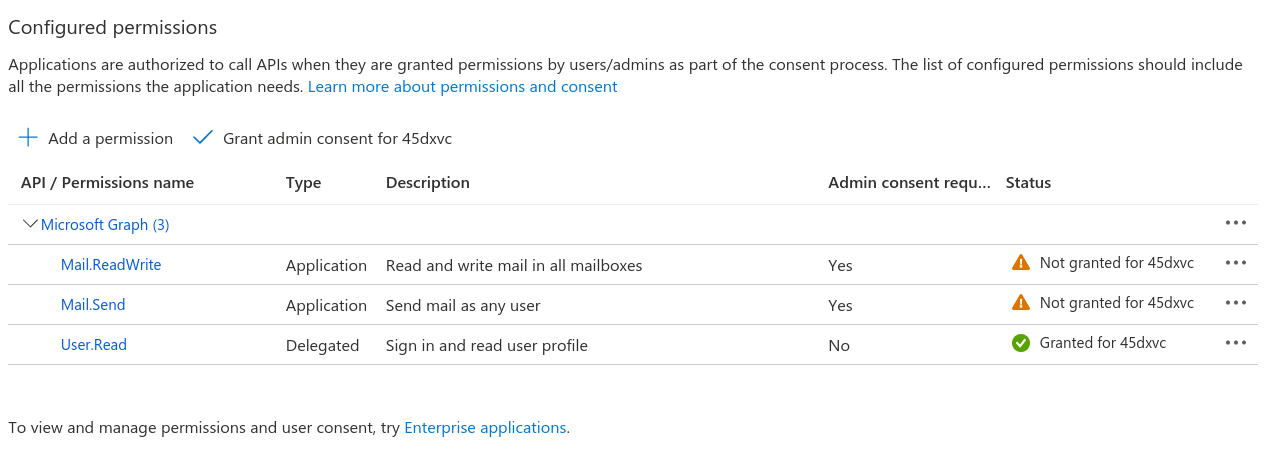
API Permissions of type application require an administrator to grant consent. Have the admin click on Grant admin consent for … link (located above the table).
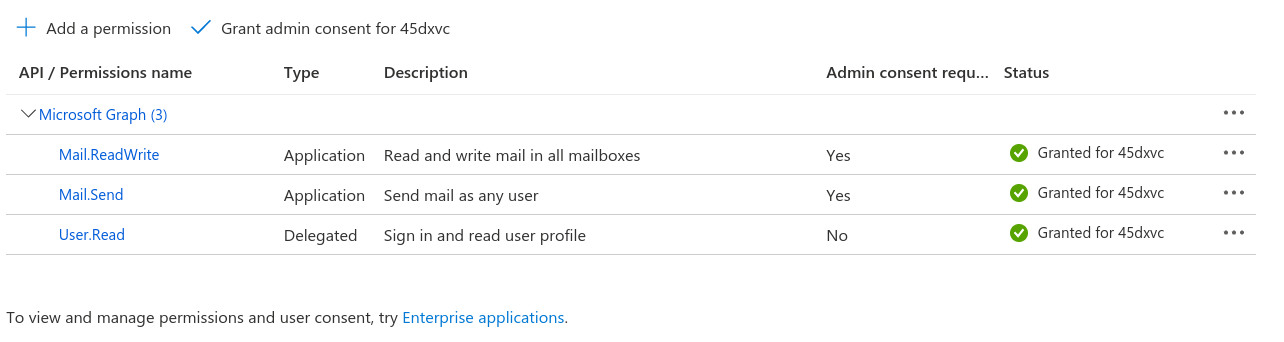
The entries in the Status column of the mail permissions are now updated to Granted .
Optionally, you can remove the default User.Read delegated permission by clicking on the … (located at the end of the row) and selecting Remove permission .
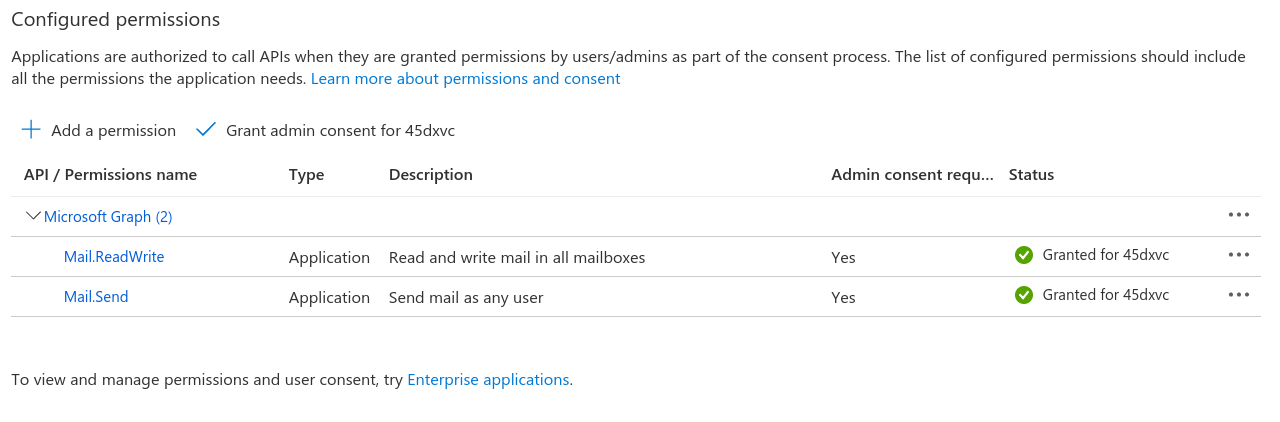
4. Further limit app permissions (optional but strongly recommended)
|
Unfortunately, the assigned API permissions of type application are across the entire tenant. This means that e.g. an app that has the Mail.Read application permission can read every mailbox of every user in that tenant. This is often an undesirable situation. Specifically, for mailboxes there are further steps that can be taken to limit the access rights of such an application. These steps are outlined in the following document: |