E-Mail Sender - Examples
1. Examples
1.1. Send email from a text file
Download the file MailSenderExamples.cinterface Download the help files and put them in the ./temp directory of your ConnectPlaza®installation : MailSenderExamplesHelpFiles.zip
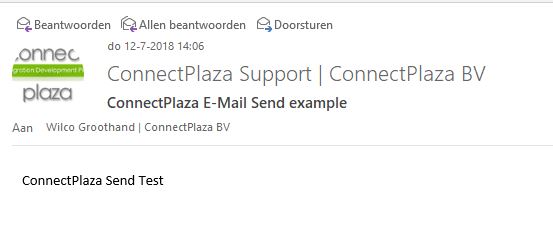
In this example we will pick up a text file and send it, via the E-Mail Sender to our email address. The text in the text file will be used as the E-Mail body.
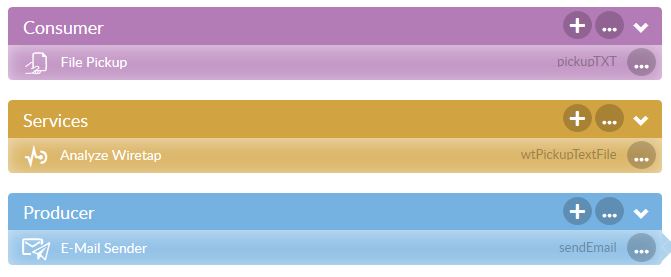
The File Pickup is a standard pick up:
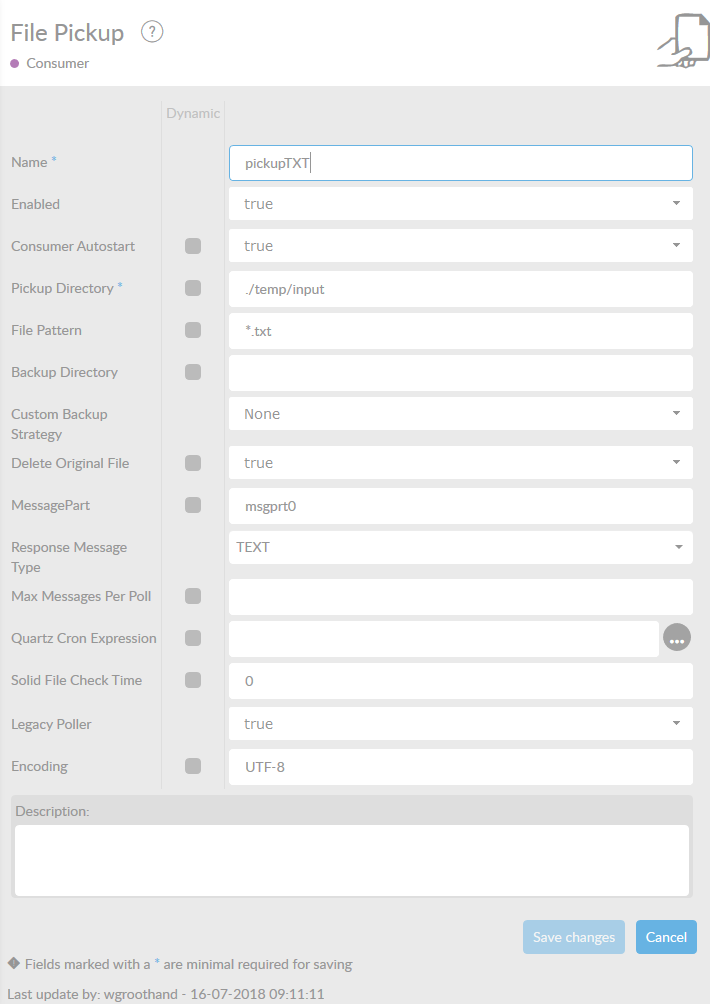
We place the message in msgprt0, the default message part. You can check the message in Analyze if you want, because of the Analyze Wiretap.
Now we are going to send the message via our SMTP server. In this example, we use our Office365 Exchange server.
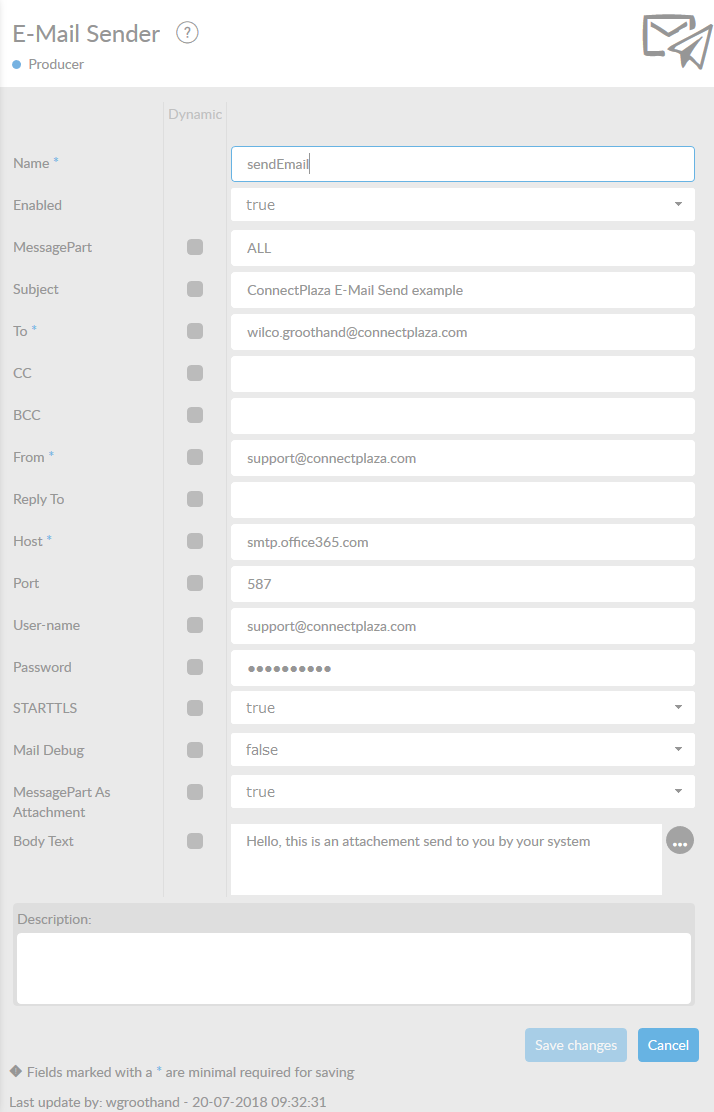
Change the email addresses and SMTP server to your own. Save and Deploy this interface to your test environment.
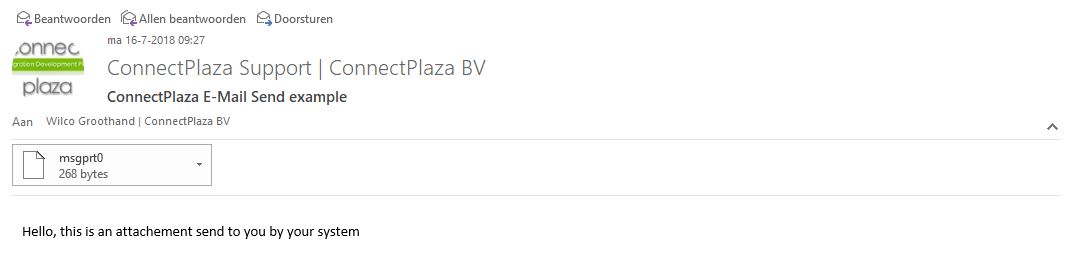
Now copy the file test.txt into the ./temp/input directory and check our e-mail. If all goes well , you will receive an e-mail on the selected e-mail address, which could look like this:
1.2. Send email from a text file as an attachment
Now we want to send the text file not as body text, but as an attachment. To do this, select the E-Mail Sender and change the option MessagePart As Attachment to true .

Save the component and deploy the interface again. Now copy the same file as before, test.txt , to the ./temp/input directory. Check your e-mail.
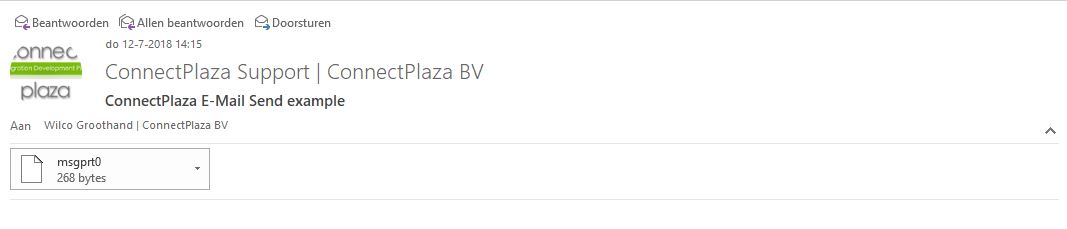
Open the attachment in a text editor and you will see that it contains the text from the text file.
Default the name of the attachment is the name of the message part, which by default was msgprt0. We can influence the name of the attachment with some properties of the message part (See E-Mail Sender)
1.3. Send email with body and attachment
To personalize your email when sending an attachment, You can add some body text to your email using the Body text field.

Bundle and deploy the interface and test your software.
If all is well you will end up with an E-Mail with an attachment and a body text.