Manage users
1. Introduction
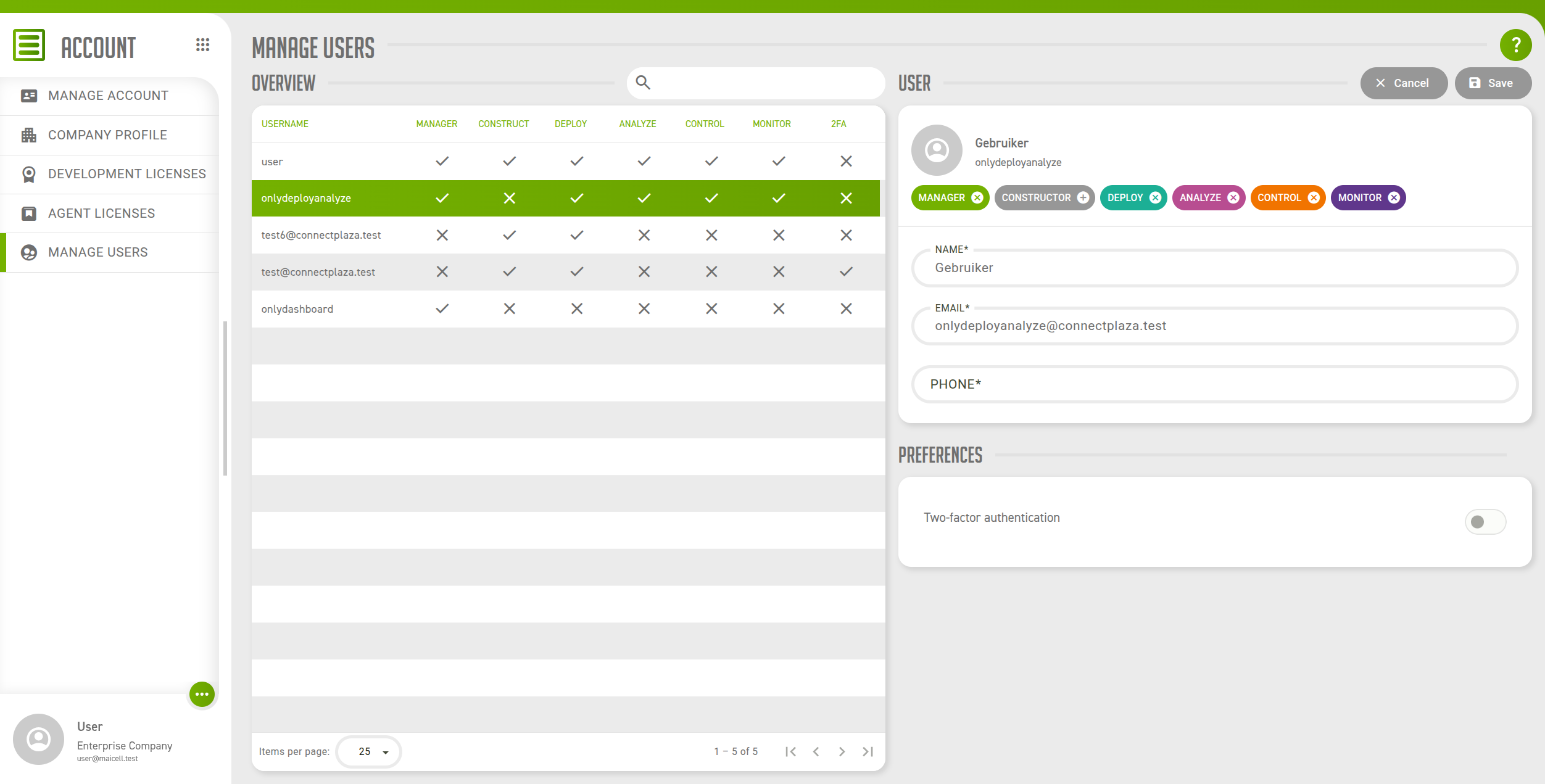
Manage users lists every user of your company and lets you decide what each of them may do in the Studio. The screen is available to users with the Manager permission only.
|
Manage users changes users that exist. It does not add or remove them, it does not change a username and it does not set a password. A new login is still created in the Dashboard, see Administrative dashboard. |
2. The overview
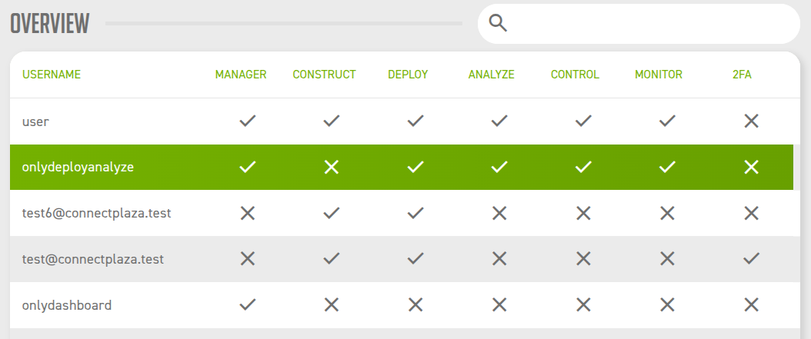
The Overview shows one row for each user, with a tick for every permission the user holds and a cross for every permission the user does not hold.
| Field | Description |
|---|---|
username |
The name the user logs in with. |
manager |
The user holds the Manager permission and can do in Account what you can. |
construct |
The user has access to Constructor. |
deploy |
The user has access to Deploy. |
analyze |
The user has access to Analyze. |
control |
The user has access to Control. |
monitor |
The user has access to Monitor. |
2FA |
The user has two-factor authentication switched on. |
Select a user to open it in the User panel on the right.
Save your changes to one user before you select the next.
3. The user
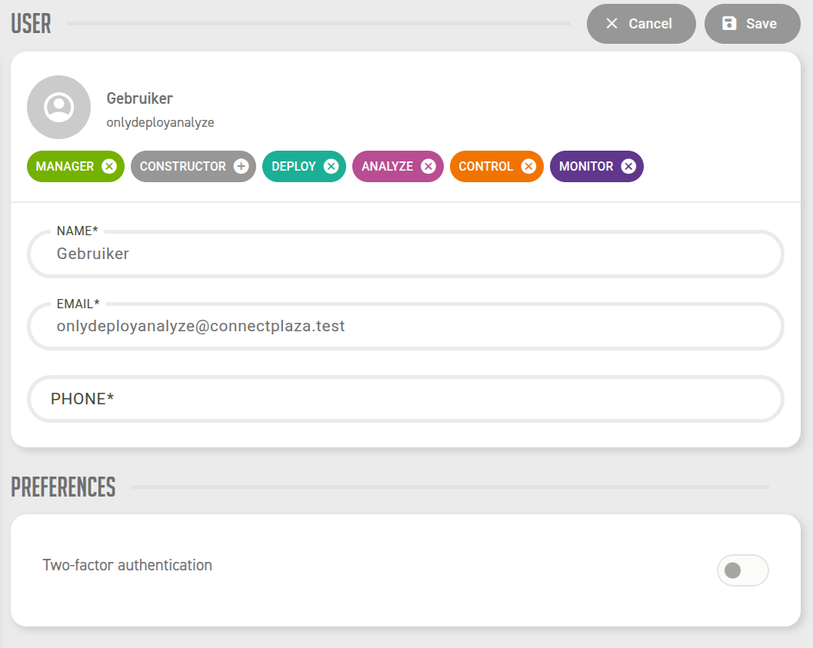
The top of the panel shows the name of the user with the username underneath it. Below that are the permissions and the contact details.
3.1. Permissions
Each permission is a chip, and the icon on the chip tells you what selecting it will do.

| Icon on the chip | Meaning |
|---|---|
A plus, on a grey chip |
The user does not have this permission. Select the icon to grant it. |
A cross, on a coloured chip |
The user has this permission. Select the icon to take it away. |
The six permissions are Manager, Constructor, Deploy, Analyze, Control and Monitor. The first decides what the user may do in Account, the other five give access to the Studio application of the same name.
A change to the chips is not stored until you press Save. The Overview then shows the new permissions.
|
You cannot take the Manager permission away from yourself: on your own user the Manager chip has no icon. |
A change in permissions takes effect the next time the user logs in.
3.2. Access to an application is not access to an Agent
Granting Analyze lets a user open Analyze. Which Agents the user finds there is decided somewhere else: by the Agent licenses the user is linked to. A user with the Analyze permission and no linked Agent license opens Analyze and has nothing to select. Link the user under Linked users of the license, as described in Manage licenses.
3.3. Contact details
| Field | Description |
|---|---|
Name |
The full name of the user. At most 150 characters. |
The email address of the user. It has to be a valid address of at most 50 characters. |
|
Phone |
The phone number of the user. At most 15 characters. |
All three fields are required. These are the same details the user can change under Manage account.
|
Save needs all three fields, also when a permission is all you change. If Save stays disabled, check for an empty field. |
3.4. Two-factor authentication
The Preferences panel shows whether the user has two-factor authentication on. The toggle is there to look at only. A Manager cannot switch two-factor authentication on or off for someone else; each user does that for their own account, as described in Two-factor authentication.