Pipelines
A definition says what a business entity looks like. A pipeline says how a message fills one in.
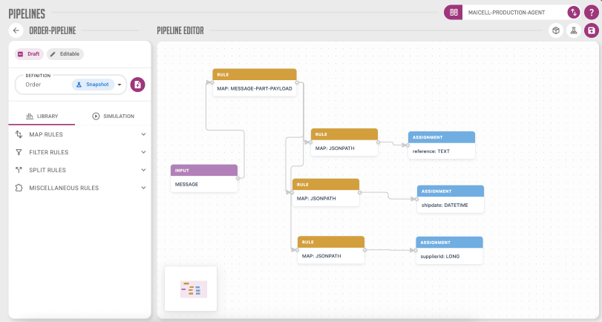
You build a pipeline by dragging rules onto a canvas and connecting them: read a message part, pull values out of it with XPath, JSONPath or a regular expression, optionally filter or split, and write the result into the entity’s properties. No code, unless you want a script.
1. Creating a new pipeline
Type a name in New pipeline name and click *. Names must be unique, and the name is only checked when you press *: if it is already taken no pipeline is created and the field reports This name is already in use.
A new pipeline starts as a Draft with a blank canvas. Pipelines follow the same Draft, Snapshot and Release states as everything else in Analyze — see Analyze concepts.

2. Using the pipeline editor
Click Draft to open the editor.
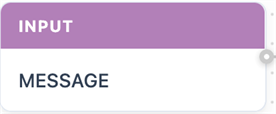
Every pipeline has exactly one INPUT: the message as Analyze stored it, with all its message parts, the same shape you would see in Constructor.
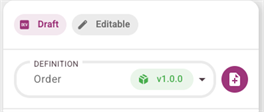
First choose the Definition this pipeline fills in. Each pipeline serves exactly one definition.
|
Only snapshotted or released definitions appear in this list. If the definition you just created is missing, it is still a Draft — open it and press To snapshot. |
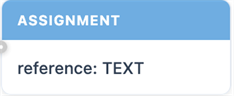
Choosing the definition puts one ASSIGNMENT node on the canvas per property. These are the end points: whatever reaches an assignment becomes the value of that property. You never add or remove them by hand — they follow the definition.
3. The components library
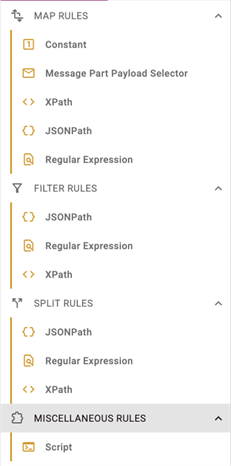
The library holds the rules that get you from the INPUT to the ASSIGNMENTS.
-
Add a rule by dragging it from the library onto the canvas.
-
Connect two nodes by dragging from one to the other.
-
Configure a rule by double-clicking it, which opens its settings on the right. A single click on the canvas closes those settings again, so a rule that will not open is usually one you clicked once rather than twice.
-
Delete a rule with the trash icon in those settings.
Save the draft when you are done. To use the pipeline on an agent, promote it with To Snapshot — a Draft cannot be mapped to a wiretap.
|
If you change the definition later, assignment nodes for properties the new definition does not have are dealt with in two different ways. One you never connected is removed for you. One you had already wired up is kept and flagged invalid on the canvas, and while any invalid node exists Save Draft, To Snapshot and To Release are all disabled — so you get no error message to read, just three buttons that do nothing. Delete the flagged assignment nodes and the buttons come back. See Troubleshooting Analyze. |
4. Map rules
Map rules pull a value out of the message, or supply one of their own.
| Rule | What it does |
|---|---|
Constant |
Supplies a fixed value, either to the next rule or straight into an assignment. |
Message Part Payload Selector |
Picks one message part to work on. A message usually has several parts, so this is normally the first rule in a pipeline. |
XPath |
Runs an XPath expression against XML. |
JSONPath |
Runs a JSONPath expression against JSON. |
Regular Expression |
Runs a regular expression against text. |
The last three take an expression, and each has an AI Assistant to help you write it. See AI Assistant.
5. Filter rules
A filter rule decides whether to pass a value on. Write an expression that yields true or false, as you would in a Constructor filter: true passes the value to the next rule, false discards it.
Use a filter when only some of the messages at a wiretap should produce a business entity.
6. Split rules
A split rule turns one batched value into several, so each can produce its own business entity. Use it when a single message carries a list — say twenty orders in one file — and you want twenty entities rather than one.
Filter and split rules both take an expression, in XPath, JSONPath or a regular expression, exactly like the map rules above.
7. Miscellaneous rules
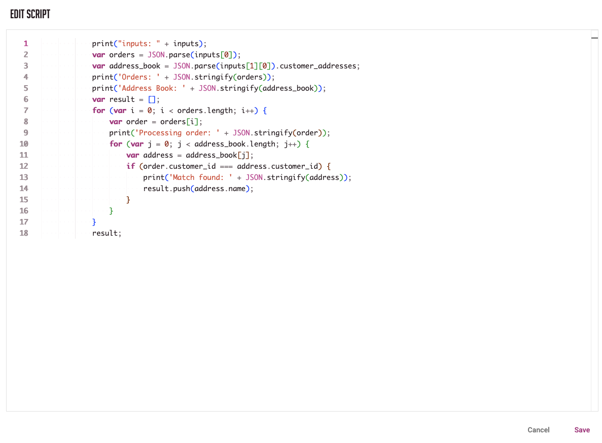
Script runs JavaScript over the message, for anything the other rules cannot express. Add the component, open its configuration on the right, and click Open Script Editor.
7.1. Scripts
Scripts are JavaScript, evaluated by the Nashorn engine inside the agent.
Read the rule’s inputs through the inputs variable: an array with one entry per
input connected to the node, each entry itself an array of that input’s values.
|
The script must end in an array. Its elements become the rule’s output values, one per value passed on to the next node. If it ends in anything else — a bare string, a number, nothing at all — or if it throws, the rule does not fail the pipeline. It passes the resulting error message on as its value, which then travels downstream and can end up stored in a business entity. Run a simulation to see what a script actually returned before you promote the pipeline. |
8. What happens at runtime
Once an Agent Mapping points a wiretap at your pipeline, every message that passes that wiretap runs through the pipeline automatically.
A business entity is created whenever at least one assignment produces a value. A partly-filled entity is still stored, and still appears in the overview — but what happens to the properties that stayed empty is worth knowing before you rely on it.
|
An assignment that produces nothing does not leave its property empty. The value is
written as an empty text attribute literally named A value that cannot be converted to its property’s type — say a rule’s error message arriving at a whole-number property — costs you more than one property. The entire business entity is discarded. Nothing is stored, nothing appears in the overview, and the only record is a line in the agent log. A pipeline that looks healthy can quietly be producing fewer entities than the traffic through the wiretap suggests. Troubleshooting Analyze covers both symptoms. |
9. AI Assistant
The AI Assistant writes an expression for you, from an example of your data and a description of what you want out of it. It is available on every expression field, so on map, filter and split rules.
Open it with the magic wand button in the expression field.

|
The AI Assistant uses credits, which are bought separately. Each request costs credits according to how much text it has to process, so a large example and a complicated question cost more than a short one. Your remaining balance is shown in the top right of the dialog, and Generate is disabled once it reaches zero. Contact Maicell to buy more. |
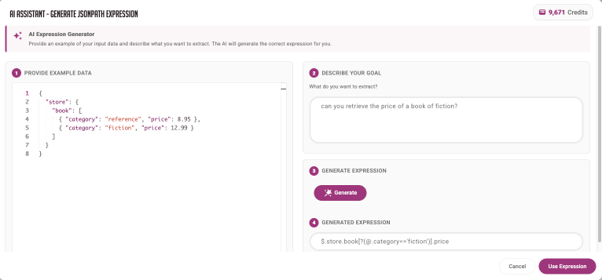
Using it takes four steps:
-
Provide Example Data on the left, in the format the rule expects: JSON, XML or plain text.
-
Describe Your Goal, in ordinary language. For example: "retrieve the order number from this payload".
-
Generate the expression. The button stays disabled until both the example and the description are filled in.
-
Use Expression to put it into the rule’s configuration.
Always try the result before trusting it — Simulating pipelines runs it against a real message in a couple of clicks.