Analyze installation on a running ConnectPlaza® Agent
|
This product is sold as a separate license. This is a named user license. |
1. Software
| Software | Version | ||
|---|---|---|---|
ConnectPlaza® Agent |
5.3.0 or higher, already installed and running. This page covers adding Analyze to an agent you already have, not installing the agent itself. |
||
A database (SQL or MongoDB) |
One of the databases listed below. MS SQL Server Express is not supported. |
||
ConnectPlaza® Analyze Adapter |
5.3.0 or higher.
|
1.1. Get your database driver
Before installation you also need the JDBC driver for your database. If you use MS SQL, you need an MS SQL driver. If you use MariaDB, you need the MariaDB driver.
Before you can use the database, add the driver’s .jar file to the
<ConnectPlaza Agent install directory>/endorsed directory. Restart your
ConnectPlaza® Agent to make the change active.
|
The MySQL driver is the one exception: the agent already ships it, so you do not have to add it yourself. |
Check your database specific connection string as well. You need it in the ConnectPlaza® Agent settings to connect to your database, together with a login and password. If you do not have these, contact your local system administrator.
2. Database installation
Before you start working with Analyze, you have to create a VOID database: a database that exists with just a name, and no tables inside it. This database can be a MongoDB or a SQL database. You can name it anything you like, as long as it is compliant with your database vendor.
When you download your ConnectPlaza® Agent you can choose a database in the selection box:
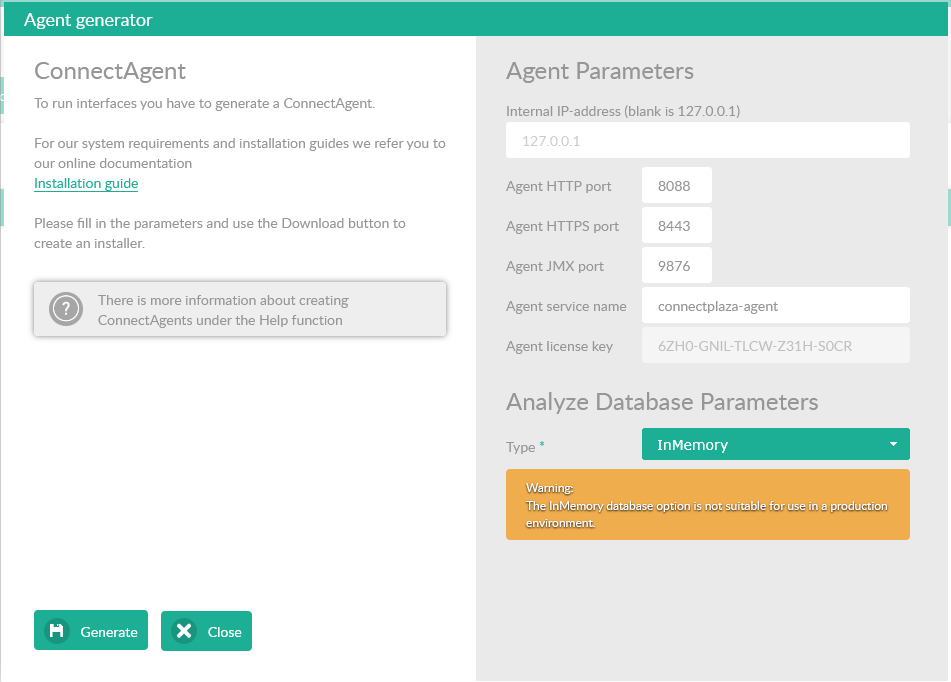
The selection box lists the databases we support and test against. Analyze connects through Hibernate 5, so a dialect for another database may well work, but we do not test it and we do not support it.
If your database is not in the list, select InMemory. You can add your configuration later via the Agent Configuration tab.
|
Never use an InMemory database in a production environment. It is an embedded HyperSQL database that lives entirely in memory, so a production message volume will exhaust the heap. |
3. Adding your Analyze configuration
Open for your ConnectPlaza® Agent the Agent Configuration tab. Select Analyze in the drop down at the right for the properties. Here you can add the settings to the Analyze configuration file.

There are four values to set:
- Database Dialect
-
A Hibernate 5 setting naming your database type. Every vendor has its own way of talking SQL, and the dialect takes care of translating to the right variant. In the example above it is the MariaDB dialect.
- Database URL
-
The connection string to your database. Your database administrator will have the correct form for your environment.
- Database Password / Username
-
Normally the user and password used to log into the database. If you are using MS SQL together with Active Directory, this can instead be the account the ConnectPlaza® Agent runs under. Check with your administrator which applies.
- Driver Classname
-
The Java class name of the JDBC driver you placed in the
endorseddirectory. In the example above it is the driver class for MariaDB 10.
These are the dialects and driver classes we support. They are the choices the agent download screen writes for you, so if you picked your database there, these values are already filled in.
| Database | Hibernate dialect | Driver classname |
|---|---|---|
MariaDB 10 |
|
|
MariaDB 11 |
|
|
MySQL 8 |
|
|
MS SQL Server |
|
|
MongoDB |
|
|
In-memory or embedded (HyperSQL) |
|
|
MongoDB is not a JDBC database, so it has no real dialect or driver class. It
uses the literal value MongoDB in both fields, and you configure the rest under
Override Mongo Core as described below.
|
Both values depend on the version of the driver |
4. Updating the ConnectPlaza® Agent
Update your ConnectPlaza® Agent with the ConnectPlaza® Analyze Adapter. This interface will support MongoDB as well as MySQL/MariaDB.
Install the following interface into your ConnectPlaza® Agent: ConnectPlaza® Analyze Adapter
-
Install this interface using your Deploy environment. Open the System interfaces and the following screen opens:

-
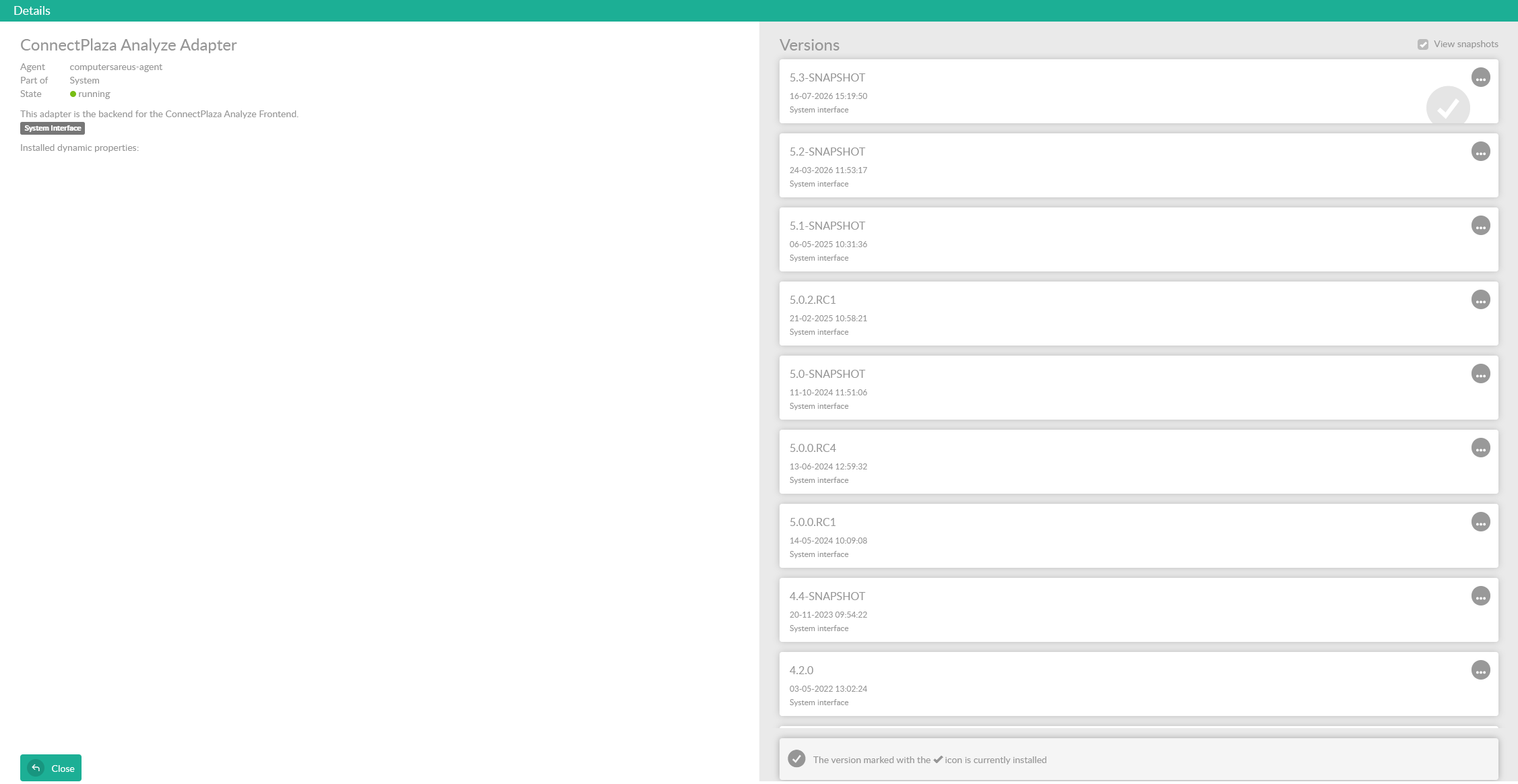
Double click the interface of your choice and the Details screen opens.
-
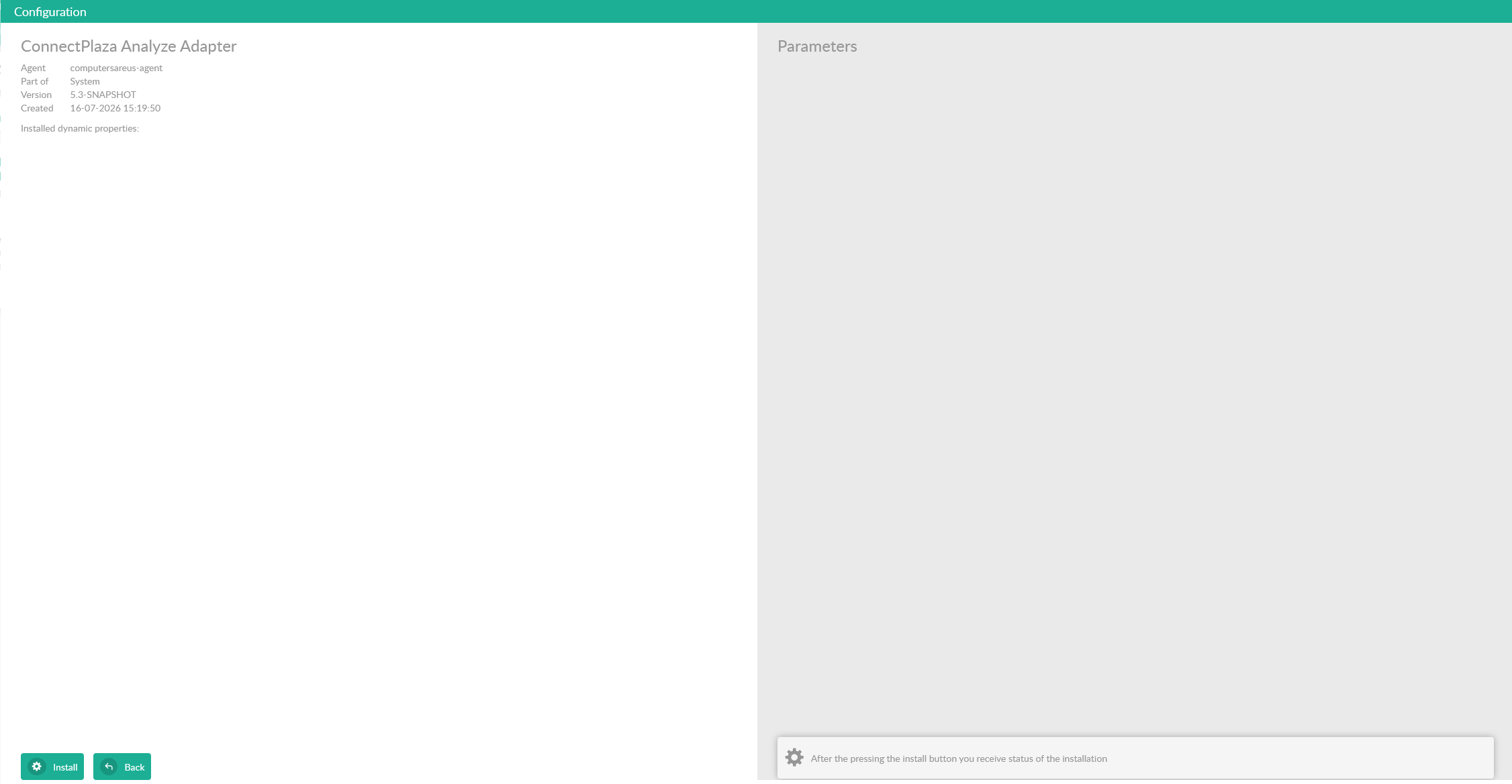
Double click the latest version of the system interface. In most cases this is the same version as your ConnectPlaza® Agent.
-
Accept the default settings, then press Install. The interface starts automatically.
4.1. Configuration settings
You have to configure some properties for Analyze on the local machine. To do this, follow these instructions.
Open the Agent Configuration tab and select Analyze.

Check the configuration for:



4.2. Cleaning up your database
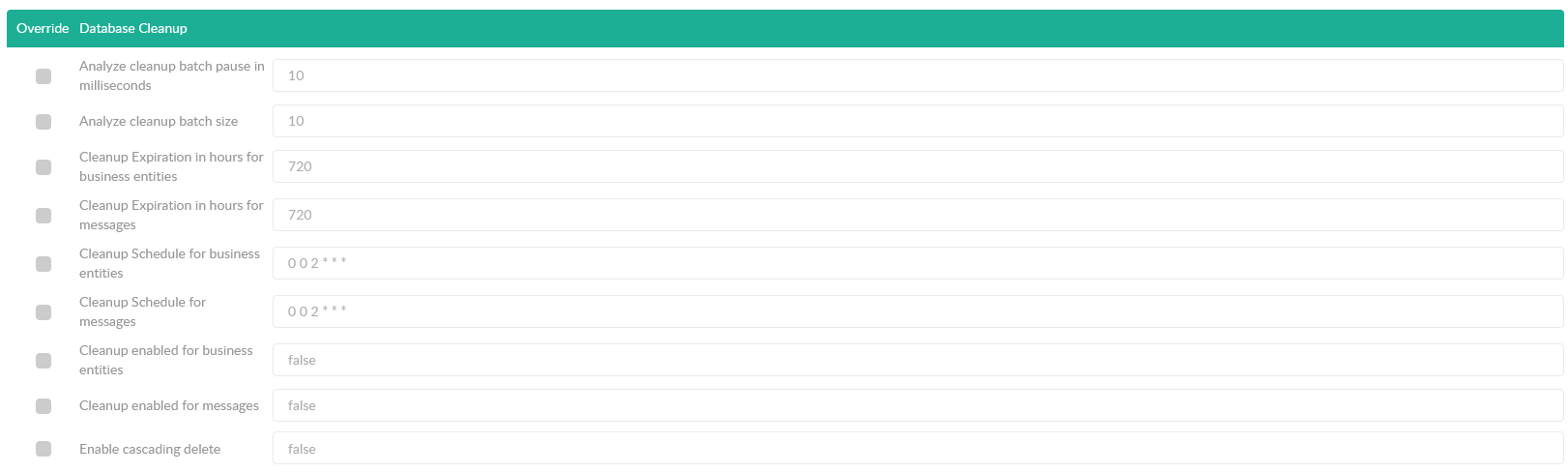
Remember that Analyze can create a lot of entries in your database, and that databases can grow very fast. To counter that you can run the automatic cleanup procedures. To do this, check the following parameters:
|
Cleanup is disabled by default, for Analyze messages and for business entities alike. Until an administrator enables it, nothing is ever deleted and the database grows without limit. The expiration setting below describes what will happen once cleanup is switched on; on its own it removes nothing. |
The cleanup process consists of two separate procedures, one to clean up the Analyze messages and one to clean up the business entities. Each has its own switch, its own schedule and its own expiration.
The expiration time is set in hours, and defaults to 720 hours, which is 30 days.
The second parameter sets the cron schedule. It is a Spring cron expression with six fields, in this order:
| Position | Field | Allowed values |
|---|---|---|
1 |
Seconds |
0-59 |
2 |
Minutes |
0-59 |
3 |
Hours |
0-23 |
4 |
Day of month |
1-31 |
5 |
Month |
1-12, or JAN-DEC |
6 |
Day of week |
0-7, or MON-SUN (0 and 7 are both Sunday) |
means every value. ? is accepted in the two day fields as a synonym for .
There is no year field.
The shipped default is 0 0 2 * * *: every day at 02:00. Some other examples:
| Expression | Runs |
|---|---|
|
Every day at 02:00 |
|
At 03:00 on Saturday and Sunday |
|
At 01:30 on the first day of each month |
|
Schedule cleanup for a quiet hour. It deletes in batches with a pause between them, but on a large database it is still the heaviest thing Analyze does. |
The last option you have to set is to enable or disable the cleanup procedure for the business entities and/or the Analyze messages.
5. First look at Analyze
Log in to your ConnectPlaza® Account. If you have sufficient rights to use Analyze, the Analyze tab appears once you have logged in.
Select the Analyze tab and you can start using Analyze. If you are in the ConnectPlaza® Account screen, select Analyze from the menu.
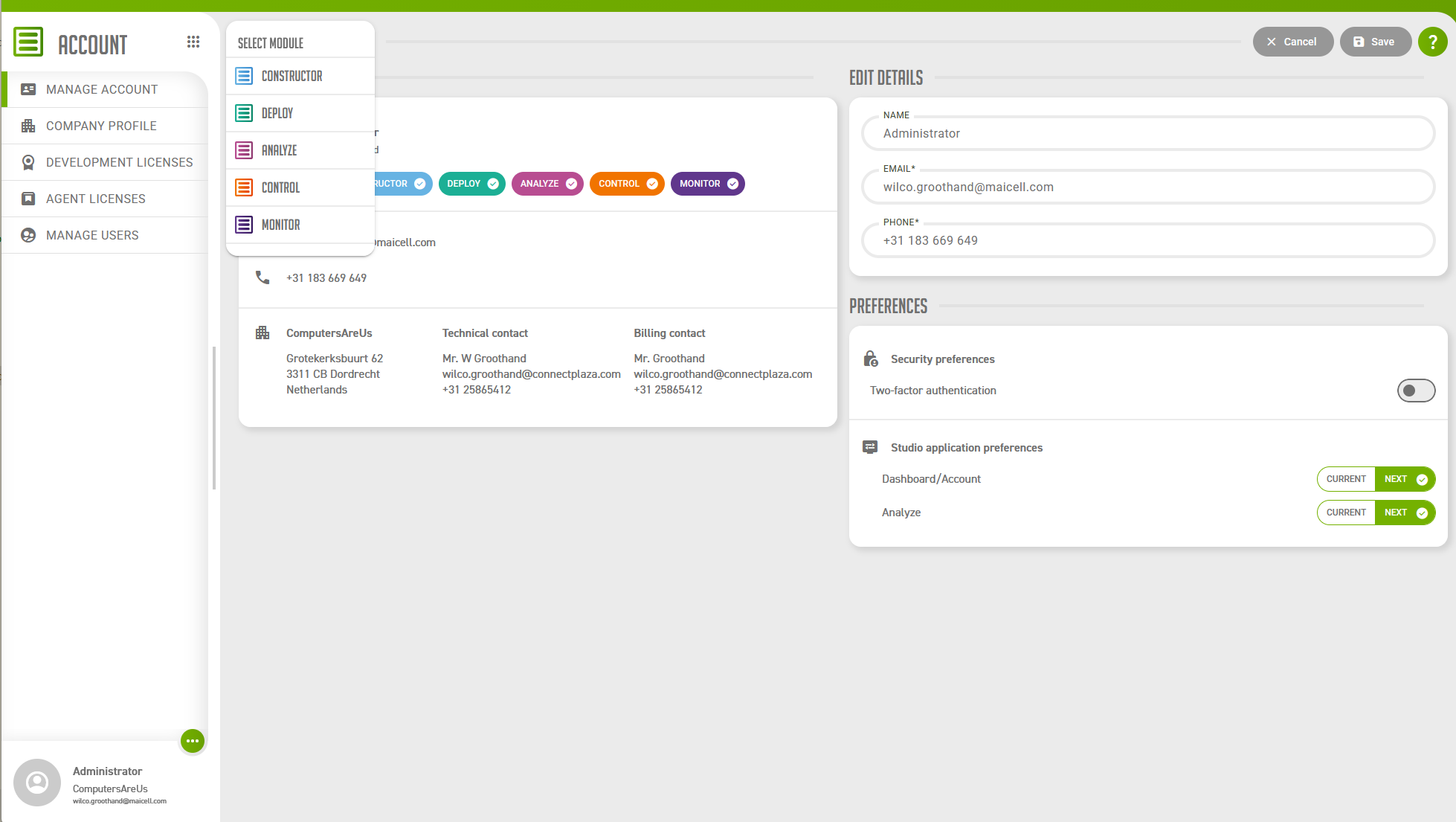
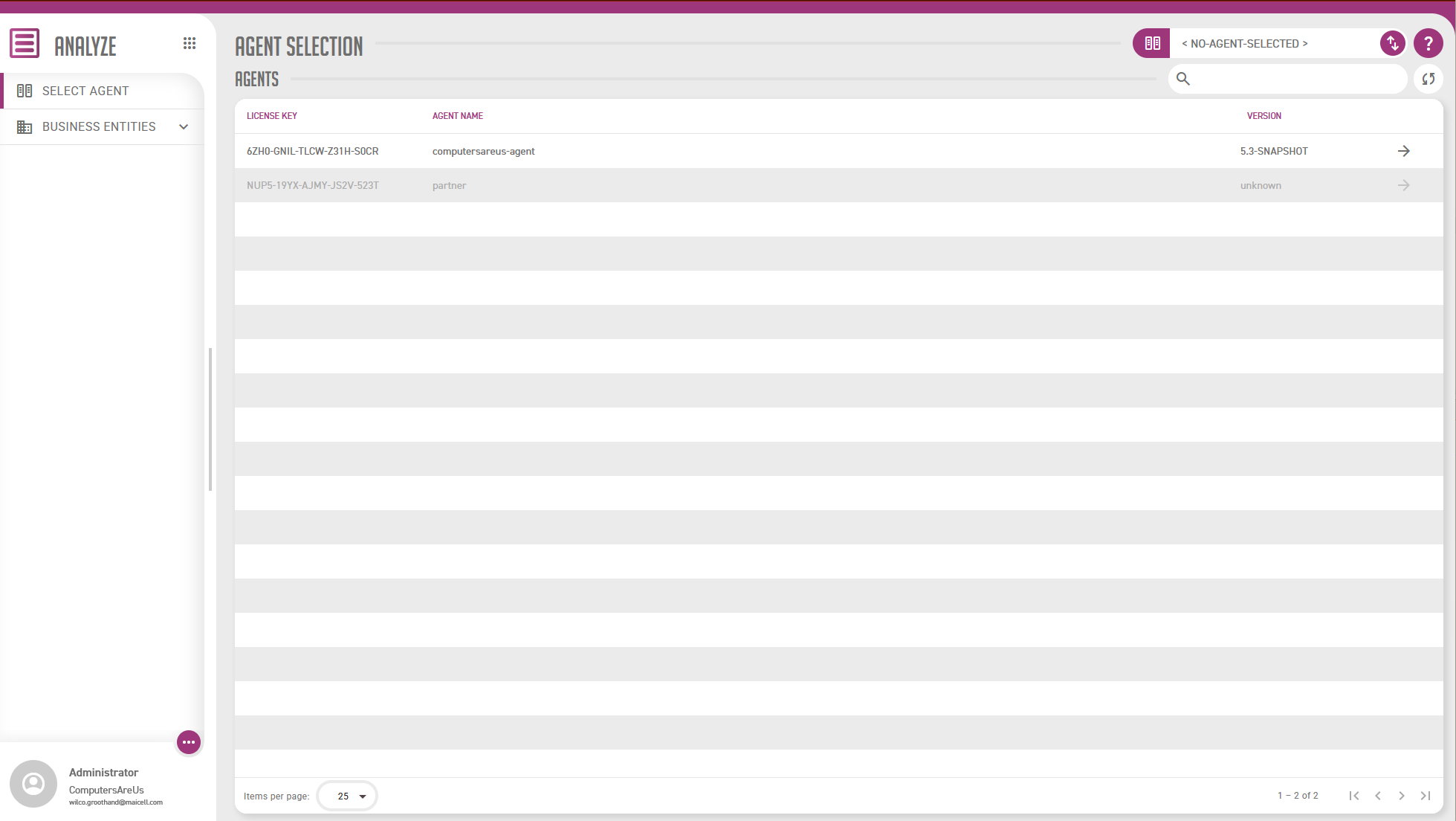
If no agent is selected, you can select one in the drop down box.
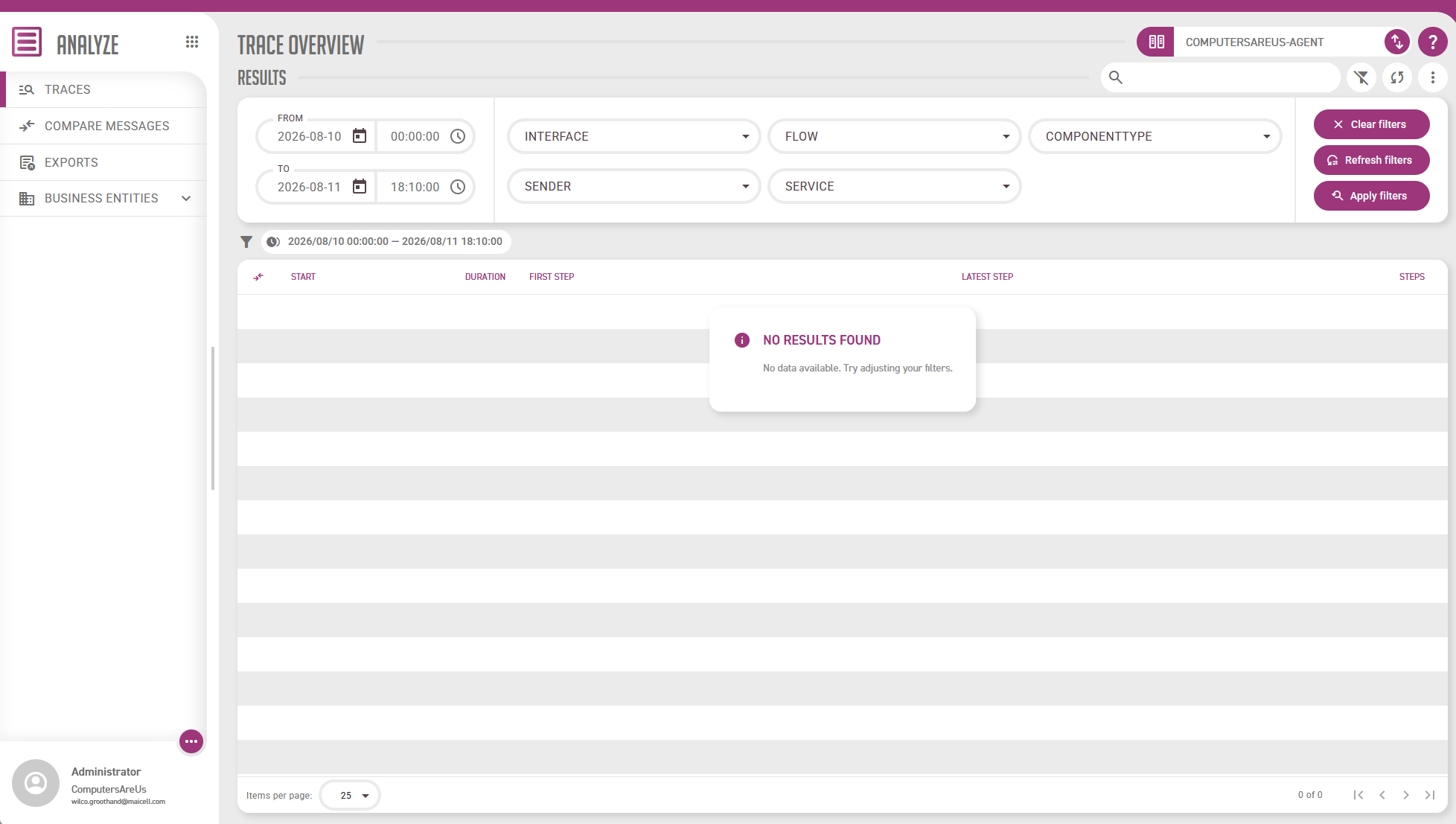
After you select your ConnectPlaza® Agent, the following screen opens.
6. Uninstalling Analyze
To uninstall Analyze, perform the following actions.
-
Uninstall the following interfaces via Deploy:
-
ConnectPlaza® Analyze Adapter
-
-
Remove the connection settings in the Agent Configuration section in Deploy.
Keep in mind that Analyze is part of your license agreement. Uninstalling does not end the agreement.