Manage licenses
1. Introduction
Account shows licenses on two screens that look and work the same.
-
Development licenses holds the licenses your company develops interfaces with.
-
Agent licenses holds the licenses of your company’s ConnectPlaza® Agents.
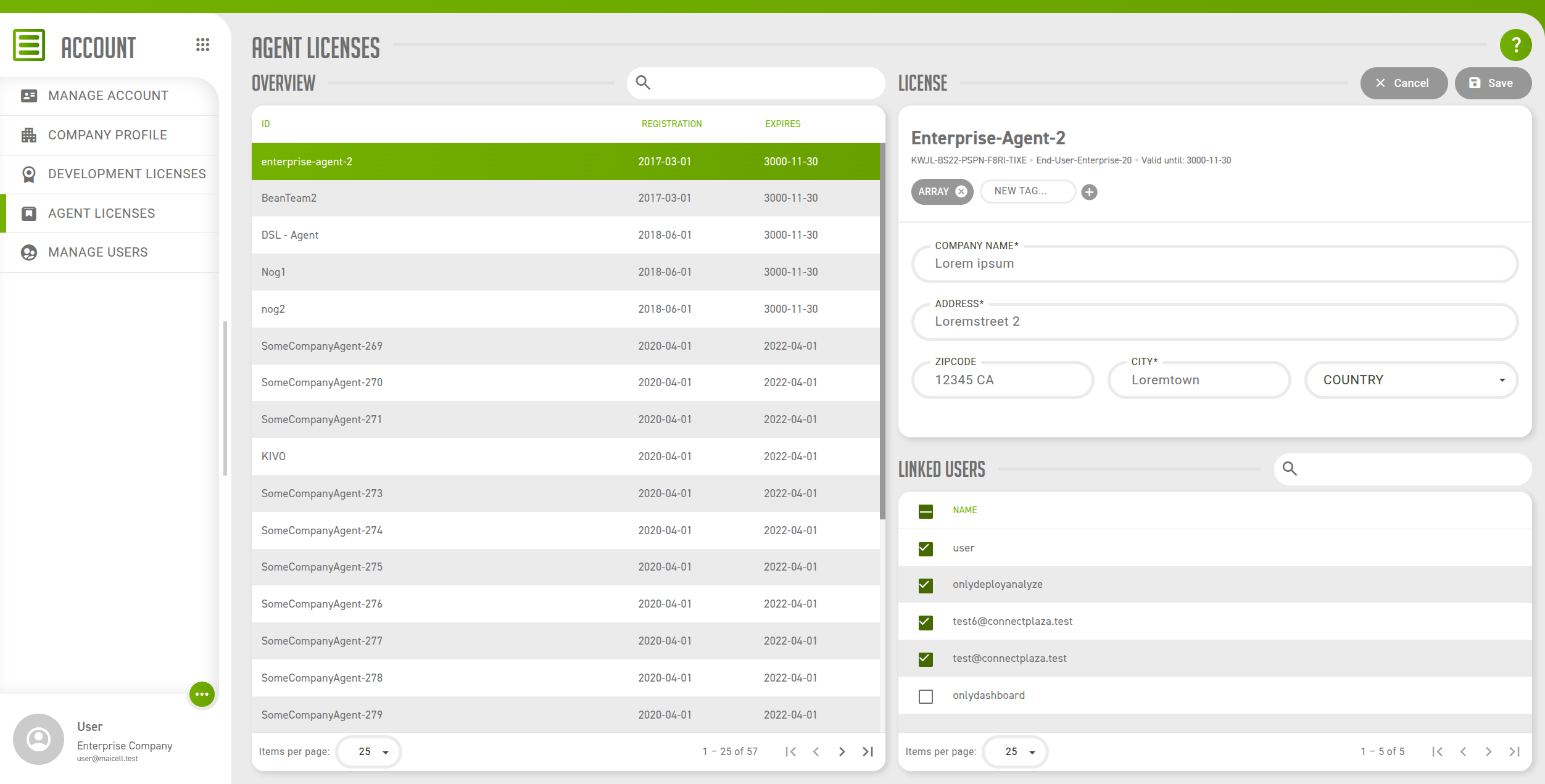
Every user has these two screens, to look at the licenses that are linked to them. That view is described in Your licenses. With the Manager permission the same two screens do more: they list every license of your company, whether it is linked to you or not, and they let you change the tags, the address and the linked users of each one.
Licenses are not created, extended or deactivated in Account. That is still done in the Dashboard, see Administrative dashboard. How the license types relate to each other is explained in Structure of licenses.
2. The overview
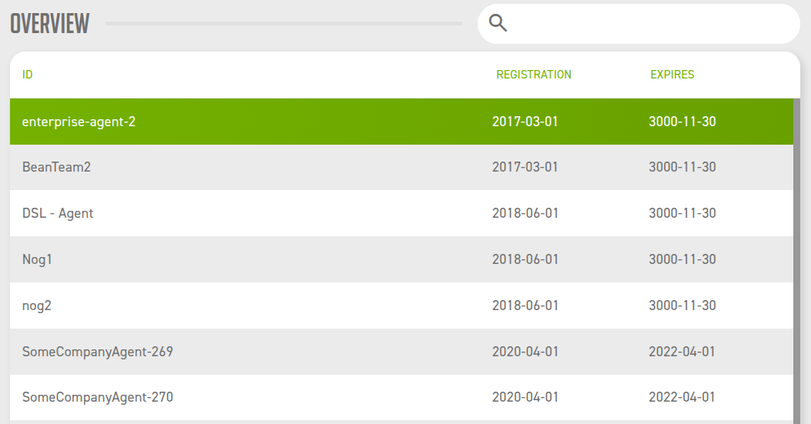
| Field | Description |
|---|---|
id |
The identification of the license. |
registration |
The start date of the license. |
expires |
The date until which the license is valid. |
The dates are shown as year, month and day. Select a license to open it in the License panel on the right.
3. The license
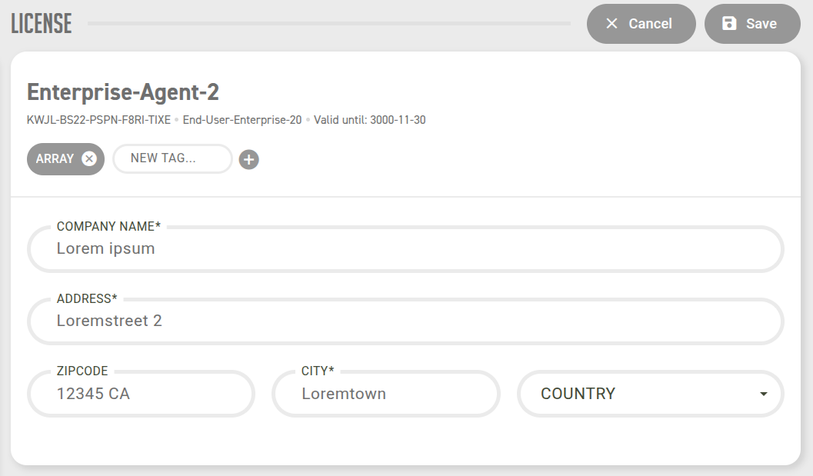
The top of the panel identifies the license. Nothing in it can be changed.
| Field | Description |
|---|---|
Identification |
The identification of the license, as in the overview. |
License key |
The key of the license, shown underneath the identification. |
License type |
The type of the license. |
Valid until |
The date until which the license is valid. |
Below that are the parts you can change: the tags, the address of the license and the users that are linked to it. Cancel and Save are above the panel.
3.1. Tags
A tag is a short label of your own that you attach to a license, for example to tell apart test and production, or one customer’s Agents from another’s.

| To | Do this |
|---|---|
Add a tag |
Type it in the NEW TAG… field and press Enter or type a comma. The button at the end of the field does the same. |
Rename a tag |
Double-click the tag, change the text and press Enter. Emptying the text removes the tag. |
Remove a tag |
Select the cross on the tag. |
A new tag is stored in lower case, whatever you typed, and adding a tag the license already has does not add it a second time.
3.2. Address
| Field | Description |
|---|---|
Company Name |
The company name on the license. At most 50 characters. |
Address |
Street and house number. At most 50 characters. |
Zipcode |
The postal code. At most 10 characters. |
City |
The city. At most 50 characters. |
Country |
The country, selected from the list. |
All five fields are required. Save becomes available once each of them has a value.
3.3. Linked users
Linked users lists every user of your company. The users whose checkbox is ticked are linked to this license.
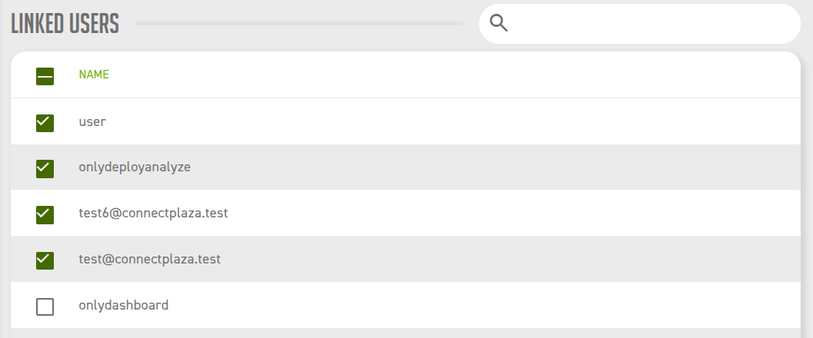
Linking is what gives a user the license:
-
A user who is not a Manager sees only the licenses they are linked to on these two screens. An unlinked user has an empty overview.
-
For an Agent license, Analyze offers a user only the Agents whose license they are linked to.
This applies to Managers as well: to work with an Agent in Analyze, link your own user to its license.