Simulating pipelines
1. Introduction
A pipeline can be run against a message you have already captured, from the pipeline editor, without deploying anything. The pipeline is sent to your agent, executed there on that stored message, and the business entities it would have produced come straight back to the browser.
This is the fastest way to find out whether a rule actually matches your data, and it saves the round trip of snapshotting, mapping and deploying only to discover that a JSONPath expression was wrong.
A simulation changes nothing. It does not store business entities, and it does not affect what a deployed pipeline is doing.
|
The SIMULATION tab exists only on a Draft. A Snapshot or a Release is read-only, so the LIBRARY and SIMULATION tabs are not shown at all on one — if you cannot find the tab, check which version of the pipeline you have open. |
2. Choosing the message to run against
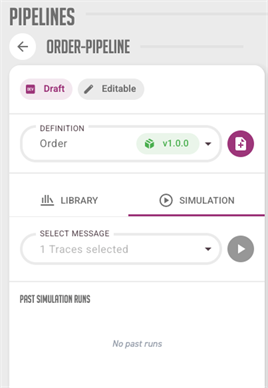
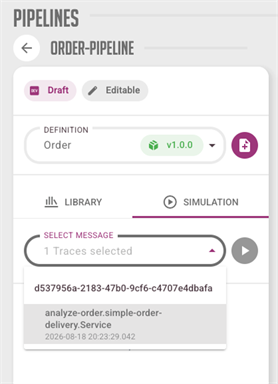
The SIMULATION tab has a Select Message dropdown, and it is filled from the Compare Messages selection — not from anything on the pipeline screen.
|
If Select Message is empty, it is because you have not put a message in that selection yet. Nothing on this screen says so. Go to Traces, messages and comparing, open a trace, and tick the checkbox on the message you want. It is then available here. You can tick several, from different traces, and pick between them in the dropdown. The selection lives in the browser tab, so closing the tab empties it. |
Pick the message in a trace:

It is then offered as the input to simulate against:
|
Pick a message that is representative of the traffic the pipeline will really see, not the neatest one. Most pipeline faults are a rule that matches the example and not the general case. |
3. Running it and reading the result
Press the play button to run. Each run is listed under Past Simulation Runs:
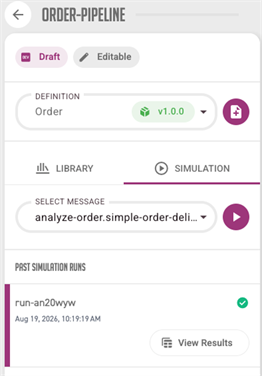
Press View Results to open the outcome.
|
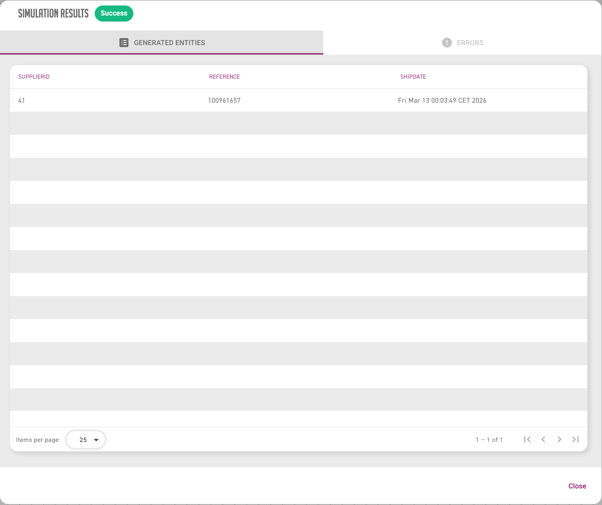
A simulation whose pipeline fails is still a successful run. The simulation executed; the pipeline is what did not work. There is no error banner, so read the chip at the top of the dialog rather than assuming that no message means no problem. |
| Chip | What it means | What to do |
|---|---|---|
Success |
The run raised nothing to report. It does not mean every attribute got a value: an assignment whose rule returned nothing raises nothing either, and the entity is produced with that attribute empty. |
Check GENERATED ENTITIES for empty attributes. |
Partial |
Something was reported, and entities were still produced. |
Open ERRORS to see what, and why. This is the common case while building a pipeline. |
Failed |
Something was reported, and no entity came out of it at all. |
Usually the input rule: the message part selector, or a rule reading a payload that is not the shape you expected. |
The dialog has two tabs:
-
GENERATED ENTITIES — the business entities the pipeline would have created, with the value of each property. This is what would have appeared on the Business entities overview.
-
ERRORS — what went wrong, reported per node. Each entry names the rule that failed or could not run, and gives the reason, so a broken rule can be found on the canvas instead of guessed at.
The parts of a pipeline that do not depend on a broken node still report the entities they would have produced, so a single failing rule does not hide everything else.
|
Past runs are kept only while you stay on the pipeline. Switching to a different pipeline clears the list. |
4. When the result looks wrong
Two causes account for most surprises, and both are covered in Troubleshooting Analyze:
-
Every rule returns nothing, on a message that clearly holds the data. The message probably arrived over an HTTP Listener left at Expected Content Type
DEFAULT. Analyze then stores it Base64 encoded, so the content your rules read is no longer the JSON or XML they are written against. -
The run reports Success but produces no entities. If you opened the pipeline draft directly by its URL in a cold browser tab, the canvas can come up empty, and an empty pipeline simulates successfully. Reload the page and run it again.