Account
1. Introduction
Account is the part of ConnectPlaza® Studio where you look after your own login. Every user of the Studio has it. It takes over this work from the Dashboard.
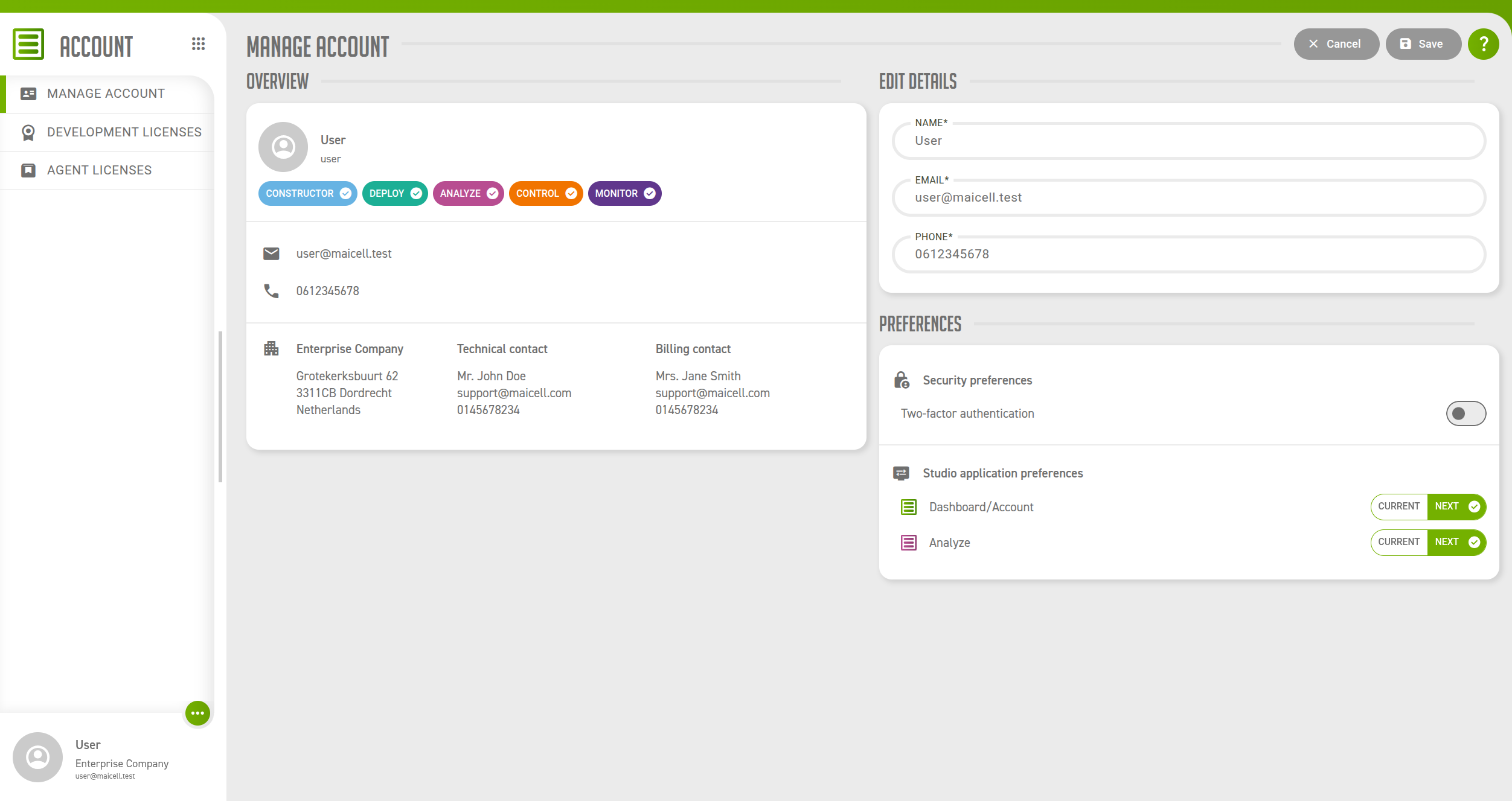
As a user you do three things in Account.
| Screen | What you do there |
|---|---|
Manage account |
Keep your name, email address and phone number up to date, switch two-factor authentication on or off, and choose which version of the Studio applications you work with. See Manage your account and Two-factor authentication. |
Development licenses |
See the development licenses that are linked to you. |
Agent licenses |
See the Agent licenses that are linked to you. Both license screens are described in Your licenses. |
These pages describe Account as every user sees it. A user who holds the Manager permission gets more: the profile of the company, all of its licenses, and the permissions of its users. That part is described separately, from Account user guide for the manager onwards.
2. Start with Account
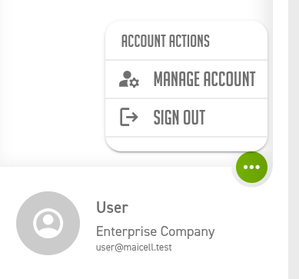
Log into your ConnectPlaza® environment. At the bottom of the side menu you see your account details. Press  next to them to open the Account actions menu and select Manage account.
Account opens on Manage account.
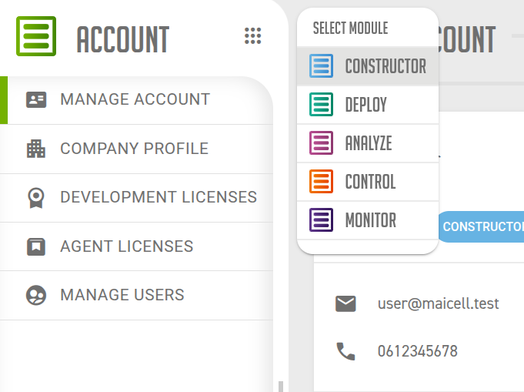
The grid icon at the top of the side menu opens the Select module menu, which takes you to the other Studio applications you have access to. You open Account itself from the Account actions menu, as described above.
3. The side menu
-
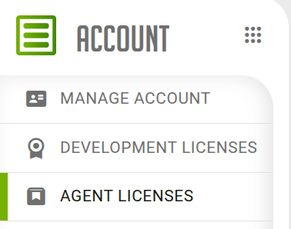
Manage account - your own details, two-factor authentication and preferences.
-
Development licenses - the licenses you develop interfaces with.
-
Agent licenses - the licenses of your ConnectPlaza® Agents.
At the bottom of the menu you see your name, your company and your email address. next to them opens the Account actions menu, where you select Sign out to leave the Studio.
|
A Manager has two more entries in this menu, Company profile and Manage users. They are shown to Managers only. If you need them, a Manager within your company can grant you the Manager permission. |
4. What you cannot do here
Some things in Account are decided for you, by a Manager within your company. If one of them is wrong, a Manager is the person to ask.
| What | Why you cannot change it |
|---|---|
Your permissions |
The chips on Manage account show which Studio applications you may use. A Manager grants and takes away permissions. |
The licenses that are linked to you |
You see a license, and in Analyze its Agent, only when a Manager has linked you to it. |
The details of a license |
You can look at a license, but not change its tags, its address or its linked users. |
The company details and its contacts |
They are shown on Manage account and maintained by a Manager. |
Your username cannot be changed in Account by anyone.
5. Saving your changes
Manage account is the one screen on which you change something. It has two buttons at the top right.
| Button | What it does |
|---|---|
Save |
Stores your changes. It is disabled until you have changed something, and it stays disabled for as long as one of the fields holds a value that is not accepted. |
Cancel |
Puts back the values as they were last saved. Nothing is sent to the server. |
Nothing is saved until you press Save, so save your changes before you open another screen.
|
Two-factor authentication is the exception. Its toggle acts at once and has nothing to do with Save and Cancel. See Two-factor authentication. |