System Requirements
1. OS / Memory / Cores
| Type | Minimum requirement | Preferred for initial production fase |
|---|---|---|
OS |
|
|
Memory |
4 GB |
16 GB |
Number of Cores |
1 |
2 |
Internet |
Required for license checks |
Required for license checks |
Machine Access |
ROOT access required |
ROOT access required |
|
Windows 2016 server will be END OF LIFE after 12 Januari 2027. |
2. Software
| Software | Version |
|---|---|
Java JDK |
Adoptium OpenJDK 17.x The JRE Will be downloaded during install of the ConnectAgent. This implementation will be maintained by ConnectPlaza® as of version 5.0.0 |
ConnectPlaza® Agent |
5.3.0 |
3. Firewall settings
ConnectPlaza® Agent and ConnectPlaza® are connected via the internet to each other. Therefore you will pass, in most cases, one or more firewalls.
ConnectPlaza® and the ConnectPlaza® Agent use the following URLs:
| URL | Description |
|---|---|
https://www.connectplaza.com/ |
Main site for ConnectPlaza® |
https://backend.connectplaza.com |
This address is used by the ConnectPlaza® Agent to check its license. |
https://rsocket.connectplaza.com |
ConnectPlaza® RSOCKET Gateway |
ConnectPlaza® Agent will use the following default ports:
| Port number | Description |
|---|---|
443 |
Default HTTPS port |
8088 |
Default agent port NOT SECURE (binds to localhost by default) |
8443 |
Default agent port SECURE (binds to localhost by default) |
Port 443 need to be open for inbound / outbound traffic always.
4. Downloading the software
Before you can begin installing, you have to download the required software.
4.1. ConnectPlaza® Agent
Your ConnectPlaza® Agent can be downloaded from the Deploy website. Here you can preconfigure your ConnectPlaza® Agent and download it with a preconfigured configuration to ease your installation. To download the Agent follow the next steps.
-
Login at the ConnectPlaza® website with a Developer or End User account.
-
If you login with a Developer account, choose the Deploy application. You will enter a selection screen where you can select the Agent you want to install.
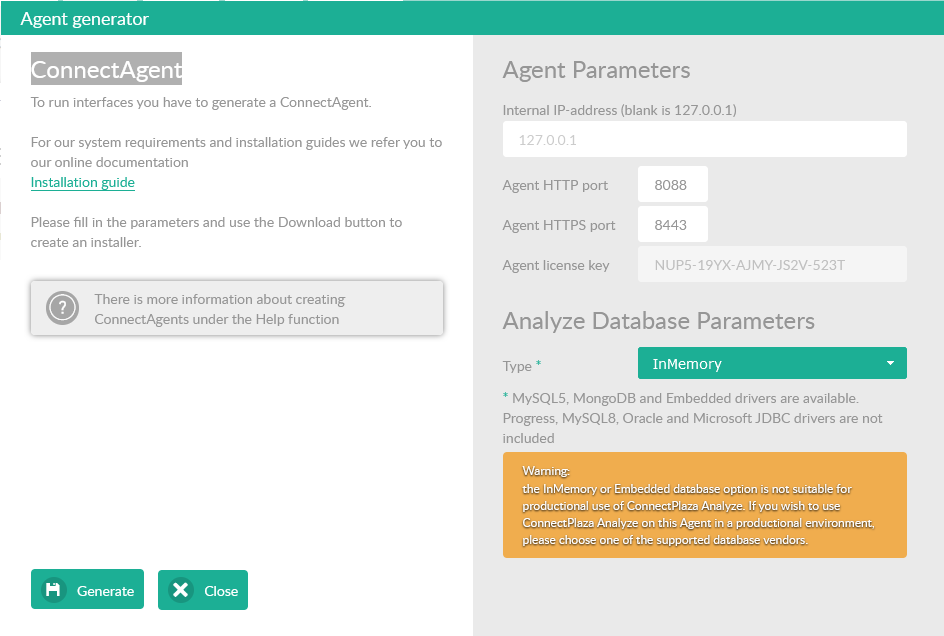
-
Double click on the Agent you want to install. Wait until the application is finished trying to connect to the agent. This is the default behaviour. It will probably not find any agent. You will end up with the next screen.
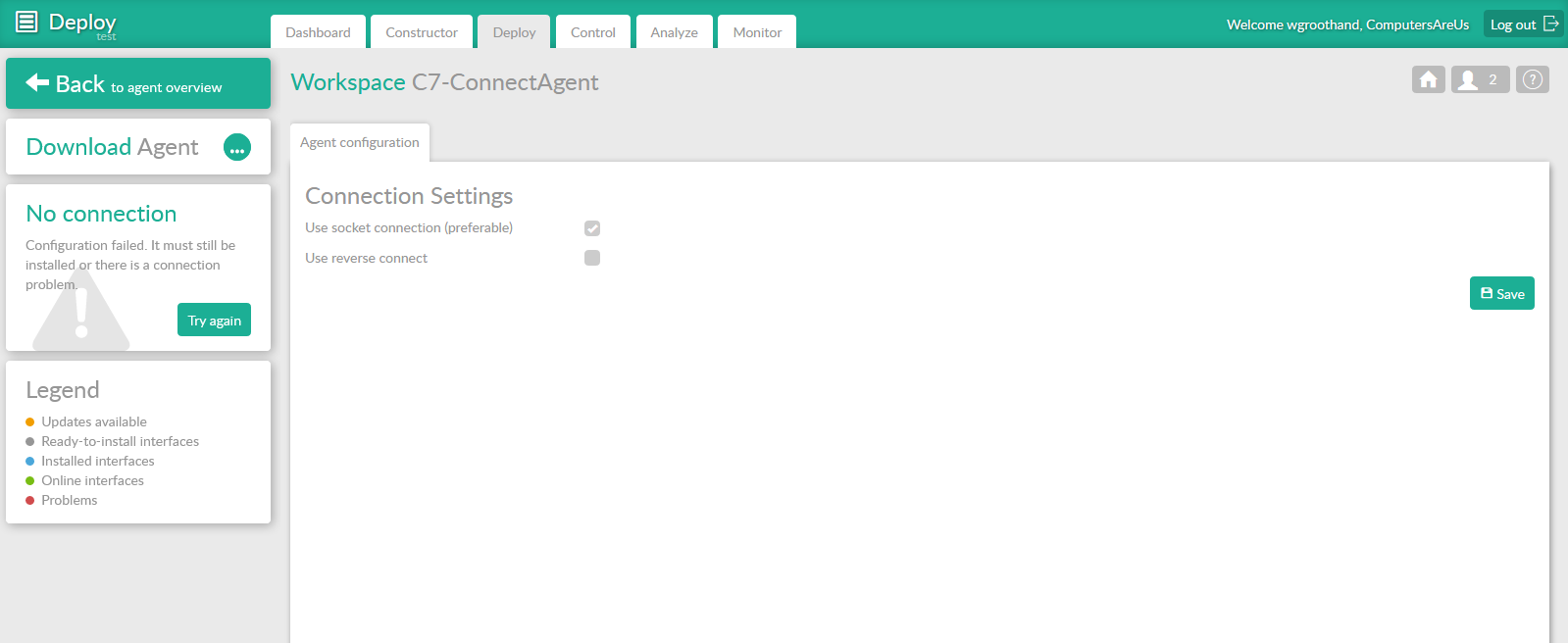
-
Download the ConnectPlaza® Agent of your choice
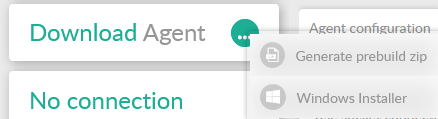
-
If you choose Generate prebuild zip , you must enter the configuration for your ConnectPlaza® Agent. For the Windows Installer this will be done during the install procedure itself.
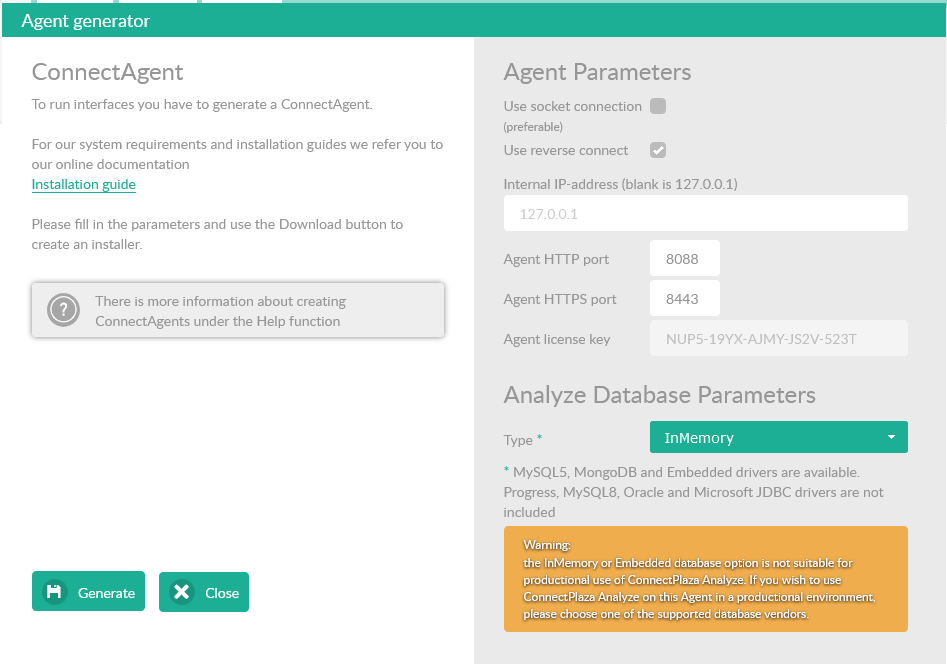
-
Fill in your preferred settings (RSOCKET)
| Field name | Description | ||
|---|---|---|---|
Use socket connection |
This is the preferred setting as of version 4.0. |
||
Use reverse connect |
|
||
Internal IP Address |
Your internal IP address or hostname. This is the name or IP address how the machine is recognized in your internal network. |
||
Agent HTTP port |
Port for internal HTTP traffic. Default 8088 |
||
Agent HTTPS port |
Port for internal HTTPS traffic. Default 8443 |
||
Agent license key |
Your ConnectPlaza® Agent license key. The key is generated by the system and you cannot modify it. |
||
Analyze Database Parameters |
If you have an Analyze license, you can select a preset analyze database here. The following options are available:
|
-
Push the
 button to generate the ConnectPlaza® Agent and save it to your machine. The default filename is agent.zip.