Manage your account
1. Introduction
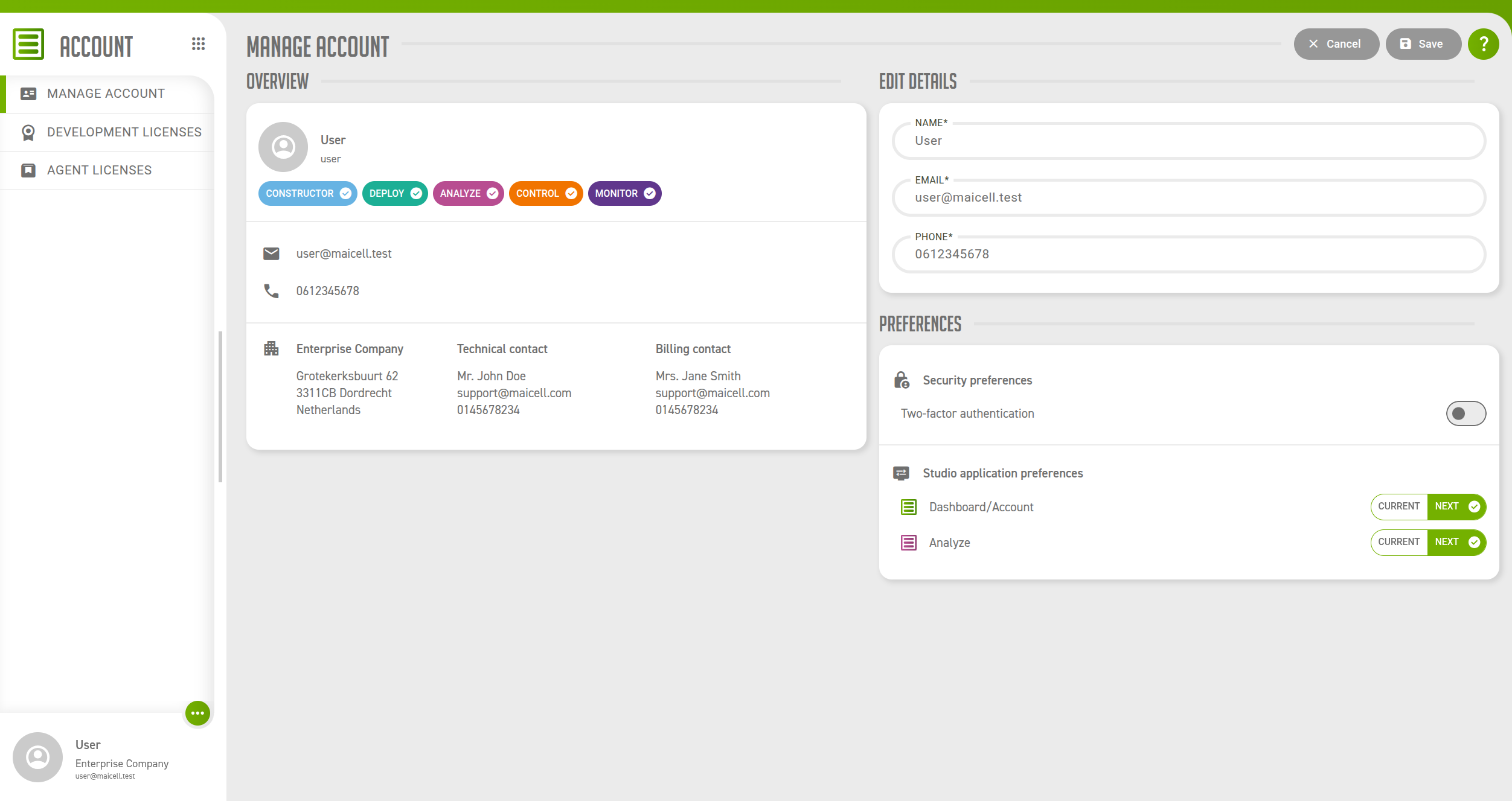
Manage account is the screen Account opens on, and the one screen every user has. It shows who you are to ConnectPlaza® on the left, and lets you change your contact details, your two-factor authentication and your Studio preferences on the right.
2. Overview
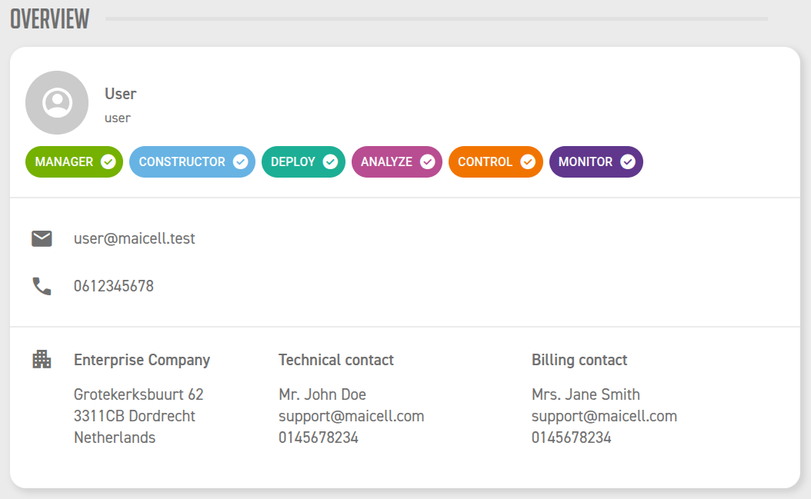
The Overview panel is read-only. It is the place to check what your account looks like and what it is allowed to do.
| Field | Description |
|---|---|
Name and username |
Your name, with the username you log in with underneath it. The username cannot be changed in Account. |
Permissions |
A chip for each permission your account holds. See the table below. |
Email and phone |
Your own contact details, as you maintain them under Edit details. |
Company |
The name and address of your company. |
Technical contact |
Your company’s contact for technical matters. |
Billing contact |
Your company’s contact for invoices. |
The company, the technical contact and the billing contact are the same for every user of your company. They are maintained by a Manager in Company profile, so if one of them is wrong, that is where it is corrected.
The chips tell you what your account may do.
| Chip | What it gives you |
|---|---|
Manager |
Maintaining the company profile, the licenses and the users of your company in Account. |
Constructor |
Access to Constructor. |
Deploy |
Access to Deploy. |
Analyze |
Access to Analyze. |
Control |
Access to Control. |
Monitor |
Access to Monitor. |
Only the permissions you hold are shown, so a missing chip means you do not have that permission. You cannot change your own permissions on this screen. A Manager within your company does that, under Manage users.
3. Edit details
| Field | Description |
|---|---|
Name |
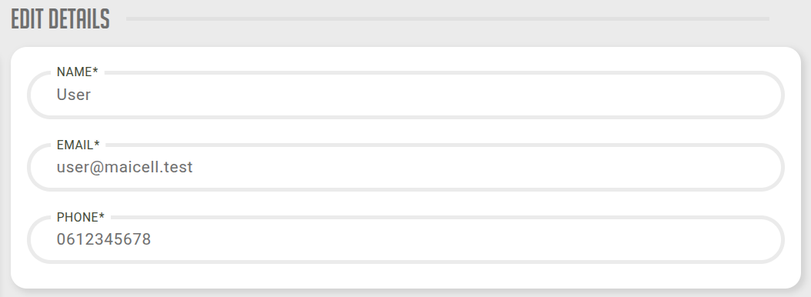
Your full name, as it is shown in the side menu and to the Managers of your company. At most 150 characters. |
Your email address. It has to be a valid address of at most 50 characters. |
|
Phone |
Your phone number. At most 15 characters. |
All three fields must have a value. Change them and press Save.
4. Two-factor authentication
With two-factor authentication on, logging in takes your password and a code from an authenticator app on your phone. You switch it on and off with the Two-factor authentication toggle under Security preferences.

This toggle is not part of Save and Cancel. Selecting it opens a separate window in which you log in again and, when you are switching it on, register your authenticator app. The toggle moves once that window has closed and the result is known.
The whole procedure, including what changed in 5.3.0 for users who received their code by e-mail, is described in Two-factor authentication.
5. Studio application preferences
Two Studio applications exist in a current and in a new version. Under Studio application preferences you choose which of the two you work with.

| Preference | CURRENT | NEXT |
|---|---|---|
Dashboard/Account |
You work with the Dashboard. |
You work with Account. |
Analyze |
You work with the current Analyze. |
You work with the new Analyze, which this manual calls Analyze (New Style). |
Both preferences start on CURRENT. They are yours alone: changing them does nothing for your colleagues, and a Manager cannot set them for you.
A preference takes effect when you press Save:
-
Analyze in the Select module menu opens the version of Analyze you chose.
-
With Dashboard/Account on CURRENT, the Select module menu has a Dashboard entry that opens the Dashboard. With NEXT you work in Account instead.
Manage account in the Account actions menu opens Account with either setting.