Installing the ConnectPlaza® Agent with the prebuild .zip file
-
This installation has to be performed by the local Administrator .
-
Check that a correct Java JDK is installed and available.
-
Check that Powershell is installed and available.
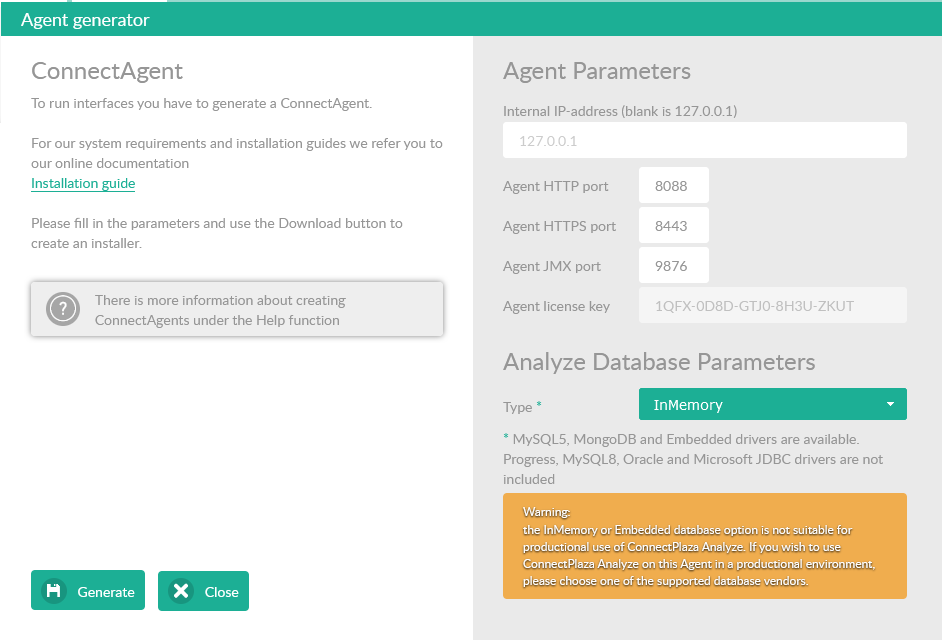
Register a new ConnectPlaza® Agent (end user license) at the ConnectPlaza® website. Go to Deploy and generate a new ConnectPlaza® Agent. Remember to use different port numbers for internal port number (HTTP) and external port number (HTTPS). I.E. if you have used these port numbers (8088 and 8443) in a previous install, you cannot use these port numbers again. (also see the Agent generator in Deploy)
Check the firewall settings of your local machine and your main firewall as needed.
You can perform a test with the command telnet to check if your machine is accessible from the outside. Start telnet on a separate machine, outside your network and try to connect to the machine and port number. See example below.
telnet <your domain name> 80If you get a blank screen, you can connect to your server at the selected port. No errors should appear
-
Download the agent.zip file from ConnectPlaza® and put is somewere on your machine. If you have a ConnectPlaza® Analyze license, set the correct parameters in this generator box.
-
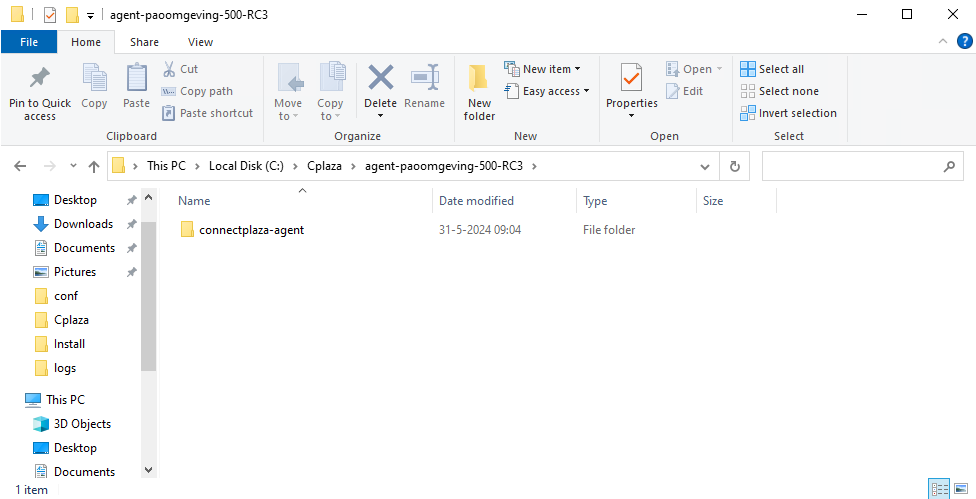
Copy the agent.zip to the installation directory. We use c:\cplaza for example to install our agent. If you have more than one Agent running on the machine, select or create a directory.
-
Unzip the agent.zip file. You will end up with a connectplaza-agent directory
1. Installing the ConnectPlaza® Agent as a Windows service
If you have unpacked the ConnectPlaza® Agent, you are able to install the ConnectPlaza® Agent as a Windows service. To install the connectAgentUpdater service run the script below with the option Run as administrator. You can find the script in the directory <ConnectPlaza Install Directory>\bat.
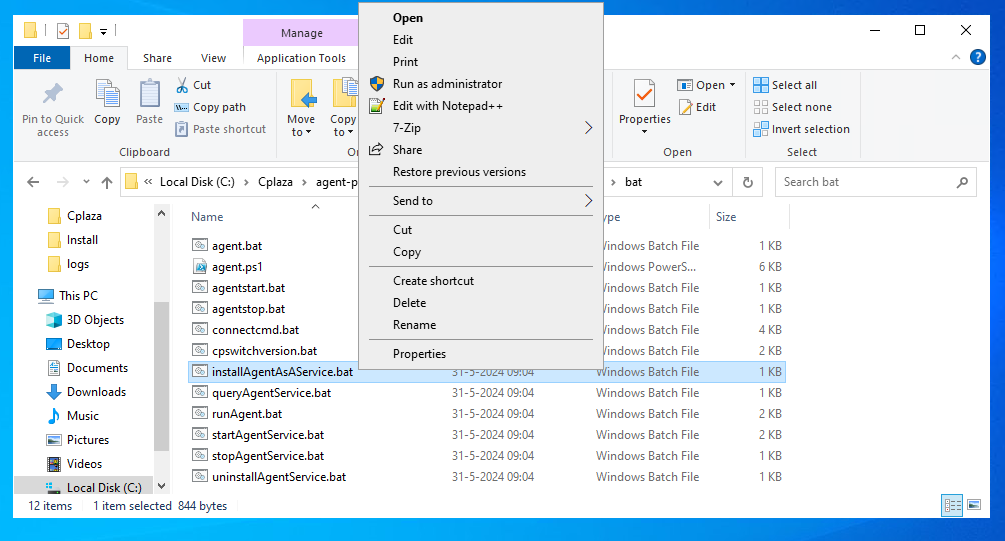
Or open a command window as an administrator, and run the command via this window. If this is the first time you run one of the scripts, a powershell script will run to create the 4.2.0 new directory structure for you.
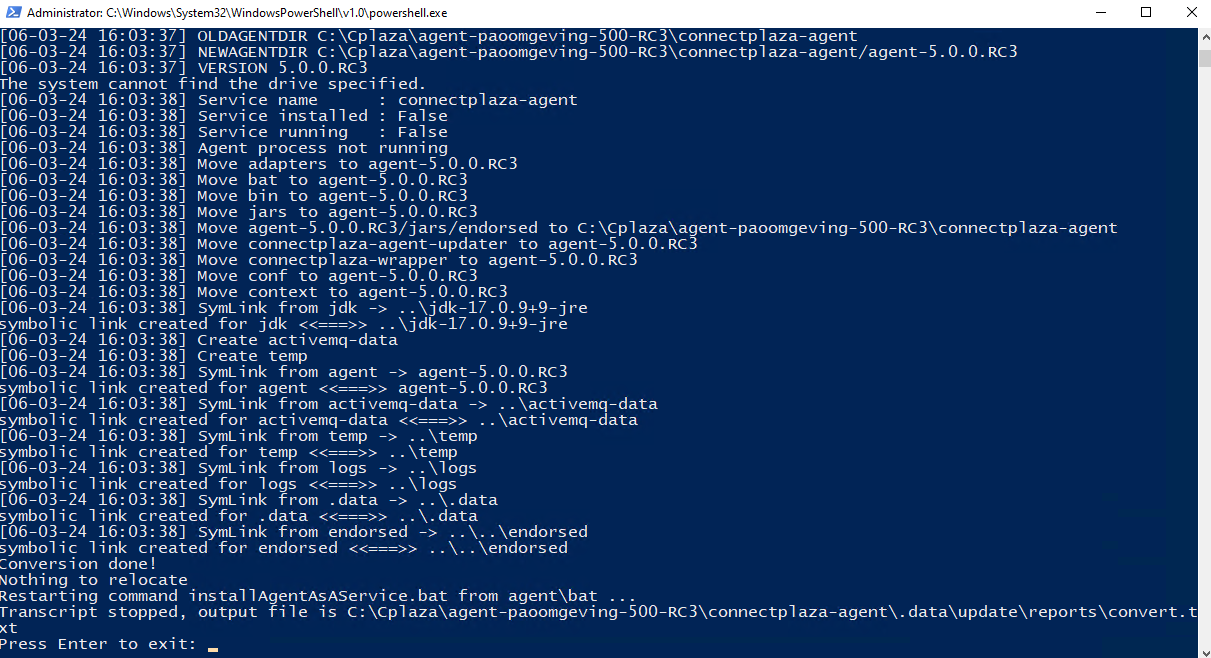
You can close this screen with the ENTER button on your keyboard.
The following result should be on your screen:
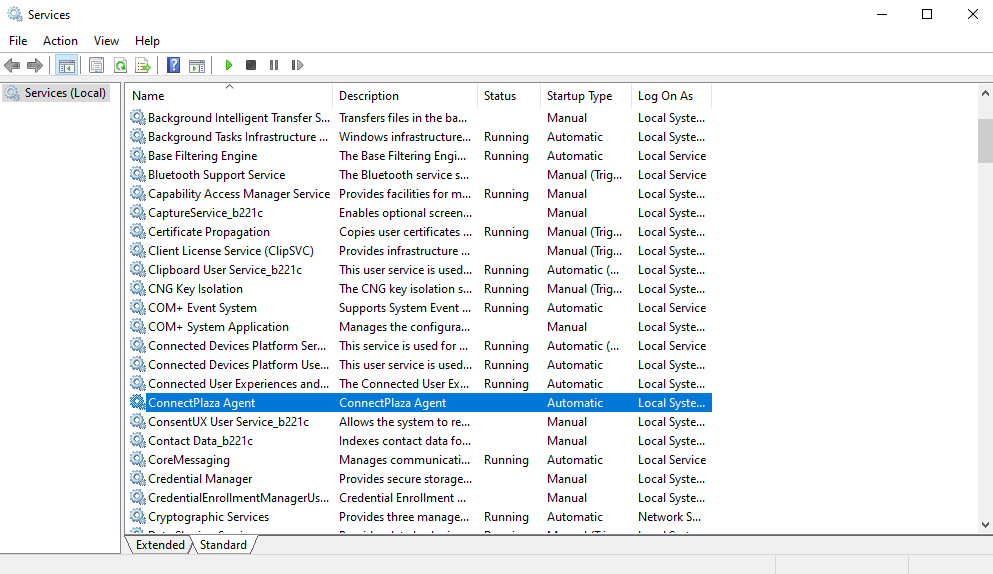
The service has been created. You can see this in your system services overview.

2. Starting / Stopping the ConnectPlaza® Agent service
You can start the ConnectPlaza® Agent via a command box or via the Windows Services application.
Use these commands in a command window to start the agent.
-
startAgentService/stopAgentService -
agent start / agent stop -
agentstart / agentstop
2.1. Starting / Stopping with the runAgent.bat script
Starting the ConnectPlaza® Agent via a script is ideal for testing purposes. All logging will be added to your console session. Start the ConnectPlaza® Agent with the following command via a command box. Be sure you have started the command box to Run as administrator.
cd <ConnectPlaza Install Directory>\agent\bat
runAgent.bat
When the ConnectPlaza® Agent is started you will see
at the last lines on your screen.
Stopping the agent will be done by pressing CTRL+C

Press Y to termintate the batch job. If you started the Agent by double clicking the runAgent.bat program, the command window will close automatically.
2.2. Starting / stopping the ConnectPlaza® Agent service
Open the services window. You can do this by selecting the Windows button  once! The windows menu appears.
Start typing the word Services .While typing Windows tries to solve the name of the application you want to execute.
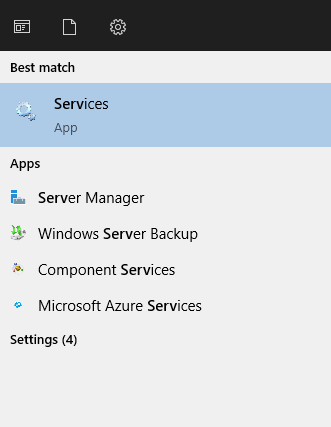
Select the services app, the application will now start.
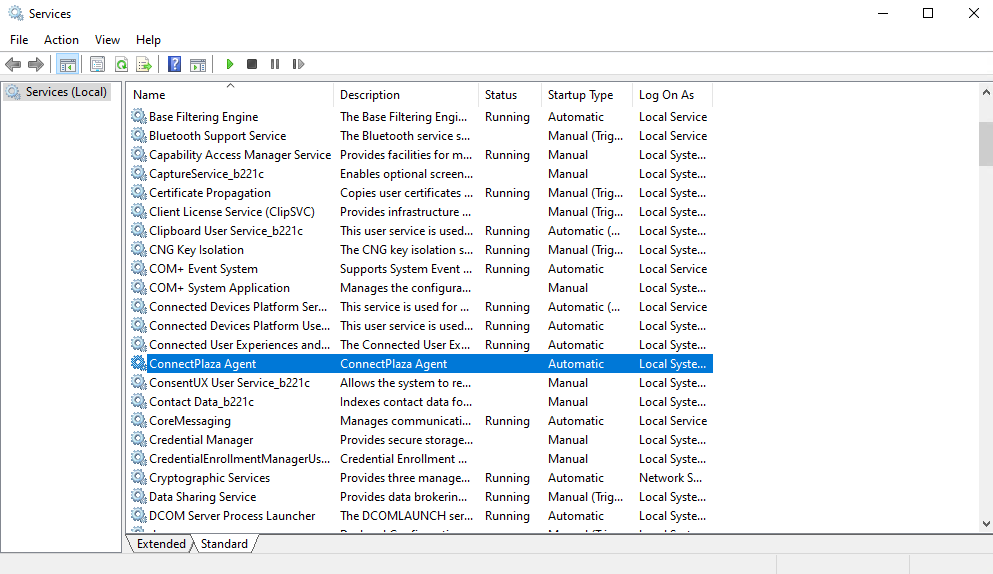
You can start / stop and restart the ConnectPlaza® Agent from here.
It can take a few moments for the Agent to start up. Check in the log files at <ConnectPlaza Install Directory>\agent\logs\connectplaza-agent.log, if the Agent is fully started.
3. Uninstalling the ConnectPlaza® Agent service
Uninstalling the Agent is very simple. Follow the next steps to uninstall the ConnectPlaza® Agent Service. Run the commands as Administrator
-
Go to the directory <ConnectPlaza Install Directory>\agent\bat
-
Uninstall the ConnectPlaza® service with the command:
uninstallAgentService.bat. The uninstall script will stop the agent, if it is running, and uninstall it for you.
Check your services application to check if everything has been going as planned.
4. Installing multiple ConnectPlaza® Agent on a single server
Installing multiple ConnectAgents on a single server is possible, but requires some post configuration by the installer before starting the ConnectPlaza® Agent. Mainly because port number will overlap. After all port numbers have been modified, we have to add a new service for Windows.
4.1. Installing the second ConnectPlaza® Agent
Register a new end-user and download the agent.zip file. Place the agent.zip file in a predefined directory where you can unzip the agent.zip file.
For instance, we place the file in the predefined directory C:\cplaza\agent2\connectplaza-agent.
4.1.1. Modifying the configuration files
There are a few configuration files we have to edit. Mainly because the port numbers will overlap and the ConnectPlaza® Agent will not start because there will be binding errors because of it. To solve this issue we will modify the following configuration files.
-
conf\connectplaza-agent.properties
-
connectplaza-wrapper\yajsw\conf\wrapper.conf
connectplaza-agent.properties
| String | Change |
|---|---|
connect.mbean.server.connector.url=service:jmx:jmxmp://localhost:9876 |
Uncomment this line and change the port number |
wrapper.conf
| String | Change |
|---|---|
wrapper.console.title=ConnectPlaza Agent updater |
Change the console title |
wrapper.ntservice.name=connectAgentUpdater |
Change the service name |
wrapper.ntservice.description=ConnectPlaza Agent Updater |
Change the description |
wrapper.ntservice.displayname=ConnectPlaza Agent updater |
Change the display name (optional) |
wrapper.app.account=<account-name> |
If starting the service with a Windows account other than local system account, you have to put the user account here. Do not forget you domain name if applicable. |
wrapper.app.password |
If starting the service with a Windows account other than local system account, you have to put the user password here. |
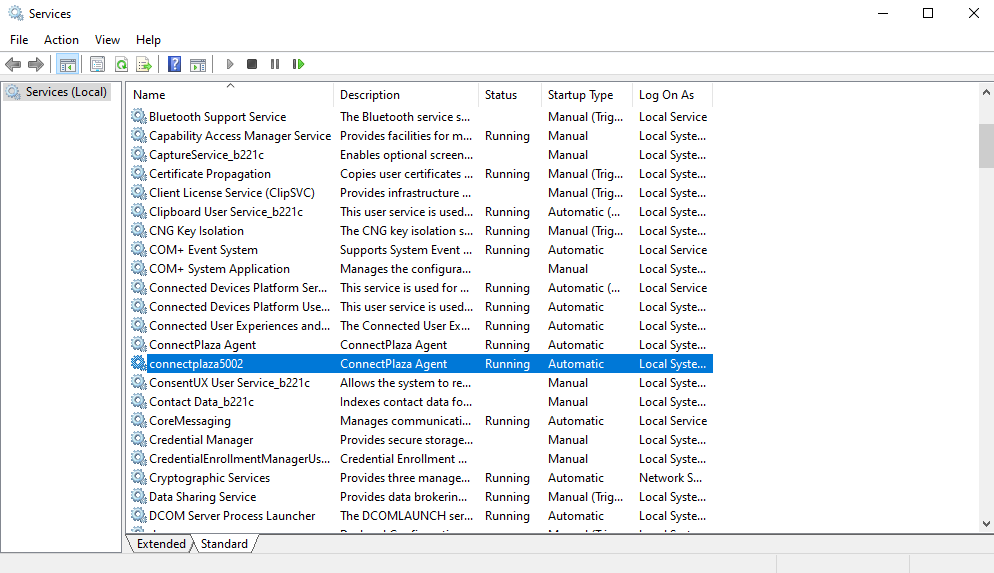
5. Getting the status of the ConnectPlaza® Agent service
You can check the status of the ConnectPlaza® Agent running the following command via a command box.
-
Open an command screen as an administrator
-
Go to the <ConnectPlaza install directory>\agent\bat directory
-
Execute the command:
queryAgentService.batMicrosoft Windows [Version 10.0.20348.2461] (c) Microsoft Corporation. All rights reserved. C:\Cplaza\connectplaza5002\agent\bat>queryAgentService.bat ********************************************************************************** * This script will perform a query on the ConnectPlaza Agent service and return * * information if the service has been installed, if it is running and the * * way the service has been configured to run. * ********************************************************************************** C:\Cplaza\connectplaza5002\agent\connectplaza-wrapper\yajsw Using locally installed JDK checking wrapper.java.command The system cannot find the drive specified. wrapper.java.command ok "C:/Cplaza/connectplaza5002/agent/jdk/bin/java" -Xmx30m -Dwrapper_home="C:\Cplaza\connectplaza5002\agent\connectplaza-wrapper\yajsw" -Djna_tmpdir="C:\Cplaza\connectplaza5002\agent\connectplaza-wrapper\yajsw/tmp" -Djava.net.preferIPv4Stack=true -jar "C:\Cplaza\connectplaza5002\agent\connectplaza-wrapper\yajsw/wrapper.jar" -q "C:\Cplaza\connectplaza5002\agent\connectplaza-wrapper\yajsw/conf/wrapper.conf" YAJSW: yajsw-stable-13.11 OS : Windows Server 2022/10.0/amd64 JVM : Eclipse Adoptium/17.0.9/C:\Cplaza\connectplaza5002\agent\jdk/64 Looking in classpath from org.rzo.yajsw.boot.WrapperClassLoader@36baf30c for /com/sun/jna/win32-x86-64/jnidispatch.dll Found library resource at jar:file:/C:/Cplaza/connectplaza5002/agent/connectplaza-wrapper/yajsw/./lib/core/jna/jna-5.12.1.jar!/com/sun/jna/win32-x86-64/jnidispatch.dll Extracting library to C:\Cplaza\connectplaza5002\agent\connectplaza-wrapper\yajsw\tmp\jna7828132848495660324.dll Trying C:\Cplaza\connectplaza5002\agent\connectplaza-wrapper\yajsw\tmp\jna7828132848495660324.dll Found jnidispatch at C:\Cplaza\connectplaza5002\agent\connectplaza-wrapper\yajsw\tmp\jna7828132848495660324.dll setCliProperties [] Name : connectplaza5002 Installed : true Running : true Interactive : false Automatic : true Manual : false Disabled : false Paused : false Unknown : false
6. Running the ConnectPlaza® Agent as a Service
When you are running the ConnectPlaza® Agent via the Windows Services the installation will install the service with a specific user, the Local System Account.
You can change this user for this service, but keep in mind that if ConnectPlaza® needs to update this service, your settings will be reset to the default settings.
When this happens, you can may lead to problems with your used Windows Shares or other parts of your OS where you need the specific user rights to connect to these parts of your system. So keep this in mind when you change these settings that the user settings are correct for all installed interfaces on this Agent.