Analyze
|
As of version 5.3.0 there is a new ANALYZE version available. For now both versions are available, but in a next update the current (old) analyze will be removed. |
1. Introduction
Analyze is a tool designed to see what is happening within the interfaces you build. If you implement the Analyze Wiretap component, the message will automatically be registered into the Analyze database.
How does this work?
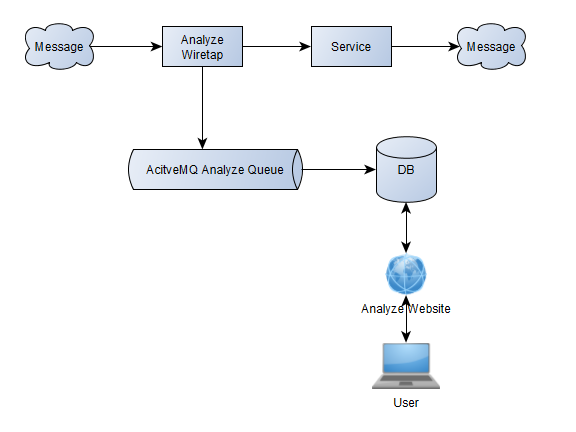
A message will be sent to the Analyze Wiretap component. This component will copy the message to an ActiveMQ queue. The data in this queue will be picked up and sent to the database you’ve configured. A user can see the data via the Analyze website. Because the creation of the Analyze data and the processing of the message in the ConnectPlaza® Agent are separate, Analyze will not slow down your processes.
2. Start with Analyze
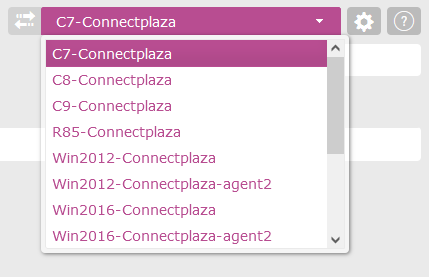
Log in into you ConnectPlaza® environment and select the Analyze tab. If it is the first time you log in into Analyze, you will be presented with a selection box to select the ConnectPlaza® Agent, Analyze will connect to.
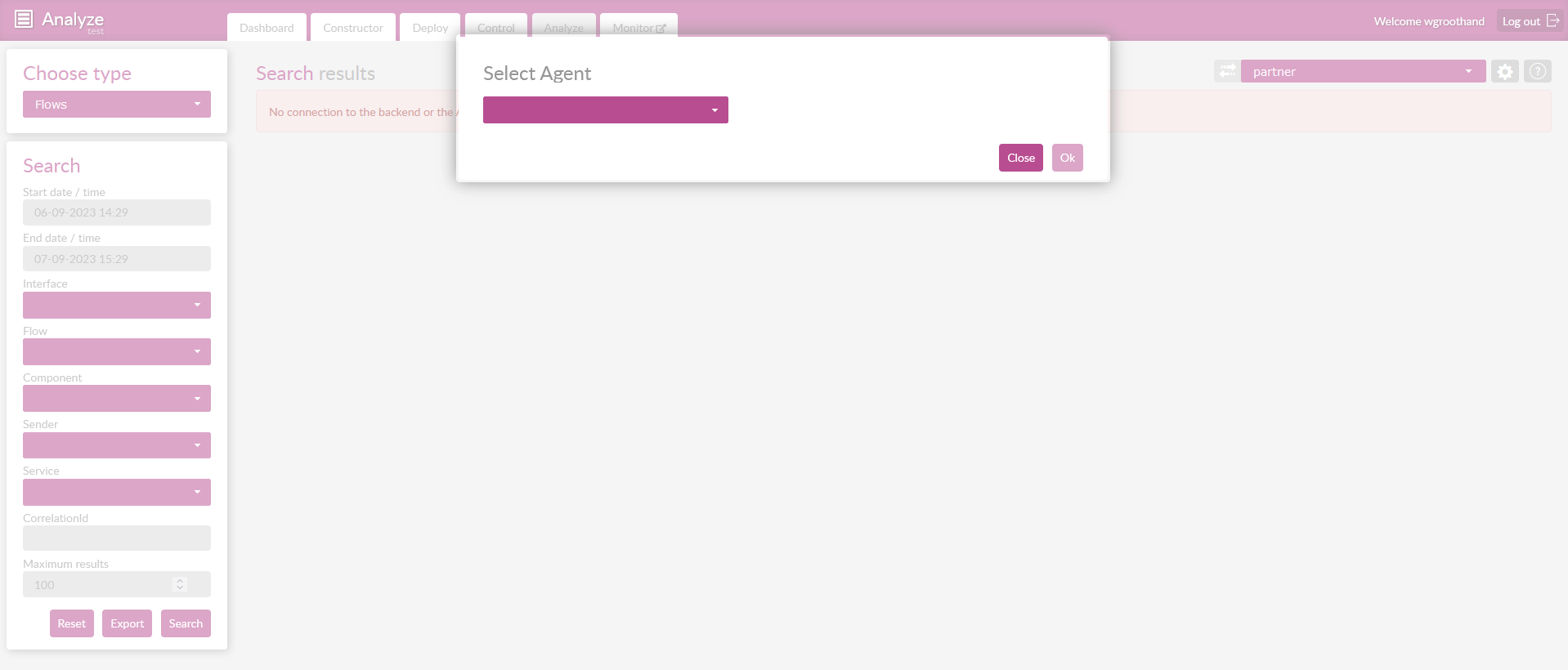
You can select close to close the selection box. Your application will continue without connecting to a ConnectPlaza ConnectAgent. You can use the dropdown to select an another ConnectAgent.
After selecting your Agent you will see the following screen.
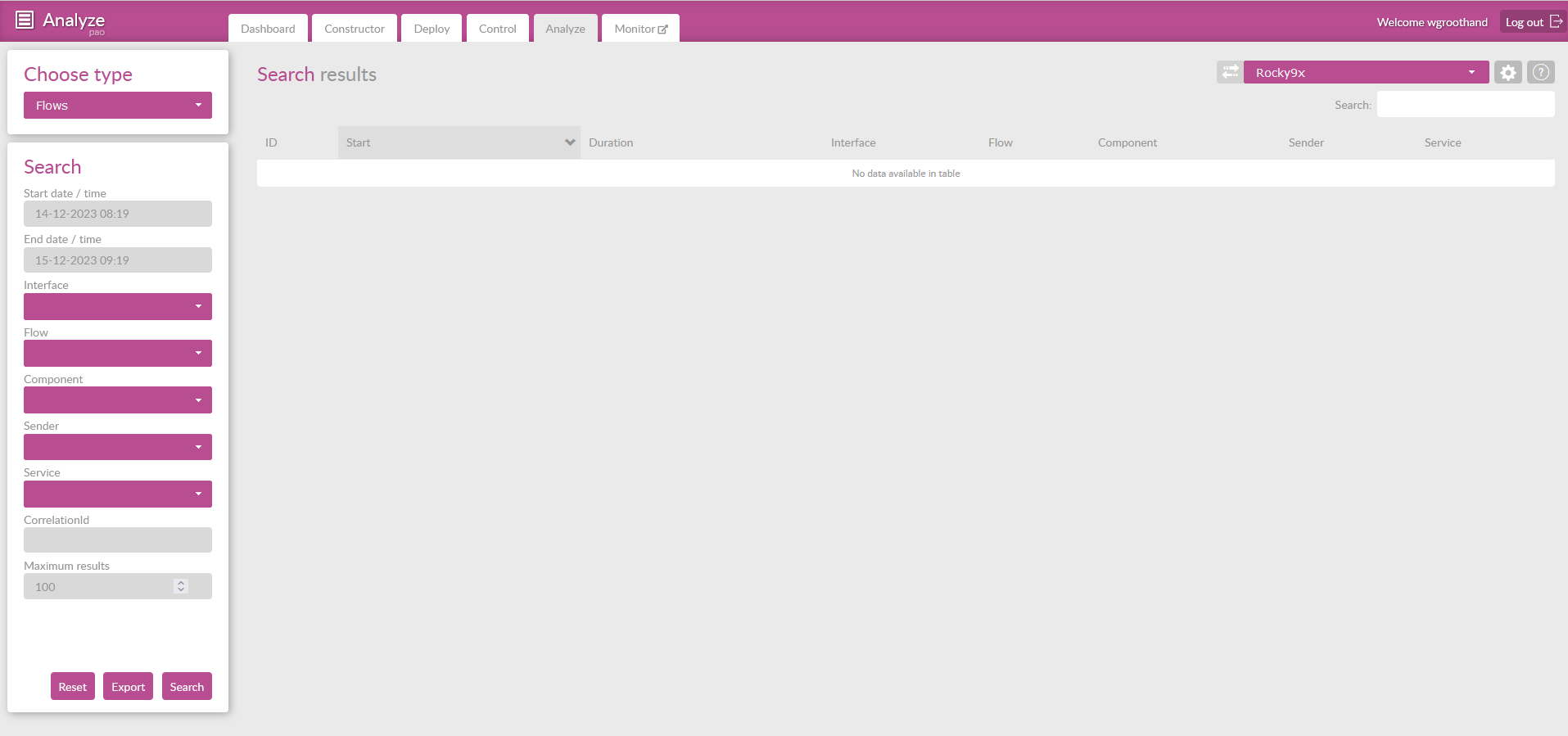
You can select another agent, by selecting one in the upper corner of the screen.
The default selection for the presented result type is the Flow data. You can select several ways of presenting the data via the Choose Type drop down box 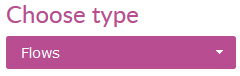
Which are:
-
Flows (default)
-
Messages
-
Business entities
Flows and Messages are in fact different representations of the raw data of your message, coming from the Analyze wiretaps. If you look at Messages, you will see all the messages which were sent through the Analyze wiretaps sorted by date. The data presented to you can be from different Flows which were active within the timeframe given and taking into account the other filter options.
If you select the option Flows, you select a flow, instead of a single message. You can trace the message going through the ConnectPlaza® Agent with all its steps, in order of time.
Business entities will be addressed later, this is a totally different way of working with the data and we will address this separately.
3. Settings
You also see some buttons at the top right of the screen, including a search box.
This functionality will be available to you at all times.
| Button | Description |
|---|---|
|
Select another Agent via this selection box. |
|
This will open a popup list with the following options: * Export jobs * Login management This will be discussed later. |
|
This will open a popup list with the following options: * Documentation * About |
|
This is a search option for the data on the screen. The search will be applied at all the data in the selection. The search will be applied directly as you are typing. |




4. Filter options
If you choose Flows or Messages you will see some filter options at the left of the screen, the following fields are presented to you:
| Field | Description |
|---|---|
Start date / time |
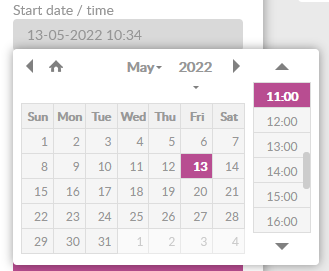
Start of the selection. This is a date and time selection. If you click in this field to enter a specific date and time, you will be presented a calendar to help you enter the data required.
|
End date / time |
The same as the start date and time , only this field represents the end of the selection. |
Interface |
This selection boxes values will be filled in with the data available in the database |
Flow |
This selection boxes values will be filled in with the data available in the database |
Component |
This selection boxes values will be filled in with the data available in the database |
Sender |
This selection boxes values will be filled in with the data available in the database |
Service |
This selection boxes values will be filled in with the data available in the database |
CorrelationId |
Message correlation ID |
Maximum results |
Select the number of results returned by the database. This value defaults to 100. Remember, the higher the value, the more slower the application will be. Analyze can save a lot of data. |
The search results will be different between Flows and Messages. If you have selected the Messages type, you will be presented with the following data:

| Field | Description |
|---|---|
Timestamp |
Date-Timestamp the record is registered |
Interface |
Interface of the Analyze wiretap. But you can also define a value in the Analyze wiretap yourself. Then you will see this value over here. |
Flow |
Flow name, or the given value in accordance with # # the Analyze wiretap in your interface |
Component |
Name of the component given in the Analyze Wiretap during configuration of the Analyze wiretap in the constructor. If the component is not defined in the Analyze wiretap, the values will be consumer, service or producer. |
Sender |
Presentation of the Sender given in the Analyze Wiretap during configuration of the Analyze wiretap in the constructor |
Service |
Presentation of the Service given in the Analyze Wiretap during configuration of the Analyze wiretap in the constructor |
CorrelationID |
Every message has a correlation ID given to it by the system. This is that ID |
If you have selected the type Flows , you will see the following information on your screen:

The Flow information gives you information about the complete flow of a message. We will demonstrate this in a later example. But what you need to know is that Flows are the representation of a message through every process from consumer through services and ending with a producer. With the selection of the Messages type you will see all message from all flows together in the screen.
| Field | Description |
|---|---|
ID |
Every message has a correlation ID given to it by the system. This is that ID |
Start |
Date-Timestamp the record is registered at |
Duration |
Total duration time of the complete flow |
Interface |
Interface of the Analyze wiretap. But you can also define a value in the Analyze wiretap yourself. Then you will see this value over here. |
Flow |
Flow name, or the given value in accordance with # # the Analyze wiretap in your interface |
Component |
Name of the component given in the Analyze Wiretap during configuration of the Analyze wiretap in the constructor. If the component is not defined in the Analyze wiretap, the values will be consumer, service or producer. |
Sender |
Presentation of the Sender given in the Analyze Wiretap during configuration of the Analyze wiretap in the constructor |
Service |
Presentation of the Service given in the Analyze Wiretap during configuration of the Analyze wiretap in the constructor |