Business entities
1. Introduction
A business entity turns technical integration data into something you can search in business terms: an order number instead of a payload. Business entities have been part of Analyze for years, and this version changes how you configure them and how you find them at runtime.
-
Definitions, Pipelines and Agent Mappings all use the same versioning system —
Draft,SnapshotandRelease. See Analyze concepts. -
Definition properties are typed, rather than text only.
-
Pipelines replace MatchEntries and RuleSets as the way to fill a business entity in.
-
Configuration is stored in your Studio profile and synchronised to your agents, so a reinstalled or repaired agent gets it back from the Studio.
|
The older rule-set engine has not been removed. It still ships, and
|
This page describes the overview screen itself. The rest of the drawer has a page each:
-
Business entity definitions — say which properties an entity has, and of which type.
-
Pipelines — say how a message fills those properties in.
-
Simulating a pipeline — try a pipeline against a real message before you deploy it.
-
Agent mappings — connect a pipeline to a wiretap.
-
Deployments — assign a mapping to an agent.
2. Overview
The business entities overview lists the business entities Analyze has stored. The filters resemble the Trace overview’s: From and To datetimes, plus Interface, Flow and Wiretap.

Press Apply filters to run the search, and Refresh filters to reload the values offered in the dropdowns rather than the results. See Analyze for the filter panel in full.
|
This screen does not behave like the Trace overview. Changing From or To re-runs the search immediately, without waiting for Apply filters, and Clear filters also re-runs it rather than only emptying the fields. On the Trace overview neither of those happens. |
Use the Definition and Version filters to narrow the list to one kind of business entity.
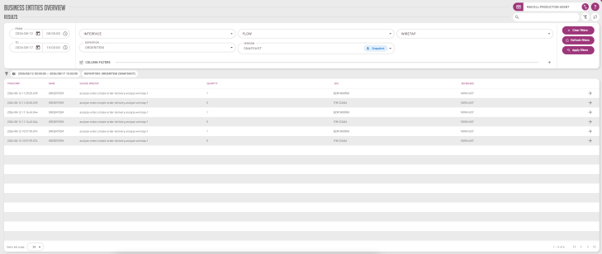
|
Selecting both a Definition and its Version is what adds one column per property to the results. Until you have chosen both, the table shows only the fixed columns, and the Property filters described below have no columns to offer. Only definitions that have been snapshotted appear in the Definition list. A draft-only definition is not there — see Analyze concepts. |
The results carry these fixed columns, whatever definition you choose:
| Column | Meaning |
|---|---|
Timestamp |
When the message that produced this entity was recorded. |
Definition |
The business entity definition this row was built from. |
Source wiretap |
The wiretap point the message passed, as |
You can open the original message behind any row using the arrow at the right hand end of it. That takes you to the message the wiretap stored, and from there to the whole trace.
2.1. Sorting
Timestamp and Definition can be sorted. Click the column header to sort by it, click again to reverse, and a third time to drop the sort and return to the default order.
|
Source wiretap and the property columns cannot be sorted in 5.3.0. Their headers are not clickable, so if you need your results in property order, narrow them with the Property filters below and export them instead. |
Sorting is done by the agent, over everything that matches your filters, not just the page you are looking at. It is therefore a different thing from the search box in the table header, which only narrows the rows already on screen.
2.2. Property filters
In addition to the standard search criteria, you can search on the business entity’s own property values — for example every order over a given amount.

Click + to add a property filter line, and the trash icon on the right to remove one.
Each filter line has three parts:
-
Column — the property of the business entity you want to search on. The list comes from the definition, so it is only populated once a Definition and a Version are selected.
-
Operator — how to compare. See the table below.
-
Value — what to compare against.
| Operator | Meaning |
|---|---|
|
Equal to |
|
Not equal to |
|
Greater than, greater than or equal to |
|
Less than, less than or equal to |
|
Contains the text anywhere in the value, ignoring case |
Comparison follows the property’s declared type. A LONG or a DOUBLE is compared
numerically, so Amount > 100 does not match 99, which is what a text comparison
would have done. A DATETIME is compared chronologically, and must be given in
ISO-8601 form, for example 2026-01-15T09:30:00.
like is always a case-insensitive contains: like order matches MyOrder
and ORDER-42 alike. There is no way to anchor it to the start or end of a value.
Inside a like value you can also use two wildcards: * stands for any run of
characters and ? for exactly one. Because the value is already a contains,
these only help in the middle of a pattern — h*n finds China. To search for a
literal asterisk or question mark, escape it as \* or \?.
|
Property filters work the same whether your Analyze data is stored in SQL or in MongoDB. Earlier releases could not search business entity properties on MongoDB at all. |
Example. You have an Order business entity with two properties, Name (TEXT)
and OrderID (LONG). Two filter lines together find one set of orders:
-
Name like MyName— every order whose name contains "myname", in any casing -
OrderID > 10— and, of those, the ones with an OrderID above 10
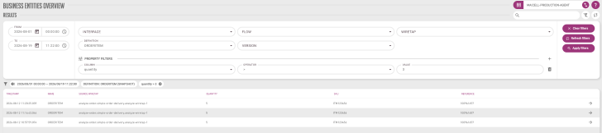
Each applied property filter also appears as its own chip above the results, and removing the chip re-runs the search immediately, without waiting for Apply filters.
|
Properties written by the older rule sets rather than by a pipeline are all stored
as text, whatever they look like. Numeric and date comparisons find nothing on
those, so use |