How to integrate Analyze in your interfaces
1. Introduction
Analyze sees nothing until you tell it to. What puts data into Analyze is the Analyze Wiretap component: wherever you place one in a flow, it takes a complete copy of the message passing that point and sends it to the Analyze database of the agent the flow is installed on.
Taking the copy is not free: the copy itself, the size check and the hand-off to the Analyze queue all run inline, on the thread carrying your message. What happens after that is not on your flow — a separate listener picks the copy off the queue and writes it away. So a wiretap costs a little on every message, and a problem storing the copy cannot fail the message, not even when the Analyze queue is full.
2. Placing a wiretap
The Analyze Wiretap is in the Wiretaps category of the component library, and can be dropped into the Consumers, Services or Producers band of a flow in Constructor.
Place one wherever you would want to see the message if something went wrong. In practice that usually means:
-
Straight after the consumer, to record what arrived, before anything changed it.
-
After each transformation whose output you would want to inspect.
-
Before the producer, to record what was actually sent on.
Every wiretap costs a stored message, so wiretap the points that answer a question, not every step.
2.1. The wiretap’s settings
All of the fields are optional, and the defaults are usually right.
| Field | What it does |
|---|---|
Interface |
The interface name recorded on the copy. Defaults to the interface the wiretap is in. |
Flow |
The flow name recorded on the copy. Defaults to the flow the wiretap is in. |
Component |
Which point in the flow the copy is attributed to. Defaults to the type of component the wiretap sits on: consumer, service or producer. |
Sender |
A free label for who sent the message. Empty unless you set it. |
Service |
A free label for what the message is for. Empty unless you set it. |
Autostart |
Whether the wiretap starts with the flow. Normally left on. |
Interface, Flow and Component become the dimensions you filter results on, in both Traces, messages and comparing and Business entities. Component is the one behind the ComponentType filter in the trace overview and the Wiretap filter in the business entities overview. Sender and Service are yours to use: fill them in and they become two more filters, leave them and those dropdowns stay empty.
|
Component is a label, not an identity, and its default is not unique. Two wiretaps sitting on the same kind of component in the same flow get the same default value, because that value is the component type rather than the wiretap. Leaving the field alone does not tell them apart anywhere in Analyze. Nor is it what a pipeline is bound to. An Agent Mapping rule binds to the wiretap
point So if you put two wiretaps in one flow, give each a meaningful id so you can tell which is which when you map them, and fill in Component so the overviews say which point in the flow a copy came from. |
2.2. What gets stored
The wiretap stores the message as it was at that point: its properties, and each of its message parts.
|
A stored message is capped at 1 MB in total. Above that, each part is trimmed to an equal share of the budget and its content is replaced with a marker naming the limit and quoting the beginning of the content. If you are moving large payloads, wiretap after the step that extracts the part you care about, rather than copying the whole thing and finding it truncated. |
Message history is not capped and nothing is dropped from it. It is stored in chunks
of at most 200 characters, spread over as many numbered connectplaza-history-N.M
properties as it takes, and the ids of the wiretaps the message already passed are
split the same way across connectplaza-messageid-history-N. Expect to read a long
history across several properties rather than in one.
|
If the message enters your flow through an HTTP Listener, check its Expected
Content Type. Left at So on the content types that give you bytes, the stored copy is perfectly readable
text but is no longer your JSON or XML — it looks fine in the message viewer while
every JSONPath, XPath and regular expression rule in a pipeline fails to match it.
Setting Expected Content Type to |
3. A worked example
The interface below is a simple file pickup of an XML file, transformed into HTML by an XSLT transformer. The two Analyze Wiretaps each send a complete copy of the message at that point to Analyze, on the agent this flow is installed on — one before the transformation and one after, so you can compare them.
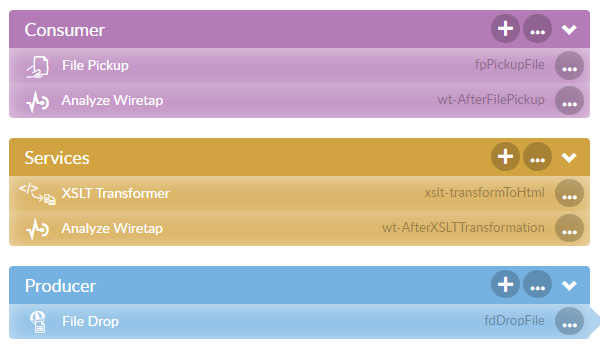
The file is picked up from the input directory and written to the output
directory as an HTML file.
This XML file goes into the input directory:
Download the XML file.
<?xml version="1.0" encoding="UTF-8" ?>
<Customers>
	<Customer>
		<first_name>Edward</first_name>
		<last_name>Evans</last_name>
		<full_name>Edward Evans</full_name>
		<phone>503-310-3671</phone>
		<address>1 A ST</address>
		<city>JOHNSTON</city>
	</Customer>
</Customers>
The output looks like this:
<html>
	<body>
		<Customer>
			<first_name>Edward</first_name>
			<last_name>Evans</last_name>
			<full_name>Edward Evans</full_name>
			<phone>503-310-3671</phone>
			<address>1 A ST</address>
			<city>JOHNSTON</city>
		</Customer>
	</body>
</html>
The XSL file looks like this:
<xsl:stylesheet version="1.0" xmlns:xsl="http://www.w3.org/1999/XSL/Transform">
  <xsl:output indent="yes"/>
  <xsl:strip-space elements="*"/>

  <!-- Identity transform -->
  <xsl:template match="@*|node()">
    <xsl:copy>
      <xsl:apply-templates select="@*|node()"/>
    </xsl:copy>
  </xsl:template>

  <xsl:template match="/Customers">
    <html>
      <body>
        <xsl:apply-templates/>
      </body>
    </html>
  </xsl:template>

  <xsl:template match="para">
    <p>
      <xsl:apply-templates select="@*|node()"/>
    </p>
  </xsl:template>

  <xsl:template match="link">
    <a>
      <xsl:apply-templates select="@*|node()"/>
    </a>
  </xsl:template>
</xsl:stylesheet>
3.1. Check it in Analyze
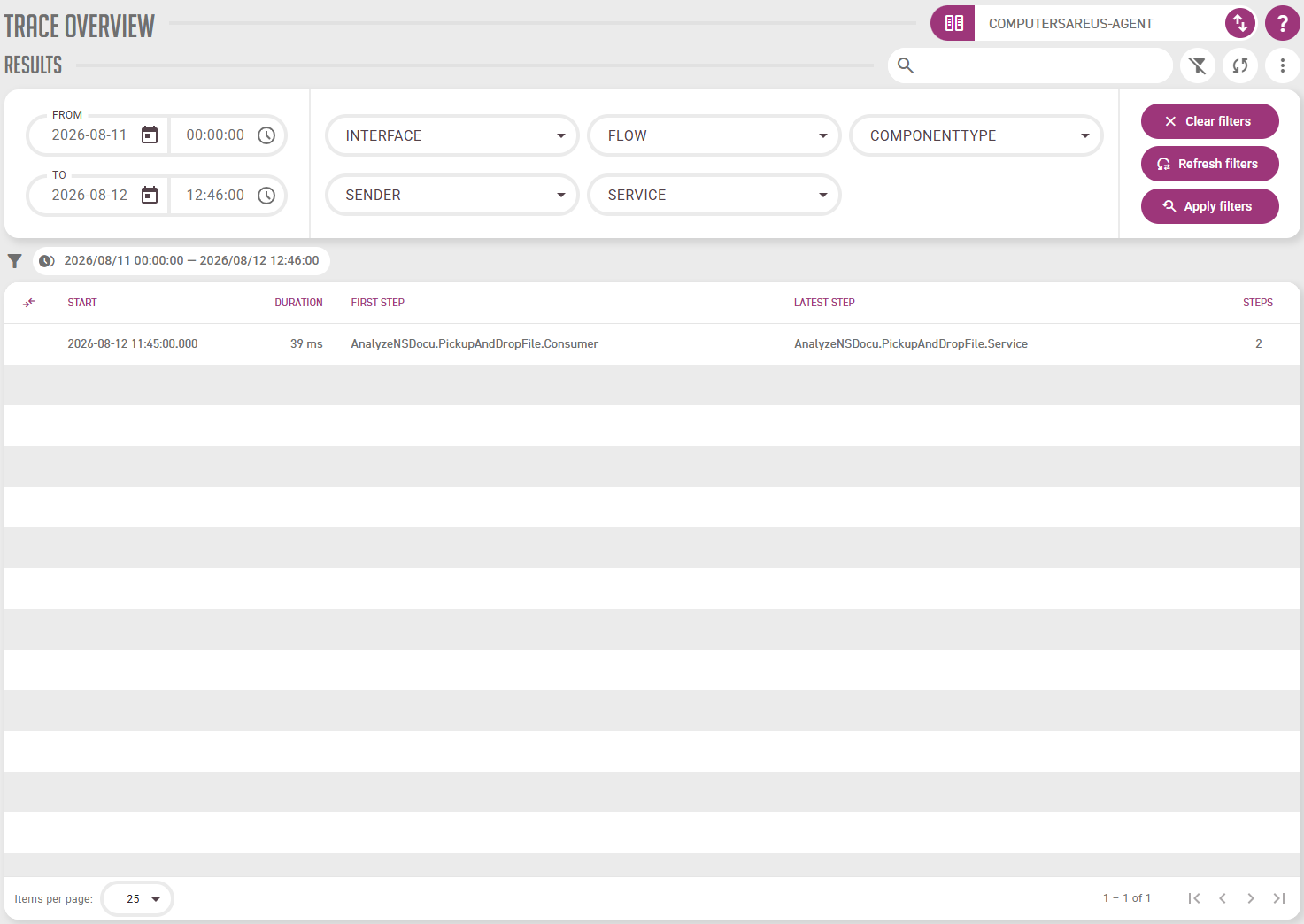
Drop cust1.xml into the input directory, then open Analyze. The trace overview
should show a trace for it, with 2 steps — one per wiretap.
|
If nothing appears, it is almost always the date window rather than a missing message: the results open on yesterday 00:00 to now, so widen From and press Apply filters. See Troubleshooting Analyze if that is not it. |
Double click the trace to open it.
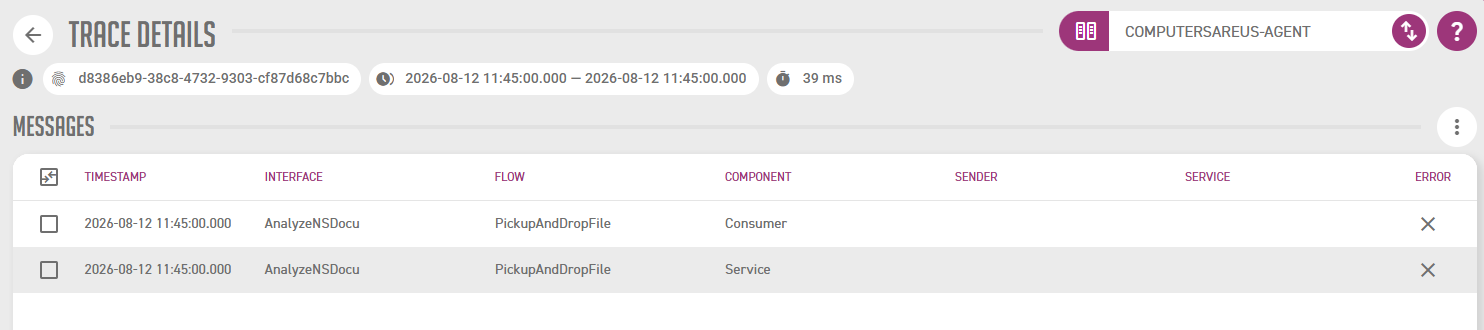
Each row is one wiretap’s copy: the first is the file as it was picked up, the second is the HTML the transformer produced. Double click either to read it in full, or tick both and compare them side by side.
4. Where to go next
You now have messages in Analyze, which is enough to search and read them — Traces, messages and comparing covers that.
To turn this traffic into business information rather than technical messages — so you can search for an order by its number instead of hunting through payloads — carry on with Analyze concepts, which explains the model, and then Business entity definitions, where you define the first one.