Analyze concepts
1. Introduction
Analyze has two halves, and it is worth knowing which one you are in.
-
Traces answer the question: what went through my interfaces? Every message an Analyze Wiretap copies is stored as it was, and you can search it, read it, compare two messages and export a selection. Nothing has to be configured beyond placing the wiretap.
-
Business entities answer the question: what did that traffic mean? A definition says what a business object looks like, a pipeline says how a message fills one in, and the result is searchable as business data rather than as technical messages. This half has to be configured, and this page describes the model it follows.
2. The snapshot chain
Four documents stand between a message arriving and a business entity appearing in the Overview, and each one can only bind a published version of the one before it.
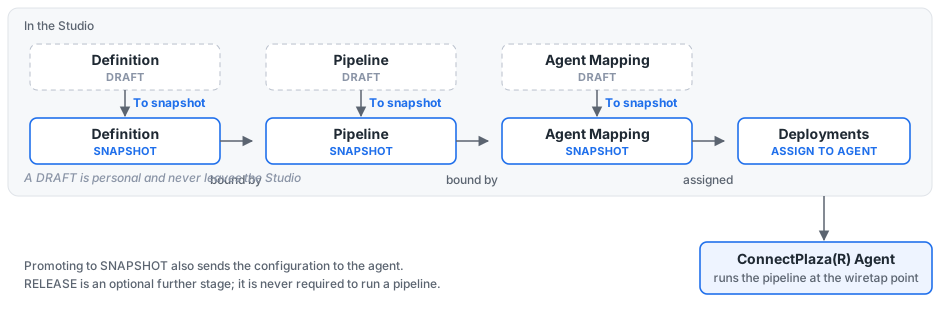
Read left to right:
-
A Business Entity Definition says which properties the entity has, and of which type. Promote it with To snapshot.
-
A Pipeline is bound to that definition snapshot and says how a message fills those properties in. Promote it with To snapshot.
-
An Agent Mapping binds that pipeline snapshot to a wiretap point in a running flow: when a message passes this tap, run this pipeline on it. Promote it with To snapshot.
-
Under Deployments, that mapping snapshot is assigned to an agent.
|
A Draft is personal and never leaves the Studio. It cannot be bound by the next document in the chain and it cannot reach an agent. This is the most common reason a definition you have just created is missing from the pipeline editor’s Definition dropdown, or a pipeline you have just built is missing from an Agent Mapping rule: it has been saved, but not promoted. |
Release is an optional further stage. It is never required in order to run a pipeline; a chain of snapshots is enough, including in production. Use releases when you want a version that is tagged, immutable and kept indefinitely.
2.1. Promoting to snapshot also publishes to the agent
Promoting a pipeline or a mapping to Snapshot saves it and then tells the agent to fetch it. That is why an updated mapping takes effect without being re-assigned.
|
Only To snapshot does this. Promoting to Release saves the version but sends nothing, and the agent that is told to fetch is the one currently selected in the Studio, not the agent the mapping is assigned to. The Studio does not wait for the agent to confirm and does not report a failure, so a promotion can report success while the agent is unreachable and still running the previous content. There is no periodic poll to correct that: an agent catches up about ten seconds after it reconnects, and until then it keeps running what it already had. |
2.2. Only a Draft can be edited
On a Snapshot or a Release the pipeline canvas is locked, its ports are disabled and every configuration field is read only. To change a published version, use To draft to copy it back into your personal draft, edit it there, and promote it again.
|
To draft overwrites whatever is currently in your Draft. |
2.3. Snapshots can be replaced, releases cannot
The three states apply to Business Entity Definitions, Pipelines and Agent Mappings alike, and several versions of each can exist side by side, so different agents and environments can run different versions of the same configuration.
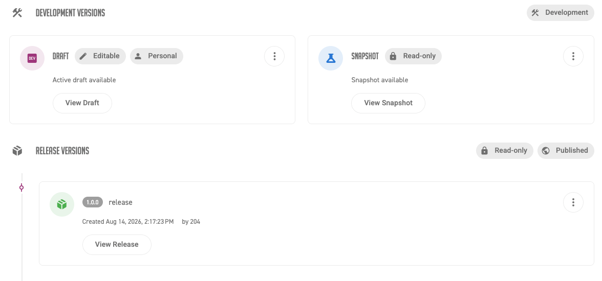
A Snapshot is shared with everyone in the profile and can always be overwritten by a later promotion, which is what makes it the right thing to iterate on. A Release is tagged, kept indefinitely and can never be overwritten — so promote to release when you want a version that is guaranteed to stay exactly as it is.
Either can be copied back over your personal Draft with To draft.
3. Glossary
These words appear throughout the Analyze screens, and several of them mean different things in different places.
| Term | Meaning in Analyze |
|---|---|
Trace |
Everything that belongs to one correlation ID: the whole journey of a message through your interfaces, however many wiretaps it passed. |
Message |
One wiretap’s stored copy of a ConnectPlaza® message, with its properties and its parts. A trace holds one or more. |
Message part |
One payload slot on a message, |
Wiretap point |
A place in a running flow where an Analyze Wiretap sits, identified as |
Business Entity Definition |
The shape of a business object: a name plus a list of typed properties. Also called the entity, or the definition. |
Property |
One typed field on a definition. The API and some screens call the same thing an attribute; they are the same thing. |
Pipeline |
The rule graph that turns a stored message into a business entity: one input, a chain of rules, and one assignment per property. |
Rule |
One node in a pipeline that extracts or transforms data, such as a JSONPath rule or a script. |
Assignment |
The end point of a pipeline branch, which writes one value into one property. Assignments are created automatically from the bound definition; you do not add them by hand. |
Agent Mapping |
A document holding rules of the form: at this wiretap point, run this pipeline version. |
Deployment |
The assignment of one Agent Mapping version to one agent. |
Dimension |
A field you can filter results on, taken from the wiretap’s own settings: interface, flow, component, sender and service. |
|
One dimension carries three different labels. The Trace overview filter calls it ComponentType, the Trace details grid calls it Component, and the Business entities overview calls it Wiretap. They are the same dimension. They are not equally precise, though. On the Trace overview and in the Trace details the value is the component’s type, while the Business entities overview’s Wiretap dimension carries the component’s name. So two wiretaps in the same flow look identical on the trace screens and can be told apart on the business entities screen. |
Note also that the word pipeline is used in two senses across the product. In Constructor, the flow inside an interface is loosely called a message pipeline. In Analyze, a Pipeline is the rule graph described above. These pages always mean the second.