Business entity definitions
A business entity is the business object you want to find in your traffic — an order, a customer, an invoice. You define it once, and Analyze then recognises it in the messages ConnectPlaza® processes and stores it so you can search for it later.
Every entity needs one or more properties. These are the typed fields you search
on: an order might carry OrderId, OrderDate and OrderValue. Define whatever
your business needs — nothing here is fixed.
1. Adding new entities
Add a new entity from the left side menu, under Business Entities → Definitions. You will find the new entity box there, with a + to add.

Enter a name and click + to create the definition.
The Business Entity Editor opens on your Draft. Unfold the entity in the list to see it.
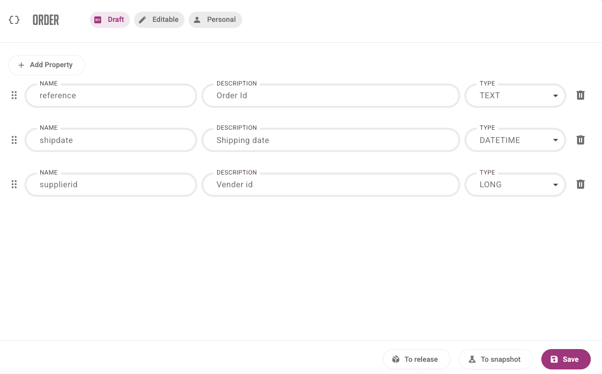
From here you add properties to the business entity with the Add Property button. Add as many as you need; each one is a row of fields.
-
Name: the name of the property.
-
Description: what it holds.
-
Type: one of the five types below.
| Type | Description |
|---|---|
TEXT |
Textual values. Also the fallback for anything that does not fit the other types |
LONG |
Whole numbers, including large ones |
DOUBLE |
Floating-point numbers, stored approximately. Fine for measurements and ratios, wrong for money |
BOOLEAN |
Either true or false |
DATETIME |
Date and datetime values. Set the format on the blue Assignment block in the pipeline editor, so Analyze knows how to read the value your source sends — for example |
|
The data model also carries a DECIMAL and a BINARY type, but the editor does not offer them in 5.3.0. For money, use TEXT if you need the digits back exactly as they arrived, since DOUBLE is approximate. |
|
In the datetime format, Leaving the format field empty is not a shortcut: with no format configured, Analyze expects the value to be epoch milliseconds, and anything else is dropped the same way. |
Reorder a property by dragging the six dots on its left, and remove one with the trash icon on its right.
Click Save at the bottom right when you are done. Nothing is kept until you do.
Then promote the draft with To snapshot or To release. A snapshot is created straight away; a release lets you set the version number and asks for a commit message.
|
A definition has to be snapshotted before a pipeline can use it. Save alone is not enough — see Analyze concepts. |
2. Working with existing definitions
| To do this | Do that |
|---|---|
Change a definition |
Open its Draft, edit, Save, then promote it again. Only a Draft is editable. |
Look at a published version |
Click its Snapshot or Release. It opens read-only. |
Copy a published version back into your draft |
Open it and click To draft. This overwrites your current Draft. |
Delete one version |
Open it and click Delete version. |
Delete the whole definition |
Open the definition, then the three dots at the top right, and choose Delete definition. |
|
Deleting a definition cannot be undone, and it takes every one of its versions with it. Any pipeline bound to it stops working, so check the Pipelines screen for pipelines that use this definition before you delete it. |